

Opening Range Breakout cBot
 Created 02 Apr 2025
·
Updated 07 Feb 2026
Created 02 Apr 2025
·
Updated 07 Feb 2026
The Opening Range Breakout is a Premium mechanical strategy (cBot) for the cTrader platform. The strategy can be used to pass trader funding programs.
Prerequisites
To properly use this strategy you should have the following prerequisites available.
- cTrader trading software, with any cTrader broker.
- An automated-trading.ch account with an active Premium Subscription
Important Disclaimer
We strongly recommend that you never run your algorithmic trading systems on your hard-earned real money. You should always minimize your risk and run your strategies on trader funding programs, so the maximum amount you risk losing is the monthly subscription fee you pay those programs.
The Opening Range Breakout strategy is based on entering on a signal generated by analyzing market behaviour in regard to a price range formed around the first minutes of the trading session. The strategy provides a very flexible entry setup based on that breakout concept.
The strategy will start by detecting the opening range — an interval that can be parametrized, but in general terms the opening range should be located around the opening market hour of the instrument. The opening range can, for example, be defined between 09:30 EST and 09:45 EST (spanning 15 minutes) or from what is known as the Cash Open, from 08:30 EST to 09:30 EST. You should experiment with different intervals and seek the most adapted interval for each instrument.
The second step of the strategy is to wait for a breakout of the price from the opening range. The strategy will wait for the price to retest the range as the first required condition before deciding to open a trade. After the retest, the strategy will wait for the price action to show a strong breakout in the direction of the initial retest. Precisely, the strategy will look for a Fair Value Gap that will be the trigger to enter a trade, or the strategy can be set to an immediate mode which will enter a trade at the close of a bar without waiting for a Fair Value Gap to occur. The strategy will also look for these entry conditions to occur before a certain time limit for the day — generally speaking, the longer you wait for the price to break out, the further the price can get from the initial price range, so the default time limit is 11:00 EST, meaning no trades will be triggered after that. This is, of course, a parameter you can modify.
Entering a trade is an important part of any strategy, but what is more important is managing the trade. The strategy allows managing the trade with many methods, including the initial setting of the Stop Loss price, a Take Profit price, and a dynamically set quantity to maintain a fixed risk per trade — a crucial part of any strategy's long-run profitability. The Stop Loss price can be set to Fibonacci levels calculated on the retracement of the opening range zone, or to the opposite level of the SuperTrend indicator, provided and used internally by the strategy.
Entry Setup Examples
Example #1: Entry Setup on US500
On this example, run on the US500 index on the 1-minute timeframe, the opening range is set to span from 09:30 to 09:34 EST, and a Fair Value Gap is required before entering a trade after price retraces to the opening range. The stop loss is set to the 61.8% Fibonacci retracement of the range, and the take profit is set to a 3:1 win/loss ratio. Price retraced back into the opening range, then a strong bullish move occurred which made the strategy open a long trade.
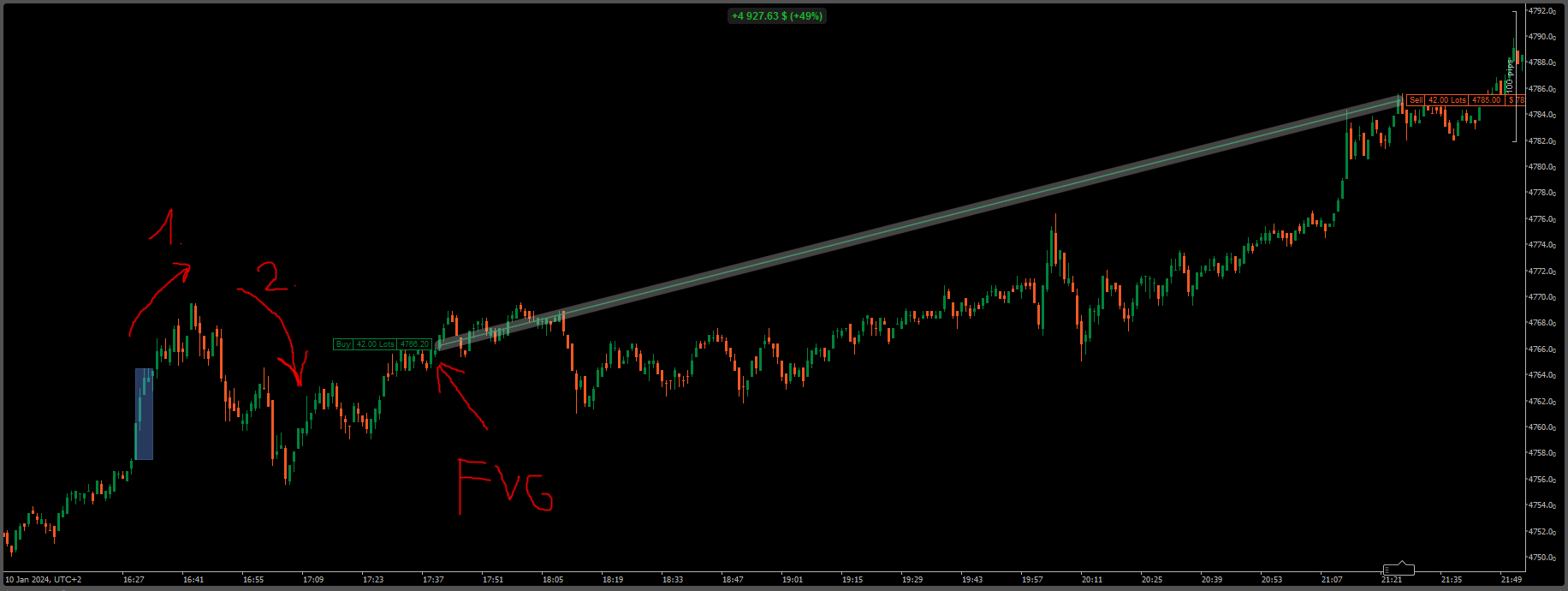
Example #2: Failed First Entry, Then a Winning 2nd Entry on US500
Same settings as example #1 (1-minute timeframe, US500). The strategy can open multiple trades as long as the trading window (until 11:00 EST) is still active. The first trade was a loss; the second, opened with a 3:1 win/loss ratio after price broke below the range low, retraced back into the range, and broke below it again with a strong FVG, won.
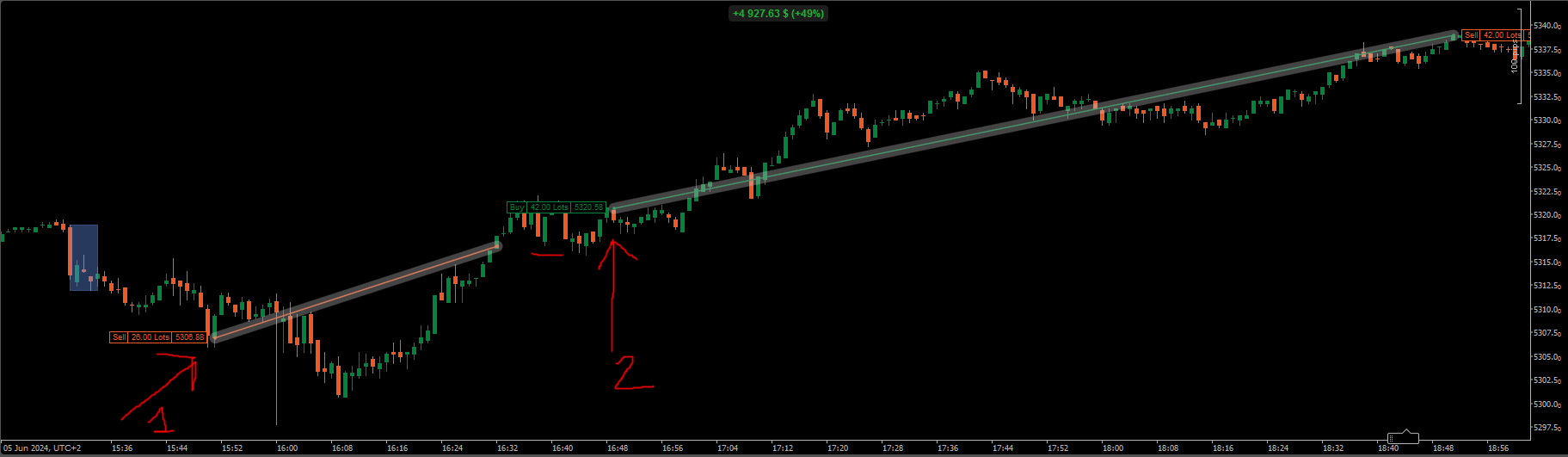
Example #3: No Trade on Choppy Price Action
This example shows the effect of waiting for a Fair Value Gap before entering a trade: no trades were opened because the choppy price action never produced a valid FVG — a good thing, since a breakout trade here would have been a loss.

Features
The Opening Range Breakout strategy has a set of unique features:
- No pending orders are placed — only market orders
- Full-auto strategy that can be scaled into multiple instances
- Precise backtesting capabilities based on tick-level data
- A robust in-house order management library
Dynamic Quantity and Risk Management
As with all our strategies, this strategy implements two methods for setting the quantity of open positions:
- Fixed Quantity: uses the same quantity for every position. If the stop loss is variable between positions, win/loss amounts will vary too.
- Dynamic Risk-Adjusted Quantity: calculates each position's quantity from its stop loss, the maximum risk (in $) allowed per position, and the maximum allowed quantity — producing equal win/loss amounts across all positions regardless of stop loss width.
Position Management
As with all our strategies, this strategy implements a stop-trailing method that trails the stop loss based on a trigger and a trailing amount. The strategy also allows setting the stop loss based on multiple strategies and the take profit based on a ratio — see the Parameters section for details.
Account Management
The strategy implements daily stop-trading triggers based on the net winning position count, the net losing position count, or a target realized net profit or net loss.
Parameters
We try to keep the parameters to a minimum — only the most important are exposed.
| License | |
| License | The license key you get when you create an account on automated-trading.ch. Set this parameter only once per month — once validated, it's remembered for the rest of the month. |
| General | |
| Daily TakeProfit Target | The strategy stops for the day once this daily take-profit amount is reached after a position closes. Ignored when set to 0. |
| Daily StopLoss Limit | The strategy stops for the day once the daily loss limit is reached after a position closes (positive value — e.g. 300 stops trading once realized PnL ≤ -$300). Ignored when set to 0. |
| Stop @ Winning Count | Stops trading for the day once the net winning-trade count reaches this value. Ignored when set to 0. |
| Stop @ Losing Count | Stops trading for the day once the net losing-trade count reaches this value. Ignored when set to 0. |
| Order Label | A label suffixed to every position sent to the broker, useful to differentiate your orders from positions created by other strategies. |
| Render Opacity (1-100) | Opacity used to draw the opening range zone. |
| Entry Setup | |
| Time Zone |
The time zone used for the Trade Time parameter below. Futures markets operate on US Eastern time (EST), so this lets you specify the trading interval relative to your own machine's time zone instead.
|
| Open Range Time (hh:mm-hh:mm) | Sets the opening range interval — e.g. 09:30-09:45. Once the interval ends, the range is drawn on the chart marking its high/low. |
| Trading Sessions (hh:mm-hh:mm,...) | Time interval sequences, outside the opening range time, during which the cBot is allowed to enter trades — e.g. "09:45-11:00,13:00-14:00". Trades that remain open aren't closed outside those windows until the cutoff time below. |
| Cutoff Time (hh:mm) | Closes all open trades before the trading session ends, to avoid swaps from carrying positions into a new session. Defaults to 15:30, adapted to EST. |
| Trade Previous Day Zone | Makes the cBot consider the previous day's opening range for entries. |
| Range Offset (Ticks) | Adds an offset in ticks to both the high and low of the calculated opening range. |
| Wait For Range Retrace | Waits for: (1) price breaks from the range, (2) price retraces back and touches the range, (3) price breaks from the range a second time — before entering. |
| Wait For FVG | Waits for a valid Fair Value Gap while breaking from the range (which can occur after the breakout). Without this, the strategy only waits for a bar close in the trade direction. |
| Trade Mode |
Entry mode after a retest of the opening range zone.
|
| Min. Distance From Range (Ticks) | Minimum required distance from the range to the current price to trigger a trade. 0 means any break from the range can trigger. |
| Max. Distance From Range (Ticks) | Maximum allowed distance from the range to the current price to trigger a trade. 0 means no distance control. |
| Reset Bias On Each Side |
Only used when Wait For Range Retrace is enabled.
|
| SuperTrend Entry Filter | Restricts long entries to when SuperTrend is bullish and short entries to when it's bearish — fewer trades overall, but filtered by trend. |
| Quantity & Risk | |
| Quantity Strategy |
|
| Max Quantity | Maximum allowed quantity when Risk Adjusted is selected — useful since some prop firms enforce order-quantity limits that can invalidate an account. |
| Order Qty | Used only when Quantity Strategy is Fixed — the fixed quantity per trade. |
| Stop Loss Management | |
| StopLoss Strategy |
|
| Stop Loss Points | Available when the stop loss strategy is set to Points. |
| Target Risk Per Trade ($) | Maximum risk, in dollars, per position — used before opening a trade to verify the calculated stop loss respects this limit; if not, the trade is skipped. |
| Max Allowed Risk Per ($) | Only used with Risk Adjusted quantity — controls how far the real calculated risk is allowed to deviate from the Target Risk (since an exact match is rarely possible). |
| Take Profit Management | |
| TakeProfit Strategy |
|
| Take Profit Value | Take profit amount in dollars (Fixed Currency Value strategy) or in points (Points strategy). |
| Custom Win/Loss Ratio | The custom take-profit ratio value when the take-profit strategy is set to Custom Ratio. |
| Scale out % Qty at % Target | Closes a percentage of the position's quantity once price hits a percentage of the profit target (rounded down when fractional — e.g. 50% of a 5-lot position closes 2 contracts). |
| Scale out at % Target | The percentage of the profit target that triggers the scale-out mechanism. |
| Scale out % Qty | The percentage of the quantity closed by the scale-out mechanism. |
| Price Breakeven | |
| Enable Price Breakeven | Enables/disables the price-based breakeven mechanism. |
| Price Breakeven Strategy |
|
| Price Breakeven Trigger | Available if price-based breakeven is enabled — the trigger value (in points, or a percentage from 1-100) needed to move the stop loss to breakeven. |
| Order Management | |
| Order Management Strategy |
|
| Trailing Stop Parameters | |
| Trailing Stop Strategy |
|
| Trailing Stop Trigger | The trigger (in points or ratio) for the Classic Trail Stop method. |
| Trail Amount | The amount (in points or ratio) trailed once the trigger is hit. |
| SuperTrend | |
| SuperTrend Mode | ATR-based, or Adaptive (based on candle close/high/low). |
| Supertrend Period / Smooth / Multiplier | Standard SuperTrend calculation parameters — period, smoothing period, and band multiplier (the bigger this parameter, the wider the SuperTrend bands). |
Performance Reports
Past results are not a guarantee of future results. All backtesting results are for indicative purposes only.
- Commissions are included, for realistic results.
No performance reports have been uploaded for this strategy yet.
Download & Installation Instructions
License Requirements
At automated-trading.ch you can choose to either purchase a monthly subscription to use our premium products, or use our free products without subscribing.
In both cases, you need to create an account so you can get a License you can use for both premium and free products.
To obtain your license, simply sign up and then get your license on the billing page.
Download
You can also download this strategy — and every other automated-trading.ch strategy or indicator — anytime from your centralized Downloads page.
Installation Steps
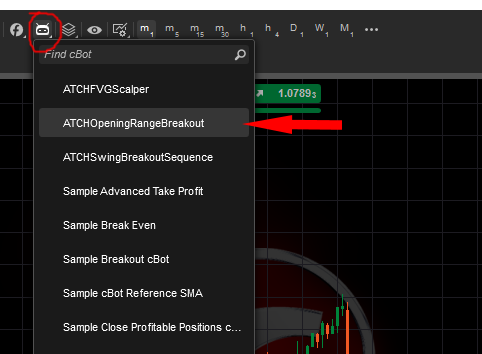
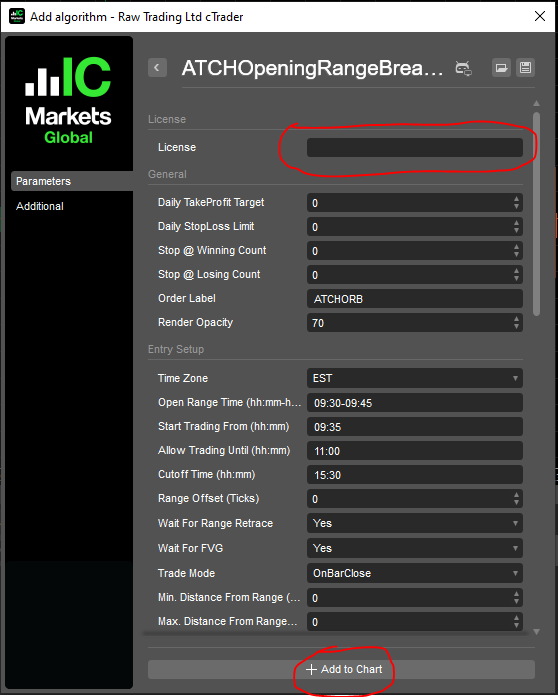
Frequently Asked Questions
General
Billing
Skeptics
Release Notes
- Updated max/min distance from range from Points to Ticks; Added new take profit method: Custom win/loss ratio; Added new parameter to enable trading previous day ORB; Shows historical zones on start
- Fix bug with licensing
- Draw supertrend indicator on the chart from the cBot; Updated trade time logic with new parameter Trading Sessions that can handle many time intervals; Added showing opening range drawing on historical data on the chart; Added ability to run on previous day Range
- Added SuperTrend as stoploss, order managenement and entry filter
- First Release of the strategy