

ICT KillZones Indicator for NinjaTrader 8
 Created 01 Jun 2025
·
Updated 05 Sep 2025
Created 01 Jun 2025
·
Updated 05 Sep 2025
The ICT KillZones indicator is a Premium NinjaTrader 8 indicator that identifies ICT killzone sessions whose times can be customized. The indicator keeps track of the high and low levels of each session and draws those pivot lines until they are mitigated by price.
Prerequisites
To properly use this indicator you should have the following prerequisites available.
- NinjaTrader 8, with any license type. Click here to download
- An automated-trading.ch account with an active Premium Subscription
Description
What are ICT Killzones?
ICT Killzones are time ranges that align with institutional order flow during the trading session. We can distinguish 5 killzones:
- Asian Session: the Asian session covers the Tokyo & Sydney sessions, often a low-liquidity period. Useful for swing positioning before major sessions open.
- London Session: overlaps with the London open, when European liquidity enters the market, often sees false breakouts and reversals as institutions hunt stops.
- New York Morning (AM): aligns with the New York Open, where US institutional flow dominates.
- New York Lunch: occurs during low liquidity as US traders take breaks. Often sees choppy price action, consolidation, or minor retracements.
- New York Afternoon (PM): marks the final liquidity push before the US close. Institutions often run stops before the next session — can see strong reversals or breakouts, especially before 3:00 PM EST (FX fixing time).
Examples
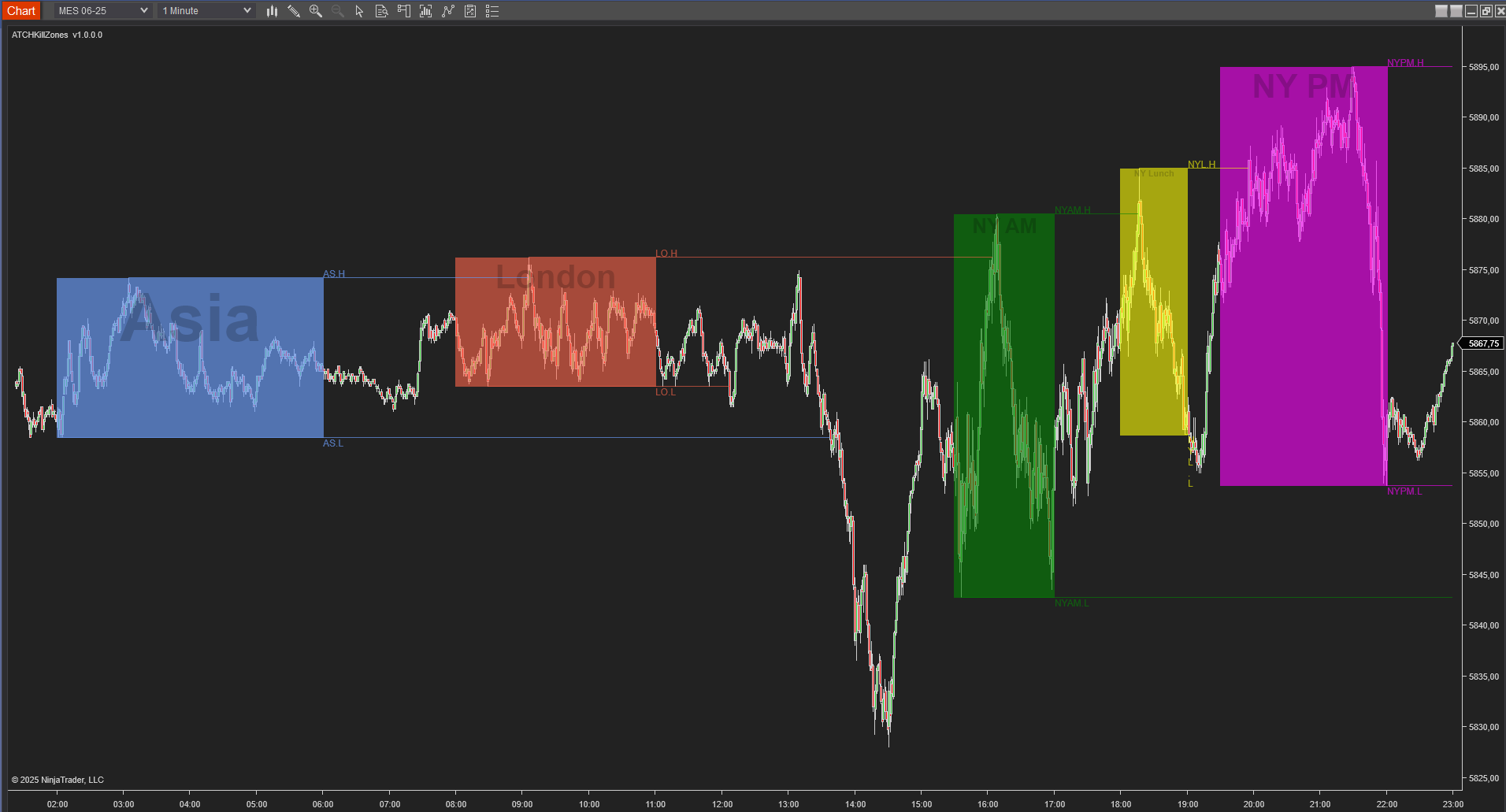
The default usage of the indicator shows the different killzone sessions in a trading session — for example on the MES future instrument on the 1-minute timeframe. When the chart's time scale is set to CET instead of EST, the New York zone starts at 15:30 instead of 09:30.
Features
The ICT KillZones indicator has a set of unique features:
- KillZone session times and labels can all be changed to one's liking
- Sets the time zone of each killzone separately, which allows avoiding any summer-time hour issue
- Can play a sound alert when price mitigates a killzone's extension pivot lines
- Can be run with or without TickReplay on any time-based or price-based chart
- Active development and constantly adding new features
Parameters
We always try to keep the parameters to a minimum.
| License | |
| License | This is the license key you get when you create an account on automated-trading.ch. After creating an account, copy your license key from the billing page. You need to set this parameter only once per month — once the license key is validated it will be remembered for the rest of the month. |
| Lookback Days | Sets a limit on the number of days on which to draw the kill zones. For example, a value of 0 will only draw zones for the last day displayed on the chart; a value of 4 draws zones on the last 4 days on the chart. This allows a cleaner chart, drawing only the zones that are of interest. |
| Asia / London / NY AM / NY Lunch / NY PM | |
| Show [Session] | Enables/disables showing that session's kill zone. Defaults: Asia 20:00-00:00 (EST), London 08:00-11:00 (CET), NY AM 09:30-11:00 (EST), NY Lunch 12:00-13:00 (EST), NY PM 13:30-16:00 (EST). |
| Time (hh:mm-hh:mm) | Sets the session's time interval — can be freely modified from its default. |
| Time Zone | Sets the time zone used for that session's interval. |
| Box Color / Color Opacity (1-100) | Sets the session's drawing color and opacity, from 1 (transparent) to 100 (opaque). |
| Show Label / Label / Label Color / Label Opacity (1-100) | Controls the session's label visibility, text, color, and opacity. |
| Fill Box | Enables/disables filling the zone with color. |
| Show Pivots / Show Pivot Label | Controls the visibility of the session's pivot lines and their labels. |
| Pivot Line Style | Solid, Dashed, or Dots. |
| Pivot Label / Pivot Label Size | Sets the pivot label text and its size in points. |
| Alert on Pivot Mitigated / Alert Sound File | Enables/disables playing a sound alert when the session's pivot lines are mitigated by price, and sets which file is played. |
Download & Installation Instructions
License Requirements
At automated-trading.ch you can choose to either purchase a monthly subscription to use our premium products, or use our free products without subscribing.
In both cases, you need to create an account so you can get a License you can use for both premium and free products.
To obtain your license, simply sign up and then get your license on the billing page.
Download
You can also download this strategy — and every other automated-trading.ch strategy or indicator — anytime from your centralized Downloads page.
Installation Steps
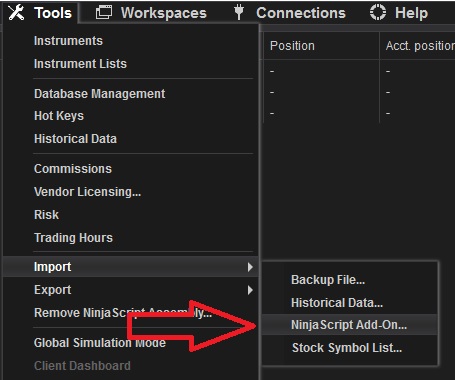
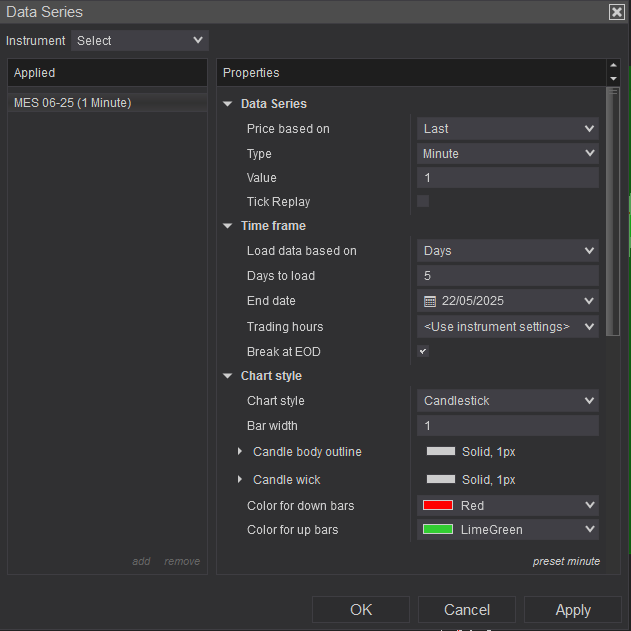
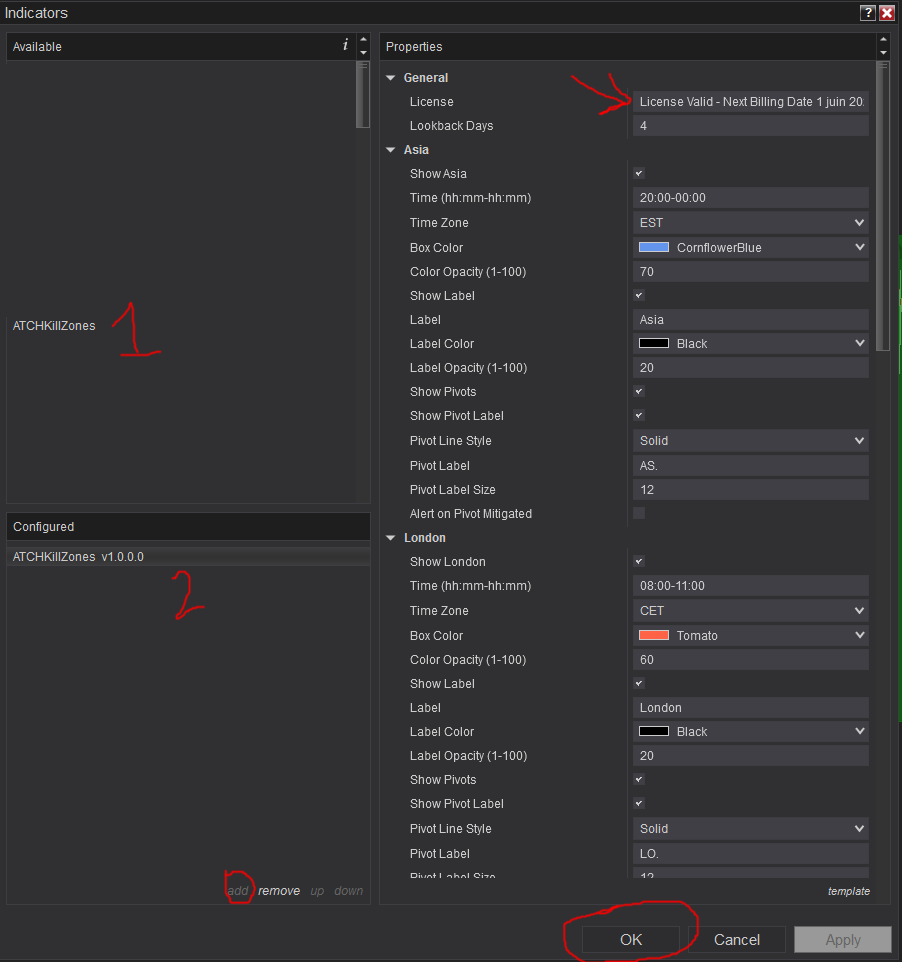
Frequently Asked Questions
General
Subscriptions Q&A
Release Notes
- Added Fill box option to all zones
- Fix Bug: indicator hides Grid lines when added to chart
- First Release of the indicator