

Random-Forest Machine Learning Strategy
 Created 13 Apr 2026
·
Updated 12 Jun 2026
Created 13 Apr 2026
·
Updated 12 Jun 2026
The Random-Forest Machine Learning Strategy is a Premium mechanical strategy for the NinjaTrader 8 platform. It leverages artificial intelligence and predictive analytics to identify and trade market movements. The strategy can be used to pass trader funding programs.
Prerequisites
To properly use this strategy you should have the following prerequisites available.
- NinjaTrader 8, with any license type. Minimum version 8.1.6.*. Click here to download
- A pre-trained Machine Learning model .zip file, downloadable from the Installation section below.
- An automated-trading.ch account with an active Premium Subscription
Important Disclaimer
We strongly recommend that you never run your algorithmic trading systems on your hard-earned real money. You should always minimize your risk and run your strategies on trader funding programs, so the maximum amount you risk losing is the monthly subscription fee you pay those programs.
Strategy Overview
The Random-Forest Machine Learning Strategy combines the power of artificial intelligence with robust order management and risk control, using a pre-trained Random Forest machine learning model (generated for multiple instruments — MES, ES, MNQ, NQ...) to predict future price movements.
Unlike traditional rule-based strategies that rely on fixed technical indicators and predefined patterns, the strategy learns from historical price data to identify complex, non-linear relationships in market behavior. The model analyzes multiple features — daily price levels, support and resistance zones, market structure changes, and volatility indicators — to generate highly contextualized trading signals.
The strategy is designed to be fully automatic and can scale into multiple instances on the same or multiple accounts, with robust order management (including connection-loss recovery), precise risk control via dynamic position sizing, and multiple exit strategies including ATM Strategy integration and manual management options.
How It Works
The strategy operates in several stages:
1. Feature Engineering
The strategy constructs a comprehensive feature set from market data:
- Daily Levels: distance from the previous day's high/low and the current day's high/low/open prices
- Higher Timeframe (HTF) Levels: distance from 30-minute and 4-hour timeframe previous highs/lows, capturing medium-term structure
- Volatility Indicators: distance from SuperTrend upper/lower bands, for adaptive volatility measurement
- Volume Dynamics: volume differences between the current and previous bar, capturing momentum shifts
- Price Momentum: close price differences over the last 3 bars, capturing recent directional bias
- Time of Day: encoded time features capturing intraday seasonality patterns
2. Model Prediction
The pre-trained Random Forest model processes the feature set to predict the close price for a specified prediction horizon (default: 20 bars ahead on the 1-minute timeframe), generating a prediction score indicating the expected price movement's magnitude and direction.
3. Signal Generation
When the predicted price movement exceeds the prediction threshold (in points), the strategy generates a trading signal:
- A long signal is generated when the model predicts upward price movement
- A short signal is generated when the model predicts downward price movement
- Signals are optionally filtered using the SuperTrend indicator to reduce false signals in choppy markets
4. Entry Management
The strategy confirms and executes trades based on confirmed signals:
- Only one position per direction can be active at a time
- Market orders are used for instant execution (no pending orders)
- Entry quantity is determined by the selected quantity strategy (Fixed or Risk Adjusted based on the stop-loss level)
- Trades are only allowed within the specified trading time window
As with all our strategies, this strategy implements two methods for setting the quantity of open positions:
- Fixed Quantity: uses the same quantity for every position. If the stop loss is variable between positions, win/loss amounts will vary too.
- Dynamic Risk-Adjusted Quantity: calculates each position's quantity from its stop loss, the maximum risk (in $) allowed per position, and the maximum allowed quantity — producing equal win/loss amounts across all positions regardless of stop loss width.
5. Position Management
Once a position is opened, the strategy manages it using one of several configurable methods:
- ATM Strategy: delegates position management to your chosen ATM strategy template
- SuperTrend: uses the SuperTrend indicator to trail the stop loss and manage exits dynamically
The strategy also allows setting the stop loss based on multiple strategies and the take profit based on a ratio — see the Parameters section for details.
6. Exit Strategies
The strategy supports multiple exit methods:
- Stop Loss: fixed currency amount, points, SuperTrend levels, swing prices, or the opposite of the predicted target
- Take Profit: fixed currency, points, stop-loss ratio, or the predicted price target
- Session Closing: automatically closes all positions at the end of the trading session
- Daily Limits: stops trading when the daily profit target is reached or the daily loss limit is hit
- Trade Count Limits: can stop after reaching maximum daily winning or losing trade counts
Entry Setup Examples
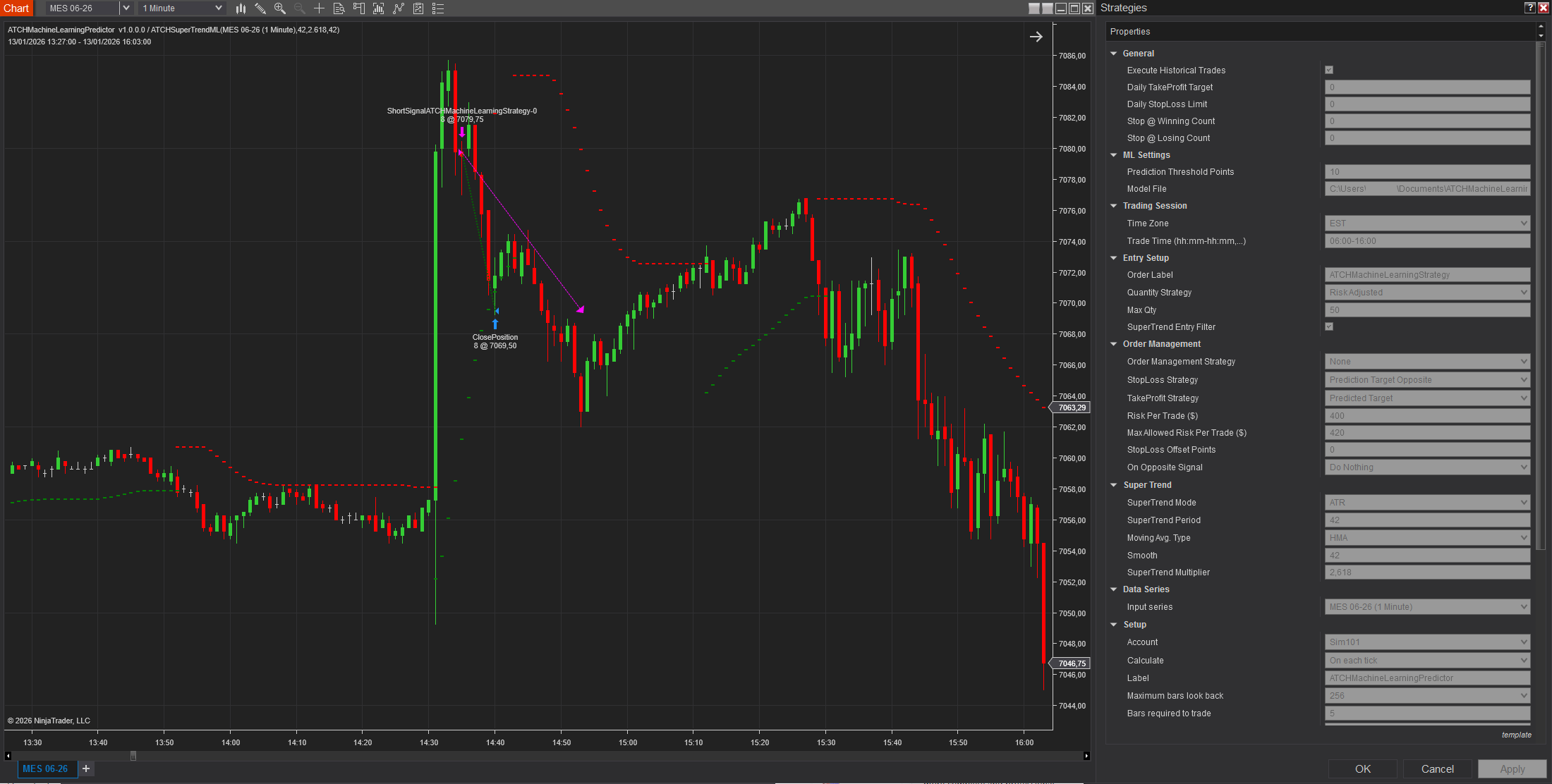
Example #1: Reversal Short Entry
Running on MES on the 1-minute timeframe, the strategy generates a short signal from the model's prediction. Reversal signals are generated in the opposite direction following a Fair Value Gap (FVG). With the SuperTrend entry filter applied to reversal signals, the strategy only takes the reversal signal if SuperTrend is green for bearish signals and red for bullish signals. The same parameters are used for the next examples.
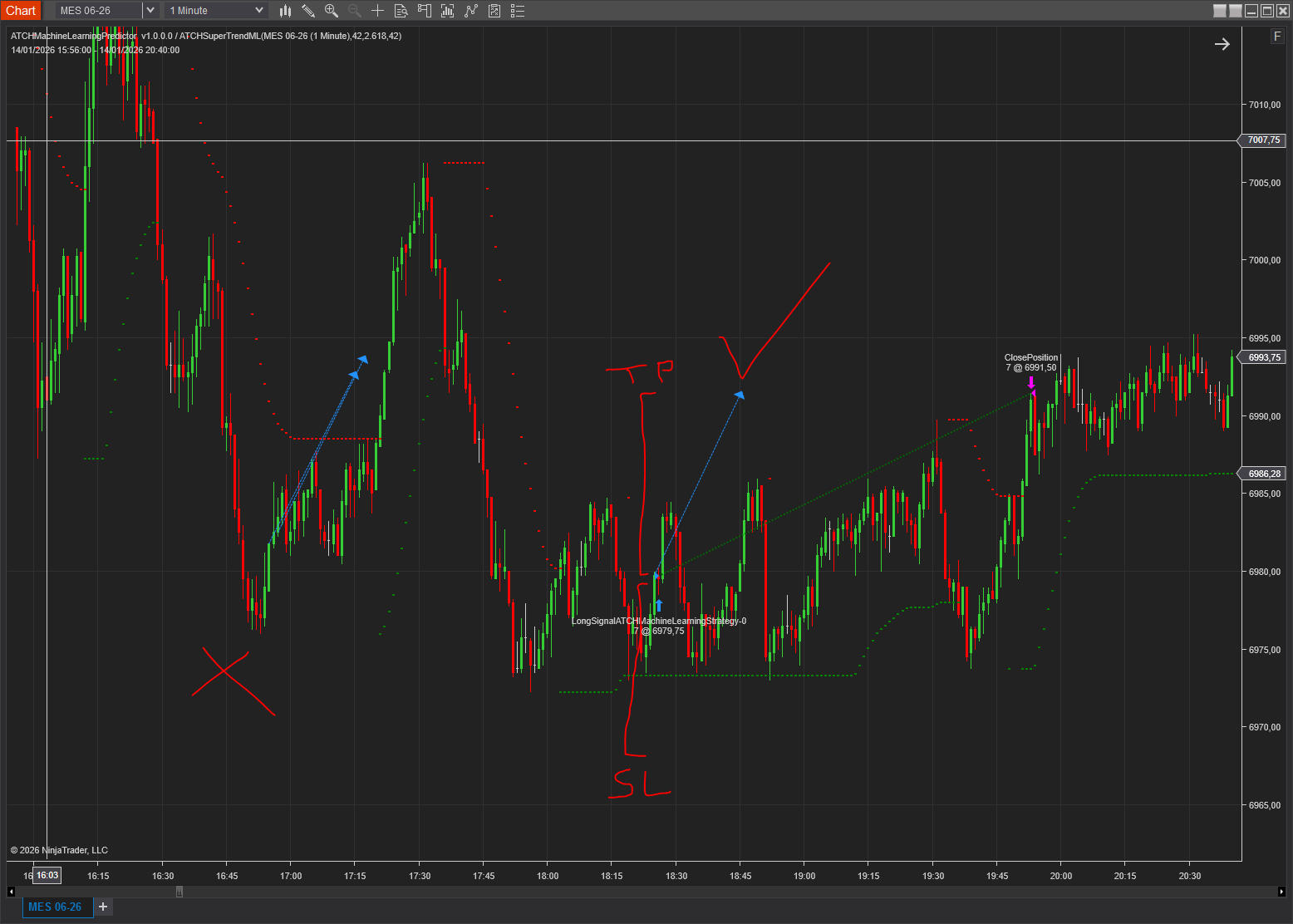
Example #2: Trend Long Entry
Same instrument, timeframe, and parameters as example #1. A first trend-long signal is suppressed because SuperTrend was in a red state at the time; a second trend-bullish signal is taken because SuperTrend was green. The take profit is the model's predicted target, and the stop loss mirrors that same distance from entry, producing a 1:1 risk/reward ratio on this trade.
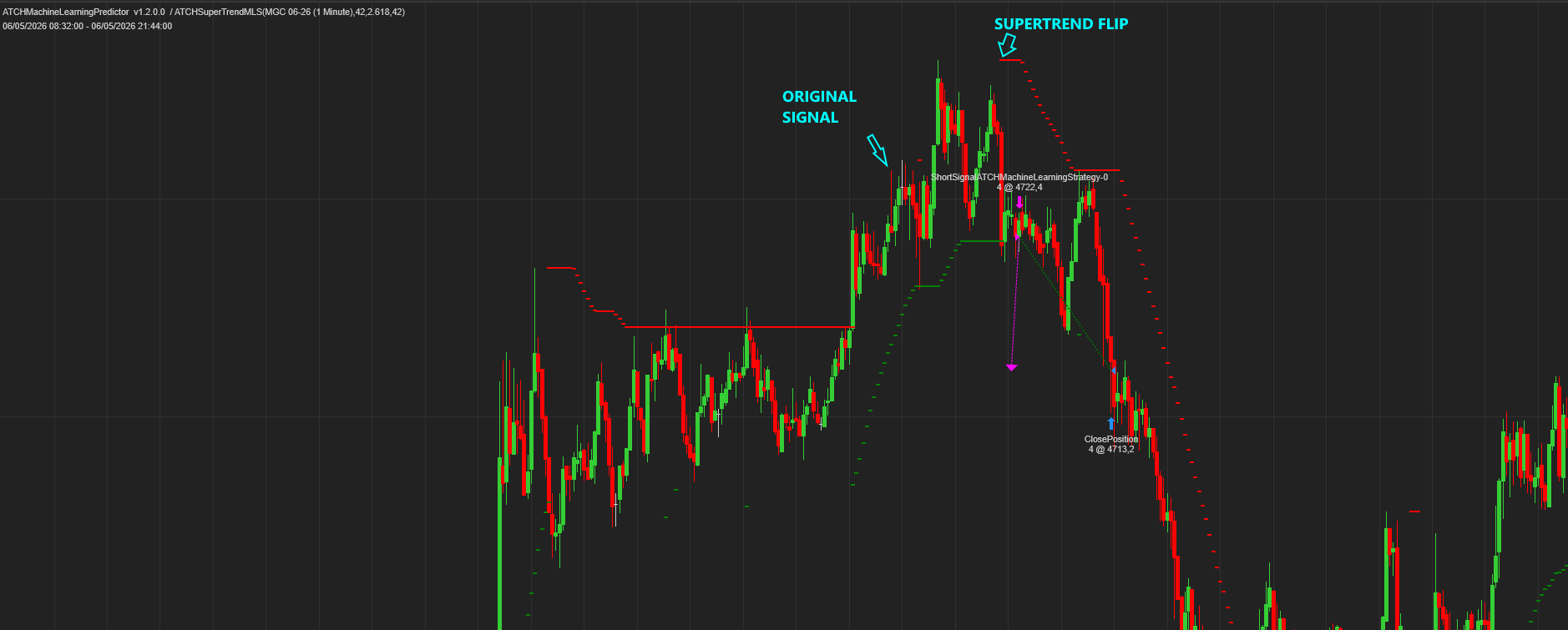
Example #3: Reversal Entry Mode — Wait for SuperTrend Flip
A reversal signal is dispatched while SuperTrend is bullish (green). With Immediate entry mode, this would trigger an immediate short entry — a loss, since price went higher right after the signal. With entry mode set to Wait for SuperTrend Flip, the strategy instead waits for SuperTrend to flip to bearish (red), which happens a few bars later — at which point the strategy enters short and wins the trade.
Features
The Random-Forest Machine Learning strategy includes a comprehensive set of advanced features:
Artificial Intelligence-Powered Predictions
- Pre-trained Random Forest model for robust and adaptive price predictions
- Machine Learning model updated every week
Advanced Order Management
- No pending orders — only market orders, for guaranteed execution
- Robust in-house order manager, resistant to connection losses
- ATM Strategy integration for user-defined custom position management
- Support for both Rithmic and NinjaTrader brokerage/Tradovate accounts
Entry Filtering and Confirmation
- Optional SuperTrend entry filter to confirm directional bias
- Configurable prediction threshold to filter low-confidence signals
- Trading time window restrictions
Precise Backtesting
- Compatible with NinjaTrader's official backtesting best practices
- Tick-level execution for highly accurate results
- Support for optimization across all configurable parameters
Parameters
The strategy provides comprehensive parameter control while keeping the most critical settings easily accessible.
| General Settings | |
| Execute Historical Trades | Enables executing trades when the strategy runs in Historical mode — useful to test performance on past days, but should be unchecked when running Live. |
| Daily TakeProfit Target | Dollar amount target for daily profit — trading stops once reached after a position closes (0 = disabled). |
| Daily StopLoss Limit | Dollar amount limit for daily losses — the active trade closes and trading stops once unrealized PnL reaches this limit (0 = disabled). |
| Stop @ Winning Count | Stops trading after this many winning trades per day (win/loss thresholds are ±$10 PnL). Ignored when set to 0. |
| Stop @ Losing Count | Stops trading after this many losing trades per day (win/loss thresholds are ±$10 PnL). Ignored when set to 0. |
| ML Settings | |
| Prediction Threshold Points | Minimum predicted points movement to generate a trading signal, filtering low-confidence predictions — recommended around 10 for MES, higher for MNQ. |
| Model Directory | Path to the folder containing the pre-trained Random Forest model .zip files. The strategy automatically loads the model suited to the current running day; during backtesting, it dynamically loads the model trained on data prior to the running day, guaranteeing it always runs on out-of-sample unseen data. Leave empty to be prompted with a folder-selection dialog. |
| Trading Session | |
| Time Zone |
The time zone used for the Trade Time parameter below. Futures markets are open/closed based on US Eastern time (EST); this parameter lets you specify the trade time window in EST, CET, or your local machine's time zone, without needing to manually convert.
|
| Trade Time (hh:mm-hh:mm,...) | Trading hours in 24-hour format — e.g. "09:30-16:00". Multiple comma-separated windows are supported; each window must start and end on the same day, so a window spanning midnight (e.g. 18:00 to 16:00 the next day) should be split like "18:00-23:59,00:01-16:00". |
| Entry Setup | |
| Order Label | A label attached to orders placed by the strategy, useful for tracking and filtering. |
| Quantity Strategy |
|
| Max Qty | Maximum allowed quantity when Risk Adjusted is selected — useful since some prop firms enforce order-quantity limits that can invalidate an account. |
| Fixed Quantity | The quantity used when the Quantity Strategy is Fixed Quantity. |
| SuperTrend Entry Filter | Enables/disables the SuperTrend confirmation filter — only enters trades in the direction confirmed by SuperTrend (reversal trades are confirmed by the inverse of SuperTrend's direction). |
| Enable Reversal Trades | Enables/disables considering reversal signals for entries. When unchecked, only trend-following trades are opened. |
| Reversal Entry Mode |
|
| Order Management | |
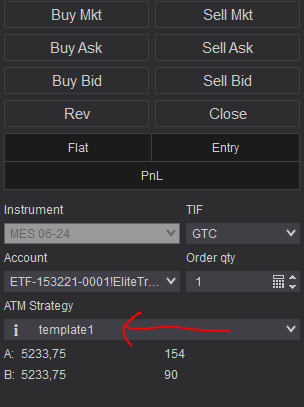
| Order Management Strategy |
|
| ATM Strategy Template Name | The template name used when Order Management Strategy is set to ATM Strategy. |
| StopLoss Strategy |
|
| Swing Points Period | The period used for identifying swing highs/lows when the stop loss strategy is Last Swing Price. |
| TakeProfit Strategy |
|
| Stoploss/TakeProfit Ratio | Used with the Stop Loss Ratio take-profit strategy — the ratio of take profit to stop loss distance (e.g. 2.0 means TP = 2 × SL). |
| Risk Per Trade ($) | Maximum risk, in dollars, per position — used before opening a trade to verify the calculated stop loss respects this limit; if not, the trade is skipped. |
| Max Allowed Risk Per Trade ($) | Only used with Risk Adjusted quantity — controls how far the real calculated risk is allowed to deviate from the Target Risk (since an exact match is rarely possible, as futures contract sizes aren't fractional). |
| StopLoss Points | Stop loss in points, when using the Points-based stop loss. |
| StopLoss Offset Points | Additional points added/subtracted to the calculated stop loss, as a safety margin. |
| TakeProfit Currency | Target take-profit amount in dollars, when using Fixed Currency take profit. |
| TakeProfit Points | Target take profit in points, when using Points-based take profit. |
| Enable Price Breakeven | Enables/disables the price-based breakeven mechanism. |
| Price Breakeven Strategy |
|
| Price Breakeven Trigger | Available if price-based breakeven is enabled — the trigger value (in points, or a percentage from 1-100) needed to move the stop loss to breakeven. |
| On Opposite Signal | Action taken when an opposite-direction signal occurs: Breakeven Position, Close Position, or Do Nothing. |
| SuperTrend Settings | |
| SuperTrend Mode |
|
| Period / Multiplier / Moving Avg. Type / Smooth | Standard SuperTrend calculation parameters — period, band multiplier (higher = wider bands), moving-average type, and smoothing period. |
| Command Buttons | |
The strategy exposes manual command buttons on the Chart Trader panel — make sure it's displayed on your active chart.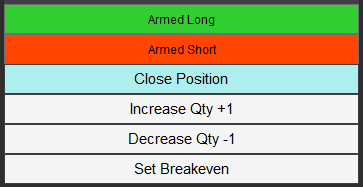 | |
| Arm/Disarm Buttons | Manually enable/disable entering long or short trades — useful if you have a directional bias. |
| Close Position Button | Immediately flattens the position on the active instrument without restarting the strategy, which keeps looking for new trades afterward. |
| Increase Qty Button / Decrease Qty Button | Adjusts the current active position's quantity by +1/-1 contract. |
| Set Breakeven Button | Moves the open position's stop loss to breakeven, if doing so would improve it. |
Performance Reports
Past results are not a guarantee of future results. All backtesting results are for indicative purposes only.
- Commissions are included, using NinjaTrader's Lifetime license commission schema, for realistic results.
- Since the AI model requires the previous day's data, signals only start triggering from the second trading day of the selected interval — a single-day backtest will show no trades. Make sure Execute Historical Trades is enabled.
- These are out-of-sample results — each backtest period loads the model trained on prior data and runs on unseen data, reflecting live/real-time forward-testing conditions.
- We follow NinjaTrader's official guide for precise intrabar-granularity backtesting using additional tick-level data series, and only use market orders — never pending orders — in both real-time and backtest modes.
MES 400$ Risk
Cumulative P&L
| Metric | All | Long | Short |
|---|---|---|---|
| Start Date | 2026/01/02 | — | — |
| End Date | 2026/10/01 | — | — |
| Total Trades | 164 | 118 | 46 |
| Total Net Profit | 6,664.50 | 3,880.45 | 2,784.05 |
| Gross Profit | 35,140.55 | 24,863.90 | 10,276.65 |
| Gross Loss | -28,476.05 | -20,983.45 | -7,492.60 |
| Commission | 1,410.50 | 995.80 | 414.70 |
| Profit Factor | 1.23 | 1.18 | 1.37 |
| Max Drawdown | -4,624.35 | -3,828.65 | -1,876.80 |
| % Profitable | 56.1% | 55.1% | 58.7% |
| # Winning Trades | 92 | 65 | 27 |
| # Losing Trades | 72 | 53 | 19 |
| Average Trade | 40.64 | 32.89 | 60.52 |
| Average Winning Trade | 381.96 | 382.52 | 380.62 |
| Average Losing Trade | -395.50 | -395.91 | -394.35 |
| Ratio Avg. Win / Avg. Loss | 0.97 | 0.97 | 0.97 |
| Largest Winning Trade | 439.80 | 427.20 | 439.80 |
| Largest Losing Trade | -465.20 | -465.20 | -457.65 |
| Max Consecutive Wins | 12 | 7 | 7 |
| Max Consecutive Losses | 7 | 6 | 4 |
| Avg. # of Trades per Day | 0.84 | 0.61 | 0.24 |
| Avg. Time in Market | 0h 27m | 0h 21m | 0h 43m |
| Profit per Month | 745.78 | 434.24 | 311.55 |
Click a trade below to view its trading day chart.
No OHLC price data is available for this day.
| # | Instrument | Side | Qty | Entry Price | Exit Price | Entry Time | Exit Time | Profit | Commission |
|---|---|---|---|---|---|---|---|---|---|
| 1 | MES 09-26 | Long | 7 | 6,995.00 | 7,006.00 | 2026-01-02 17:09 | 2026-01-02 17:29 | 375.90 | 9.10 |
| 2 | MES 09-26 | Long | 6 | 7,043.25 | 7,056.25 | 2026-01-14 18:25 | 2026-01-14 19:58 | 382.20 | 7.80 |
| 3 | MES 09-26 | Short | 7 | 7,126.00 | 7,115.25 | 2026-01-15 17:54 | 2026-01-15 18:59 | 367.15 | 9.10 |
| 4 | MES 09-26 | Short | 5 | 6,993.75 | 7,009.75 | 2026-01-21 16:00 | 2026-01-21 16:35 | -406.50 | 6.50 |
| 5 | MES 09-26 | Short | 7 | 7,098.00 | 7,094.50 | 2026-01-26 16:26 | 2026-01-26 22:45 | 113.40 | 9.10 |
| 6 | MES 09-26 | Long | 6 | 7,028.75 | 7,016.00 | 2026-01-29 16:45 | 2026-01-29 16:54 | -390.30 | 7.80 |
| 7 | MES 09-26 | Long | 7 | 7,022.25 | 7,034.00 | 2026-01-29 16:56 | 2026-01-29 17:13 | 402.15 | 9.10 |
| 8 | MES 09-26 | Short | 6 | 7,106.75 | 7,120.25 | 2026-02-02 16:57 | 2026-02-02 18:00 | -412.80 | 7.80 |
| 9 | MES 09-26 | Long | 6 | 7,086.00 | 7,072.50 | 2026-02-03 16:09 | 2026-02-03 16:24 | -412.80 | 7.80 |
| 10 | MES 09-26 | Long | 7 | 7,079.75 | 7,069.00 | 2026-02-03 16:39 | 2026-02-03 16:45 | -385.35 | 9.10 |
| 11 | MES 09-26 | Long | 8 | 7,029.50 | 7,040.00 | 2026-02-04 17:19 | 2026-02-04 17:26 | 409.60 | 10.40 |
| 12 | MES 09-26 | Long | 8 | 7,012.25 | 7,022.50 | 2026-02-04 17:55 | 2026-02-04 17:57 | 399.60 | 10.40 |
| 13 | MES 09-26 | Long | 7 | 6,986.75 | 6,975.75 | 2026-02-04 18:42 | 2026-02-04 18:50 | -394.10 | 9.10 |
| 14 | MES 09-26 | Long | 8 | 6,985.25 | 6,995.75 | 2026-02-04 18:53 | 2026-02-04 18:55 | 409.60 | 10.40 |
| 15 | MES 09-26 | Long | 6 | 6,935.00 | 6,922.00 | 2026-02-05 16:17 | 2026-02-05 16:26 | -397.80 | 7.80 |
| 16 | MES 09-26 | Long | 6 | 6,923.25 | 6,937.75 | 2026-02-05 16:29 | 2026-02-05 16:42 | 427.20 | 7.80 |
| 17 | MES 09-26 | Long | 4 | 6,929.25 | 6,949.00 | 2026-02-05 16:52 | 2026-02-05 17:22 | 389.80 | 5.20 |
| 18 | MES 09-26 | Long | 6 | 6,923.25 | 6,936.00 | 2026-02-05 21:54 | 2026-02-05 21:57 | 374.70 | 7.80 |
| 19 | MES 09-26 | Short | 6 | 7,007.50 | 7,020.25 | 2026-02-06 16:28 | 2026-02-06 16:42 | -390.30 | 7.80 |
| 20 | MES 09-26 | Short | 6 | 7,080.75 | 7,093.50 | 2026-02-09 16:22 | 2026-02-09 16:50 | -390.30 | 7.80 |
| 21 | MES 09-26 | Short | 6 | 7,097.75 | 7,110.50 | 2026-02-09 16:59 | 2026-02-09 18:03 | -390.30 | 7.80 |
| 22 | MES 09-26 | Short | 6 | 7,116.75 | 7,103.75 | 2026-02-11 15:27 | 2026-02-11 15:50 | 382.20 | 7.80 |
| 23 | MES 09-26 | Long | 7 | 7,070.00 | 7,081.00 | 2026-02-11 16:53 | 2026-02-11 17:14 | 375.90 | 9.10 |
| 24 | MES 09-26 | Long | 6 | 7,009.00 | 6,996.50 | 2026-02-12 17:18 | 2026-02-12 17:21 | -382.80 | 7.80 |
| 25 | MES 09-26 | Long | 4 | 6,999.00 | 6,976.00 | 2026-02-12 17:28 | 2026-02-12 19:00 | -465.20 | 5.20 |
| 26 | MES 09-26 | Long | 6 | 6,929.25 | 6,942.75 | 2026-02-13 15:43 | 2026-02-13 15:43 | 397.20 | 7.80 |
| 27 | MES 09-26 | Short | 6 | 6,969.00 | 6,955.75 | 2026-02-13 16:13 | 2026-02-13 16:16 | 389.70 | 7.80 |
| 28 | MES 09-26 | Short | 4 | 6,977.00 | 6,957.50 | 2026-02-13 16:30 | 2026-02-13 16:46 | 384.80 | 5.20 |
| 29 | MES 09-26 | Long | 8 | 6,942.75 | 6,932.00 | 2026-02-17 16:20 | 2026-02-17 16:21 | -440.40 | 10.40 |
| 30 | MES 09-26 | Long | 8 | 6,910.50 | 6,921.00 | 2026-02-17 16:36 | 2026-02-17 16:47 | 409.60 | 10.40 |
| 31 | MES 09-26 | Long | 5 | 6,963.25 | 6,978.25 | 2026-02-20 15:22 | 2026-02-20 15:35 | 368.50 | 6.50 |
| 32 | MES 09-26 | Short | 8 | 7,033.25 | 7,022.75 | 2026-02-20 17:59 | 2026-02-20 18:04 | 409.60 | 10.40 |
| 33 | MES 09-26 | Long | 7 | 6,981.75 | 6,970.75 | 2026-02-23 16:37 | 2026-02-23 16:52 | -394.10 | 9.10 |
| 34 | MES 09-26 | Long | 6 | 6,969.25 | 6,956.00 | 2026-02-23 16:58 | 2026-02-23 17:03 | -405.30 | 7.80 |
| 35 | MES 09-26 | Long | 8 | 6,962.50 | 6,973.25 | 2026-02-23 17:22 | 2026-02-23 17:31 | 419.60 | 10.40 |
| 36 | MES 09-26 | Short | 4 | 6,999.50 | 7,019.50 | 2026-02-24 16:36 | 2026-02-24 18:27 | -405.20 | 5.20 |
| 37 | MES 09-26 | Long | 6 | 6,993.75 | 7,007.25 | 2026-02-26 16:23 | 2026-02-26 16:40 | 397.20 | 7.80 |
| 38 | MES 09-26 | Long | 7 | 6,980.50 | 6,969.50 | 2026-02-27 14:30 | 2026-02-27 14:30 | -394.10 | 9.10 |
| 39 | MES 09-26 | Long | 6 | 6,842.50 | 6,855.50 | 2026-03-03 16:24 | 2026-03-03 16:36 | 382.20 | 7.80 |
| 40 | MES 09-26 | Short | 5 | 6,993.00 | 6,977.25 | 2026-03-04 17:09 | 2026-03-04 17:23 | 387.25 | 6.50 |
| 41 | MES 09-26 | Long | 5 | 6,931.25 | 6,946.25 | 2026-03-05 16:33 | 2026-03-05 16:40 | 368.50 | 6.50 |
| 42 | MES 09-26 | Long | 8 | 6,950.25 | 6,939.75 | 2026-03-05 16:42 | 2026-03-05 17:07 | -430.40 | 10.40 |
| 43 | MES 09-26 | Long | 5 | 6,898.75 | 6,915.00 | 2026-03-05 18:57 | 2026-03-05 19:13 | 399.75 | 6.50 |
| 44 | MES 09-26 | Long | 3 | 6,859.50 | 6,832.75 | 2026-03-06 15:26 | 2026-03-06 15:47 | -405.15 | 3.90 |
| 45 | MES 09-26 | Long | 8 | 6,908.00 | 6,918.75 | 2026-03-09 20:44 | 2026-03-09 20:58 | 419.60 | 10.40 |
| 46 | MES 09-26 | Long | 7 | 6,902.25 | 6,913.00 | 2026-03-10 15:22 | 2026-03-10 15:30 | 367.15 | 9.10 |
| 47 | MES 09-26 | Long | 8 | 6,882.75 | 6,892.75 | 2026-03-11 13:44 | 2026-03-11 14:01 | 389.60 | 10.40 |
| 48 | MES 09-26 | Long | 7 | 6,890.75 | 6,902.25 | 2026-03-11 14:02 | 2026-03-11 14:25 | 393.40 | 9.10 |
| 49 | MES 09-26 | Long | 8 | 6,873.00 | 6,883.50 | 2026-03-11 16:50 | 2026-03-11 17:31 | 409.60 | 10.40 |
| 50 | MES 09-26 | Long | 6 | 6,815.25 | 6,802.50 | 2026-03-12 16:28 | 2026-03-12 16:36 | -390.30 | 7.80 |
| 51 | MES 09-26 | Long | 8 | 6,773.75 | 6,763.50 | 2026-03-13 16:27 | 2026-03-13 16:43 | -420.40 | 10.40 |
| 52 | MES 09-26 | Long | 7 | 6,813.00 | 6,812.00 | 2026-03-16 20:45 | 2026-03-16 21:45 | -44.10 | 9.10 |
| 53 | MES 09-26 | Long | 7 | 6,805.00 | 6,817.00 | 2026-03-18 13:56 | 2026-03-18 14:30 | 410.90 | 9.10 |
| 54 | MES 09-26 | Long | 8 | 6,788.25 | 6,798.50 | 2026-03-18 15:31 | 2026-03-18 16:00 | 399.60 | 10.40 |
| 55 | MES 09-26 | Long | 7 | 6,769.25 | 6,758.25 | 2026-03-18 19:52 | 2026-03-18 20:00 | -394.10 | 9.10 |
| 56 | MES 09-26 | Long | 7 | 6,689.50 | 6,678.50 | 2026-03-19 14:03 | 2026-03-19 14:15 | -394.10 | 9.10 |
| 57 | MES 09-26 | Long | 8 | 6,659.50 | 6,670.25 | 2026-03-20 15:16 | 2026-03-20 15:34 | 419.60 | 10.40 |
| 58 | MES 09-26 | Long | 8 | 6,592.50 | 6,602.75 | 2026-03-20 20:39 | 2026-03-20 20:41 | 399.60 | 10.40 |
| 59 | MES 09-26 | Short | 3 | 6,761.00 | 6,791.25 | 2026-03-23 12:09 | 2026-03-23 12:09 | -457.65 | 3.90 |
| 60 | MES 09-26 | Short | 1 | 6,780.50 | 6,699.25 | 2026-03-23 12:12 | 2026-03-23 12:56 | 404.95 | 1.30 |
| 61 | MES 09-26 | Long | 3 | 6,705.00 | 6,728.50 | 2026-03-23 13:04 | 2026-03-23 13:17 | 348.60 | 3.90 |
| 62 | MES 09-26 | Long | 7 | 6,754.25 | 6,743.75 | 2026-03-23 14:00 | 2026-03-23 14:05 | -376.60 | 9.10 |
| 63 | MES 09-26 | Long | 7 | 6,647.25 | 6,658.25 | 2026-03-24 14:46 | 2026-03-24 15:00 | 375.90 | 9.10 |
| 64 | MES 09-26 | Long | 7 | 6,601.25 | 6,589.25 | 2026-03-26 19:30 | 2026-03-26 20:44 | -429.10 | 9.10 |
| 65 | MES 09-26 | Long | 8 | 6,590.50 | 6,601.25 | 2026-03-26 20:46 | 2026-03-26 21:11 | 419.60 | 10.40 |
| 66 | MES 09-26 | Long | 6 | 6,543.75 | 6,531.00 | 2026-03-27 14:33 | 2026-03-27 14:35 | -390.30 | 7.80 |
| 67 | MES 09-26 | Long | 8 | 6,523.25 | 6,534.00 | 2026-03-27 15:11 | 2026-03-27 15:16 | 419.60 | 10.40 |
| 68 | MES 09-26 | Long | 7 | 6,536.75 | 6,524.50 | 2026-03-27 15:17 | 2026-03-27 15:27 | -437.85 | 9.10 |
| 69 | MES 09-26 | Long | 8 | 6,521.25 | 6,531.50 | 2026-03-27 17:28 | 2026-03-27 18:07 | 399.60 | 10.40 |
| 70 | MES 09-26 | Long | 5 | 6,518.75 | 6,502.75 | 2026-03-30 13:37 | 2026-03-30 15:40 | -406.50 | 6.50 |
| 71 | MES 09-26 | Long | 7 | 6,426.25 | 6,437.00 | 2026-03-30 21:30 | 2026-03-30 21:36 | 367.15 | 9.10 |
| 72 | MES 09-26 | Long | 5 | 6,669.25 | 6,686.00 | 2026-04-01 15:29 | 2026-04-01 15:36 | 412.25 | 6.50 |
| 73 | MES 09-26 | Long | 7 | 6,700.50 | 6,688.50 | 2026-04-02 16:38 | 2026-04-02 16:38 | -429.10 | 9.10 |
| 74 | MES 09-26 | Short | 7 | 6,671.75 | 6,684.00 | 2026-04-02 17:22 | 2026-04-02 17:28 | -437.85 | 9.10 |
| 75 | MES 09-26 | Long | 5 | 6,666.00 | 6,667.25 | 2026-04-03 15:13 | 2026-04-03 15:15 | 24.75 | 6.50 |
| 76 | MES 09-26 | Long | 5 | 6,669.50 | 6,652.75 | 2026-04-07 16:22 | 2026-04-07 16:59 | -425.25 | 6.50 |
| 77 | MES 09-26 | Short | 6 | 6,863.75 | 6,876.75 | 2026-04-08 17:06 | 2026-04-08 17:49 | -397.80 | 7.80 |
| 78 | MES 09-26 | Short | 7 | 7,034.25 | 7,046.00 | 2026-04-14 16:23 | 2026-04-14 17:22 | -420.35 | 9.10 |
| 79 | MES 09-26 | Long | 6 | 7,156.75 | 7,169.25 | 2026-04-21 21:46 | 2026-04-21 21:50 | 367.20 | 7.80 |
| 80 | MES 09-26 | Short | 8 | 7,225.75 | 7,215.25 | 2026-04-22 16:25 | 2026-04-22 17:02 | 409.60 | 10.40 |
| 81 | MES 09-26 | Short | 8 | 7,220.00 | 7,209.50 | 2026-04-23 14:23 | 2026-04-23 14:45 | 409.60 | 10.40 |
| 82 | MES 09-26 | Long | 4 | 7,176.75 | 7,196.25 | 2026-04-23 19:55 | 2026-04-23 20:01 | 384.80 | 5.20 |
| 83 | MES 09-26 | Short | 8 | 7,356.25 | 7,346.00 | 2026-05-01 16:08 | 2026-05-01 16:36 | 399.60 | 10.40 |
| 84 | MES 09-26 | Long | 8 | 7,287.50 | 7,277.25 | 2026-05-04 12:10 | 2026-05-04 12:22 | -420.40 | 10.40 |
| 85 | MES 09-26 | Long | 8 | 7,414.50 | 7,425.00 | 2026-05-07 19:28 | 2026-05-07 19:29 | 409.60 | 10.40 |
| 86 | MES 09-26 | Short | 8 | 7,502.50 | 7,492.25 | 2026-05-11 16:27 | 2026-05-11 16:31 | 399.60 | 10.40 |
| 87 | MES 09-26 | Short | 8 | 7,509.75 | 7,499.00 | 2026-05-11 17:32 | 2026-05-11 18:42 | 419.60 | 10.40 |
| 88 | MES 09-26 | Long | 7 | 7,430.75 | 7,419.25 | 2026-05-19 16:17 | 2026-05-19 16:47 | -411.60 | 9.10 |
| 89 | MES 09-26 | Long | 7 | 7,422.00 | 7,433.25 | 2026-05-19 16:49 | 2026-05-19 16:57 | 384.65 | 9.10 |
| 90 | MES 09-26 | Short | 6 | 7,488.75 | 7,476.00 | 2026-05-20 16:33 | 2026-05-20 16:38 | 374.70 | 7.80 |
| 91 | MES 09-26 | Short | 4 | 7,493.50 | 7,511.75 | 2026-05-20 16:59 | 2026-05-20 17:15 | -370.20 | 5.20 |
| 92 | MES 09-26 | Long | 6 | 7,579.75 | 7,594.00 | 2026-06-05 16:30 | 2026-06-05 16:35 | 419.70 | 7.80 |
| 93 | MES 09-26 | Long | 8 | 7,504.25 | 7,494.00 | 2026-06-05 20:17 | 2026-06-05 20:27 | -420.40 | 10.40 |
| 94 | MES 09-26 | Long | 7 | 7,497.75 | 7,486.00 | 2026-06-05 20:28 | 2026-06-05 20:44 | -420.35 | 9.10 |
| 95 | MES 09-26 | Long | 6 | 7,477.25 | 7,463.25 | 2026-06-05 20:55 | 2026-06-05 21:09 | -427.80 | 7.80 |
| 96 | MES 09-26 | Long | 5 | 7,468.00 | 7,452.50 | 2026-06-05 21:10 | 2026-06-05 21:15 | -394.00 | 6.50 |
| 97 | MES 09-26 | Long | 6 | 7,451.00 | 7,465.25 | 2026-06-05 21:19 | 2026-06-05 21:27 | 419.70 | 7.80 |
| 98 | MES 09-26 | Long | 4 | 7,468.50 | 7,448.50 | 2026-06-05 21:29 | 2026-06-05 22:01 | -405.20 | 5.20 |
| 99 | MES 09-26 | Long | 6 | 7,398.75 | 7,412.50 | 2026-06-09 17:30 | 2026-06-09 17:52 | 404.70 | 7.80 |
| 100 | MES 09-26 | Long | 5 | 7,377.00 | 7,360.50 | 2026-06-09 17:59 | 2026-06-09 18:16 | -419.00 | 6.50 |
| 101 | MES 09-26 | Long | 6 | 7,354.50 | 7,341.50 | 2026-06-09 18:19 | 2026-06-09 18:20 | -397.80 | 7.80 |
| 102 | MES 09-26 | Long | 5 | 7,359.50 | 7,344.50 | 2026-06-09 18:25 | 2026-06-09 18:38 | -381.50 | 6.50 |
| 103 | MES 09-26 | Short | 5 | 7,383.25 | 7,398.25 | 2026-06-09 19:24 | 2026-06-09 19:33 | -381.50 | 6.50 |
| 104 | MES 09-26 | Short | 7 | 7,453.00 | 7,441.00 | 2026-06-09 21:00 | 2026-06-09 21:11 | 410.90 | 9.10 |
| 105 | MES 09-26 | Long | 6 | 7,383.25 | 7,397.25 | 2026-06-10 13:08 | 2026-06-10 13:22 | 412.20 | 7.80 |
| 106 | MES 09-26 | Short | 6 | 7,457.75 | 7,443.25 | 2026-06-10 16:26 | 2026-06-10 16:31 | 427.20 | 7.80 |
| 107 | MES 09-26 | Long | 6 | 7,358.25 | 7,345.50 | 2026-06-10 20:58 | 2026-06-10 21:20 | -390.30 | 7.80 |
| 108 | MES 09-26 | Short | 4 | 7,364.00 | 7,385.00 | 2026-06-11 18:00 | 2026-06-11 18:15 | -425.20 | 5.20 |
| 109 | MES 09-26 | Short | 7 | 7,507.25 | 7,519.50 | 2026-06-12 17:16 | 2026-06-12 17:23 | -437.85 | 9.10 |
| 110 | MES 09-26 | Short | 6 | 7,548.25 | 7,535.25 | 2026-06-17 20:57 | 2026-06-17 20:58 | 382.20 | 7.80 |
| 111 | MES 09-26 | Long | 7 | 7,508.00 | 7,496.25 | 2026-06-17 21:23 | 2026-06-17 21:30 | -420.35 | 9.10 |
| 112 | MES 09-26 | Long | 6 | 7,476.25 | 7,488.75 | 2026-06-17 21:42 | 2026-06-17 21:46 | 367.20 | 7.80 |
| 113 | MES 09-26 | Long | 6 | 7,481.00 | 7,495.25 | 2026-06-17 21:54 | 2026-06-17 21:55 | 419.70 | 7.80 |
| 114 | MES 09-26 | Short | 5 | 7,552.25 | 7,536.25 | 2026-06-18 15:36 | 2026-06-18 15:47 | 393.50 | 6.50 |
| 115 | MES 09-26 | Long | 7 | 7,442.00 | 7,454.25 | 2026-06-23 17:27 | 2026-06-23 17:53 | 419.65 | 9.10 |
| 116 | MES 09-26 | Short | 7 | 7,468.50 | 7,456.50 | 2026-06-24 15:55 | 2026-06-24 15:56 | 410.90 | 9.10 |
| 117 | MES 09-26 | Long | 5 | 7,416.75 | 7,432.50 | 2026-06-24 19:30 | 2026-06-24 20:15 | 387.25 | 6.50 |
| 118 | MES 09-26 | Long | 8 | 7,407.50 | 7,418.00 | 2026-06-24 21:09 | 2026-06-24 21:25 | 409.60 | 10.40 |
| 119 | MES 09-26 | Long | 6 | 7,427.75 | 7,441.25 | 2026-06-25 16:05 | 2026-06-25 16:07 | 397.20 | 7.80 |
| 120 | MES 09-26 | Short | 7 | 7,458.75 | 7,447.00 | 2026-06-25 16:36 | 2026-06-25 16:44 | 402.15 | 9.10 |
| 121 | MES 09-26 | Short | 4 | 7,459.00 | 7,436.75 | 2026-06-25 16:51 | 2026-06-25 17:11 | 439.80 | 5.20 |
| 122 | MES 09-26 | Long | 7 | 7,441.75 | 7,453.50 | 2026-06-29 16:28 | 2026-06-29 16:30 | 402.15 | 9.10 |
| 123 | MES 09-26 | Short | 7 | 7,580.25 | 7,568.00 | 2026-07-02 16:22 | 2026-07-02 16:27 | 419.65 | 9.10 |
| 124 | MES 09-26 | Long | 8 | 7,512.25 | 7,501.75 | 2026-07-02 18:34 | 2026-07-02 18:38 | -430.40 | 10.40 |
| 125 | MES 09-26 | Long | 8 | 7,541.75 | 7,531.00 | 2026-07-07 16:37 | 2026-07-07 16:42 | -440.40 | 10.40 |
| 126 | MES 09-26 | Short | 7 | 7,550.25 | 7,538.25 | 2026-07-09 16:11 | 2026-07-09 16:15 | 410.90 | 9.10 |
| 127 | MES 09-26 | Short | 4 | 7,600.75 | 7,620.50 | 2026-07-10 17:18 | 2026-07-10 21:01 | -400.20 | 5.20 |
| 128 | MES 09-26 | Long | 7 | 7,484.00 | 7,495.00 | 2026-07-20 21:28 | 2026-07-20 21:32 | 375.90 | 9.10 |
| 129 | MES 09-26 | Long | 6 | 7,437.50 | 7,423.75 | 2026-07-23 17:04 | 2026-07-23 17:22 | -420.30 | 7.80 |
| 130 | MES 09-26 | Long | 8 | 7,426.75 | 7,416.25 | 2026-07-23 17:25 | 2026-07-23 17:30 | -430.40 | 10.40 |
| 131 | MES 09-26 | Long | 6 | 7,424.00 | 7,437.25 | 2026-07-23 17:35 | 2026-07-23 17:58 | 389.70 | 7.80 |
| 132 | MES 09-26 | Long | 8 | 7,477.25 | 7,467.00 | 2026-07-27 16:01 | 2026-07-27 16:10 | -420.40 | 10.40 |
| 133 | MES 09-26 | Long | 7 | 7,440.50 | 7,429.50 | 2026-07-27 16:32 | 2026-07-27 16:37 | -394.10 | 9.10 |
| 134 | MES 09-26 | Long | 7 | 7,429.25 | 7,440.25 | 2026-07-27 16:44 | 2026-07-27 16:50 | 375.90 | 9.10 |
| 135 | MES 09-26 | Short | 8 | 7,470.75 | 7,480.75 | 2026-07-28 17:28 | 2026-07-28 17:48 | -410.40 | 10.40 |
| 136 | MES 09-26 | Long | 8 | 7,404.25 | 7,393.75 | 2026-07-29 16:28 | 2026-07-29 16:44 | -430.40 | 10.40 |
| 137 | MES 09-26 | Long | 6 | 7,402.50 | 7,389.00 | 2026-07-29 16:59 | 2026-07-29 17:55 | -412.80 | 7.80 |
| 138 | MES 09-26 | Long | 7 | 7,403.00 | 7,392.00 | 2026-07-29 21:28 | 2026-07-29 21:33 | -394.10 | 9.10 |
| 139 | MES 09-26 | Long | 4 | 7,389.50 | 7,370.25 | 2026-07-29 21:35 | 2026-07-29 21:39 | -390.20 | 5.20 |
| 140 | MES 09-26 | Long | 3 | 7,372.50 | 7,349.50 | 2026-07-29 21:41 | 2026-07-29 21:59 | -348.90 | 3.90 |
| 141 | MES 09-26 | Long | 8 | 7,440.50 | 7,430.25 | 2026-07-31 16:12 | 2026-07-31 16:16 | -420.40 | 10.40 |
| 142 | MES 09-26 | Long | 3 | 7,455.75 | 7,482.50 | 2026-07-31 16:29 | 2026-07-31 17:15 | 397.35 | 3.90 |
| 143 | MES 09-26 | Short | 8 | 7,589.50 | 7,600.25 | 2026-08-03 16:14 | 2026-08-03 16:39 | -440.40 | 10.40 |
| 144 | MES 09-26 | Short | 6 | 7,729.75 | 7,742.50 | 2026-08-04 17:27 | 2026-08-04 18:21 | -390.30 | 7.80 |
| 145 | MES 09-26 | Long | 7 | 7,758.00 | 7,769.25 | 2026-08-05 18:01 | 2026-08-05 18:21 | 384.65 | 9.10 |
| 146 | MES 09-26 | Long | 7 | 7,732.00 | 7,744.25 | 2026-08-06 17:56 | 2026-08-06 20:16 | 419.65 | 9.10 |
| 147 | MES 09-26 | Short | 5 | 7,791.00 | 7,775.75 | 2026-08-12 15:22 | 2026-08-12 15:31 | 374.75 | 6.50 |
| 148 | MES 09-26 | Long | 7 | 7,770.00 | 7,758.50 | 2026-08-12 16:22 | 2026-08-12 16:31 | -411.60 | 9.10 |
| 149 | MES 09-26 | Short | 5 | 7,834.75 | 7,819.00 | 2026-08-13 16:25 | 2026-08-13 16:55 | 387.25 | 6.50 |
| 150 | MES 09-26 | Long | 8 | 7,668.50 | 7,658.25 | 2026-08-24 16:23 | 2026-08-24 17:20 | -420.40 | 10.40 |
| 151 | MES 09-26 | Long | 8 | 7,717.00 | 7,727.25 | 2026-08-28 19:09 | 2026-08-28 20:04 | 399.60 | 10.40 |
| 152 | MES 09-26 | Long | 7 | 7,676.00 | 7,687.25 | 2026-08-31 16:28 | 2026-08-31 16:41 | 384.65 | 9.10 |
| 153 | MES 09-26 | Short | 6 | 7,756.75 | 7,750.75 | 2026-09-03 17:54 | 2026-09-03 22:45 | 172.20 | 7.80 |
| 154 | MES 09-26 | Long | 7 | 7,685.50 | 7,696.50 | 2026-09-08 16:20 | 2026-09-08 16:51 | 375.90 | 9.10 |
| 155 | MES 09-26 | Long | 5 | 7,597.75 | 7,612.75 | 2026-09-10 15:27 | 2026-09-10 16:24 | 368.50 | 6.50 |
| 156 | MES 09-26 | Short | 5 | 7,674.75 | 7,658.75 | 2026-09-11 15:08 | 2026-09-11 16:38 | 393.50 | 6.50 |
| 1 | MES 12-26 | Short | 50 | 7,707.50 | 7,707.75 | 2026-09-14 18:18 | 2026-09-14 18:18 | -127.50 | 65.00 |
| 2 | MES 12-26 | Long | 1 | 7,680.25 | 7,641.00 | 2026-09-16 20:44 | 2026-09-16 20:52 | -197.55 | 1.30 |
| 3 | MES 12-26 | Long | 3 | 7,699.25 | 7,710.25 | 2026-09-17 16:23 | 2026-09-17 20:15 | 161.10 | 3.90 |
| 4 | MES 12-26 | Long | 13 | 7,687.25 | 7,683.25 | 2026-09-18 16:26 | 2026-09-18 18:00 | -276.90 | 16.90 |
| 5 | MES 12-26 | Long | 4 | 7,712.25 | 7,723.25 | 2026-09-18 21:45 | 2026-09-18 22:02 | 214.80 | 5.20 |
| 1 | MES 12-26 | Long | 7 | 7,781.75 | 7,793.50 | 2026-09-23 16:24 | 2026-09-23 16:37 | 402.15 | 9.10 |
| 1 | MES 12-26 | Long | 7 | 7,689.00 | 7,700.00 | 2026-10-01 16:07 | 2026-10-01 16:09 | 375.90 | 9.10 |
| 2 | MES 12-26 | Long | 7 | 7,680.00 | 7,690.75 | 2026-10-01 17:05 | 2026-10-01 17:16 | 367.15 | 9.10 |
| Rule | Enabled | Value |
|---|---|---|
| Daily Loss Limit |
|
$
|
| Maximum Drawdown |
|
$
|
| Payout Trigger Threshold |
|
$
|
| Consistency Rule |
|
%
|
| Minimum Trade Days |
|
|
| Minimum Daily Profit |
|
$
|
| Safety Net |
|
$
|
| PropFirm Account Cost |
$
|
Backtest Start Date
Click and drag anywhere on the chart to choose which day the simulated account starts on.
| Date | Cycle | Event | Reason | Balance | Payout Amount |
|---|
| Cycle | Start Date | End Date | Duration (days) | Payouts | Total Payout $ | End Reason |
|---|
Micro Gold
Cumulative P&L
| Metric | All | Long | Short |
|---|---|---|---|
| Start Date | 2026/01/02 | — | — |
| End Date | 2026/10/02 | — | — |
| Total Trades | 330 | 82 | 248 |
| Total Net Profit | 18,017.00 | 2,955.00 | 15,062.00 |
| Gross Profit | 57,226.20 | 12,819.80 | 44,406.40 |
| Gross Loss | -39,209.20 | -9,864.80 | -29,344.40 |
| Commission | 1,638.00 | 432.00 | 1,206.00 |
| Profit Factor | 1.46 | 1.30 | 1.51 |
| Max Drawdown | -2,107.00 | -1,476.00 | -2,228.60 |
| % Profitable | 57.9% | 52.4% | 59.7% |
| # Winning Trades | 191 | 43 | 148 |
| # Losing Trades | 139 | 39 | 100 |
| Average Trade | 54.60 | 36.04 | 60.73 |
| Average Winning Trade | 299.61 | 298.13 | 300.04 |
| Average Losing Trade | -282.08 | -252.94 | -293.44 |
| Ratio Avg. Win / Avg. Loss | 1.06 | 1.18 | 1.02 |
| Largest Winning Trade | 318.60 | 308.40 | 318.60 |
| Largest Losing Trade | -375.60 | -343.20 | -375.60 |
| Max Consecutive Wins | 12 | 6 | 13 |
| Max Consecutive Losses | 6 | 7 | 5 |
| Avg. # of Trades per Day | 1.68 | 0.42 | 1.27 |
| Avg. Time in Market | 0h 33m | 0h 46m | 0h 29m |
| Profit per Month | 2,006.34 | 329.06 | 1,677.28 |
Click a trade below to view its trading day chart.
No OHLC price data is available for this day.
| # | Instrument | Side | Qty | Entry Price | Exit Price | Entry Time | Exit Time | Profit | Commission |
|---|---|---|---|---|---|---|---|---|---|
| 1 | MGC 12-26 | Short | 4 | 4,544.10 | 4,536.40 | 2026-01-02 14:36 | 2026-01-02 14:57 | 300.80 | 7.20 |
| 2 | MGC 12-26 | Short | 4 | 4,620.40 | 4,612.70 | 2026-01-05 16:58 | 2026-01-05 17:07 | 300.80 | 7.20 |
| 3 | MGC 12-26 | Short | 3 | 4,626.50 | 4,616.30 | 2026-01-05 17:52 | 2026-01-05 17:59 | 300.60 | 5.40 |
| 4 | MGC 12-26 | Short | 3 | 4,636.10 | 4,625.90 | 2026-01-06 13:58 | 2026-01-06 14:50 | 300.60 | 5.40 |
| 5 | MGC 12-26 | Short | 4 | 4,653.80 | 4,662.00 | 2026-01-06 20:20 | 2026-01-06 21:45 | -335.20 | 7.20 |
| 6 | MGC 12-26 | Short | 4 | 4,626.30 | 4,618.60 | 2026-01-08 19:16 | 2026-01-08 19:36 | 300.80 | 7.20 |
| 7 | MGC 12-26 | Short | 4 | 4,673.70 | 4,681.90 | 2026-01-09 17:14 | 2026-01-09 18:01 | -335.20 | 7.20 |
| 8 | MGC 12-26 | Short | 4 | 4,773.90 | 4,766.20 | 2026-01-12 15:06 | 2026-01-12 15:10 | 300.80 | 7.20 |
| 9 | MGC 12-26 | Short | 3 | 4,786.70 | 4,776.50 | 2026-01-12 17:46 | 2026-01-12 19:16 | 300.60 | 5.40 |
| 10 | MGC 12-26 | Short | 3 | 4,791.40 | 4,781.20 | 2026-01-13 16:06 | 2026-01-13 16:17 | 300.60 | 5.40 |
| 11 | MGC 12-26 | Long | 4 | 4,734.90 | 4,742.60 | 2026-01-16 16:58 | 2026-01-16 17:03 | 300.80 | 7.20 |
| 12 | MGC 12-26 | Short | 3 | 4,753.30 | 4,743.10 | 2026-01-16 17:56 | 2026-01-16 18:29 | 300.60 | 5.40 |
| 13 | MGC 12-26 | Short | 3 | 4,749.50 | 4,758.30 | 2026-01-16 18:34 | 2026-01-16 19:32 | -269.40 | 5.40 |
| 14 | MGC 12-26 | Long | 3 | 5,014.70 | 5,005.70 | 2026-01-21 16:56 | 2026-01-21 17:18 | -275.40 | 5.40 |
| 15 | MGC 12-26 | Short | 3 | 4,995.80 | 4,985.60 | 2026-01-21 17:56 | 2026-01-21 18:03 | 300.60 | 5.40 |
| 16 | MGC 12-26 | Short | 3 | 4,991.00 | 5,002.00 | 2026-01-21 19:02 | 2026-01-21 19:31 | -335.40 | 5.40 |
| 17 | MGC 12-26 | Short | 3 | 4,999.40 | 5,008.30 | 2026-01-22 16:04 | 2026-01-22 16:25 | -272.40 | 5.40 |
| 18 | MGC 12-26 | Short | 3 | 5,079.00 | 5,089.00 | 2026-01-22 20:30 | 2026-01-22 21:14 | -305.40 | 5.40 |
| 19 | MGC 12-26 | Short | 3 | 5,142.30 | 5,131.50 | 2026-01-23 17:50 | 2026-01-23 18:55 | 318.60 | 5.40 |
| 20 | MGC 12-26 | Short | 3 | 5,145.10 | 5,134.90 | 2026-01-23 19:14 | 2026-01-23 19:39 | 300.60 | 5.40 |
| 21 | MGC 12-26 | Short | 3 | 5,247.30 | 5,256.90 | 2026-01-26 16:50 | 2026-01-26 16:57 | -293.40 | 5.40 |
| 22 | MGC 12-26 | Long | 2 | 5,202.10 | 5,217.70 | 2026-01-26 21:08 | 2026-01-26 21:30 | 308.40 | 3.60 |
| 23 | MGC 12-26 | Long | 3 | 5,217.90 | 5,207.00 | 2026-01-27 15:52 | 2026-01-27 16:00 | -332.40 | 5.40 |
| 24 | MGC 12-26 | Short | 3 | 5,248.50 | 5,238.30 | 2026-01-27 18:00 | 2026-01-27 18:49 | 300.60 | 5.40 |
| 25 | MGC 12-26 | Short | 4 | 5,440.30 | 5,432.60 | 2026-01-28 16:44 | 2026-01-28 16:46 | 300.80 | 7.20 |
| 26 | MGC 12-26 | Short | 1 | 5,447.70 | 5,479.00 | 2026-01-28 19:34 | 2026-01-28 20:56 | -314.80 | 1.80 |
| 27 | MGC 12-26 | Short | 3 | 5,639.30 | 5,629.10 | 2026-01-29 12:00 | 2026-01-29 12:03 | 300.60 | 5.40 |
| 28 | MGC 12-26 | Short | 3 | 5,649.60 | 5,660.90 | 2026-01-29 12:10 | 2026-01-29 12:12 | -344.40 | 5.40 |
| 29 | MGC 12-26 | Short | 2 | 5,659.10 | 5,671.50 | 2026-01-29 12:14 | 2026-01-29 12:29 | -251.60 | 3.60 |
| 30 | MGC 12-26 | Short | 2 | 5,668.30 | 5,653.00 | 2026-01-29 15:50 | 2026-01-29 15:53 | 302.40 | 3.60 |
| 31 | MGC 12-26 | Short | 1 | 5,484.30 | 5,509.70 | 2026-01-29 19:30 | 2026-01-29 19:32 | -255.80 | 1.80 |
| 32 | MGC 12-26 | Short | 1 | 5,504.30 | 5,473.80 | 2026-01-29 19:34 | 2026-01-29 20:11 | 303.20 | 1.80 |
| 33 | MGC 12-26 | Short | 2 | 5,474.90 | 5,459.60 | 2026-01-29 20:46 | 2026-01-29 20:51 | 302.40 | 3.60 |
| 34 | MGC 12-26 | Short | 1 | 5,438.00 | 5,462.90 | 2026-01-29 21:04 | 2026-01-29 21:11 | -250.80 | 1.80 |
| 35 | MGC 12-26 | Short | 1 | 5,464.40 | 5,495.60 | 2026-01-29 21:20 | 2026-01-29 21:38 | -313.80 | 1.80 |
| 36 | MGC 12-26 | Short | 2 | 5,219.00 | 5,236.60 | 2026-01-30 13:50 | 2026-01-30 13:50 | -355.60 | 3.60 |
| 37 | MGC 12-26 | Short | 1 | 5,212.90 | 5,182.20 | 2026-01-30 14:18 | 2026-01-30 14:23 | 305.20 | 1.80 |
| 38 | MGC 12-26 | Short | 1 | 5,174.60 | 5,201.60 | 2026-01-30 14:26 | 2026-01-30 14:35 | -271.80 | 1.80 |
| 39 | MGC 12-26 | Short | 2 | 5,177.40 | 5,162.10 | 2026-01-30 15:58 | 2026-01-30 16:01 | 302.40 | 3.60 |
| 40 | MGC 12-26 | Short | 3 | 5,144.90 | 5,134.70 | 2026-01-30 16:04 | 2026-01-30 16:04 | 300.60 | 5.40 |
| 41 | MGC 12-26 | Short | 3 | 5,202.00 | 5,191.80 | 2026-01-30 16:20 | 2026-01-30 16:21 | 300.60 | 5.40 |
| 42 | MGC 12-26 | Short | 1 | 5,203.20 | 5,172.70 | 2026-01-30 16:56 | 2026-01-30 17:11 | 303.20 | 1.80 |
| 43 | MGC 12-26 | Short | 1 | 4,934.10 | 4,903.40 | 2026-02-02 14:10 | 2026-02-02 14:18 | 305.20 | 1.80 |
| 44 | MGC 12-26 | Short | 3 | 4,899.20 | 4,888.80 | 2026-02-02 14:20 | 2026-02-02 14:20 | 306.60 | 5.40 |
| 45 | MGC 12-26 | Short | 3 | 4,894.80 | 4,903.40 | 2026-02-02 14:22 | 2026-02-02 14:22 | -263.40 | 5.40 |
| 46 | MGC 12-26 | Short | 1 | 4,843.60 | 4,875.90 | 2026-02-02 15:22 | 2026-02-02 15:29 | -324.80 | 1.80 |
| 47 | MGC 12-26 | Short | 1 | 4,870.80 | 4,902.30 | 2026-02-02 15:30 | 2026-02-02 15:34 | -316.80 | 1.80 |
| 48 | MGC 12-26 | Short | 4 | 4,801.20 | 4,809.20 | 2026-02-02 16:32 | 2026-02-02 16:32 | -327.20 | 7.20 |
| 49 | MGC 12-26 | Short | 2 | 5,052.00 | 5,064.40 | 2026-02-03 13:24 | 2026-02-03 13:34 | -251.60 | 3.60 |
| 50 | MGC 12-26 | Short | 3 | 5,066.60 | 5,056.40 | 2026-02-03 15:20 | 2026-02-03 15:20 | 300.60 | 5.40 |
| 51 | MGC 12-26 | Short | 4 | 5,073.40 | 5,065.60 | 2026-02-03 15:30 | 2026-02-03 15:31 | 304.80 | 7.20 |
| 52 | MGC 12-26 | Short | 2 | 5,103.50 | 5,088.10 | 2026-02-03 17:54 | 2026-02-03 18:08 | 304.40 | 3.60 |
| 53 | MGC 12-26 | Short | 3 | 5,112.40 | 5,102.20 | 2026-02-03 18:34 | 2026-02-03 18:34 | 300.60 | 5.40 |
| 54 | MGC 12-26 | Short | 3 | 5,190.90 | 5,180.70 | 2026-02-04 14:04 | 2026-02-04 14:09 | 300.60 | 5.40 |
| 55 | MGC 12-26 | Short | 3 | 5,132.70 | 5,122.40 | 2026-02-04 16:00 | 2026-02-04 16:00 | 303.60 | 5.40 |
| 56 | MGC 12-26 | Short | 3 | 5,051.70 | 5,041.40 | 2026-02-04 17:56 | 2026-02-04 18:00 | 303.60 | 5.40 |
| 57 | MGC 12-26 | Short | 2 | 5,012.30 | 4,997.00 | 2026-02-05 12:54 | 2026-02-05 13:08 | 302.40 | 3.60 |
| 58 | MGC 12-26 | Short | 2 | 5,007.00 | 4,991.70 | 2026-02-05 14:26 | 2026-02-05 14:30 | 302.40 | 3.60 |
| 59 | MGC 12-26 | Short | 2 | 4,987.90 | 4,972.60 | 2026-02-05 14:54 | 2026-02-05 15:00 | 302.40 | 3.60 |
| 60 | MGC 12-26 | Short | 4 | 5,051.70 | 5,044.00 | 2026-02-06 15:24 | 2026-02-06 15:25 | 300.80 | 7.20 |
| 61 | MGC 12-26 | Short | 2 | 5,053.10 | 5,069.90 | 2026-02-06 15:28 | 2026-02-06 15:32 | -339.60 | 3.60 |
| 62 | MGC 12-26 | Short | 2 | 5,075.70 | 5,088.40 | 2026-02-06 15:34 | 2026-02-06 15:37 | -257.60 | 3.60 |
| 63 | MGC 12-26 | Short | 1 | 5,083.10 | 5,105.70 | 2026-02-06 17:28 | 2026-02-06 18:02 | -227.80 | 1.80 |
| 64 | MGC 12-26 | Short | 3 | 5,214.40 | 5,204.20 | 2026-02-09 18:12 | 2026-02-09 18:51 | 300.60 | 5.40 |
| 65 | MGC 12-26 | Short | 3 | 5,181.90 | 5,171.60 | 2026-02-10 15:48 | 2026-02-10 15:48 | 303.60 | 5.40 |
| 66 | MGC 12-26 | Short | 4 | 5,254.10 | 5,246.40 | 2026-02-11 13:12 | 2026-02-11 13:18 | 300.80 | 7.20 |
| 67 | MGC 12-26 | Short | 2 | 5,191.00 | 5,204.40 | 2026-02-11 14:34 | 2026-02-11 14:38 | -271.60 | 3.60 |
| 68 | MGC 12-26 | Short | 2 | 5,224.70 | 5,209.40 | 2026-02-11 15:08 | 2026-02-11 15:32 | 302.40 | 3.60 |
| 69 | MGC 12-26 | Short | 4 | 5,193.80 | 5,186.10 | 2026-02-11 15:40 | 2026-02-11 15:41 | 300.80 | 7.20 |
| 70 | MGC 12-26 | Short | 3 | 5,205.30 | 5,214.60 | 2026-02-11 15:56 | 2026-02-11 16:04 | -284.40 | 5.40 |
| 71 | MGC 12-26 | Short | 2 | 5,221.00 | 5,236.00 | 2026-02-11 19:16 | 2026-02-11 19:50 | -303.60 | 3.60 |
| 72 | MGC 12-26 | Short | 2 | 5,082.10 | 5,098.80 | 2026-02-12 17:34 | 2026-02-12 17:36 | -337.60 | 3.60 |
| 73 | MGC 12-26 | Long | 3 | 5,105.20 | 5,115.40 | 2026-02-12 18:32 | 2026-02-12 18:38 | 300.60 | 5.40 |
| 74 | MGC 12-26 | Long | 3 | 5,082.20 | 5,071.90 | 2026-02-12 19:58 | 2026-02-12 20:02 | -314.40 | 5.40 |
| 75 | MGC 12-26 | Short | 3 | 5,129.50 | 5,140.90 | 2026-02-13 15:44 | 2026-02-13 15:45 | -347.40 | 5.40 |
| 76 | MGC 12-26 | Short | 3 | 5,147.60 | 5,137.40 | 2026-02-13 15:48 | 2026-02-13 15:50 | 300.60 | 5.40 |
| 77 | MGC 12-26 | Short | 2 | 5,157.20 | 5,141.90 | 2026-02-13 16:10 | 2026-02-13 16:18 | 302.40 | 3.60 |
| 78 | MGC 12-26 | Short | 3 | 5,145.00 | 5,156.00 | 2026-02-13 16:20 | 2026-02-13 16:27 | -335.40 | 5.40 |
| 79 | MGC 12-26 | Short | 2 | 5,156.60 | 5,141.30 | 2026-02-13 16:30 | 2026-02-13 16:48 | 302.40 | 3.60 |
| 80 | MGC 12-26 | Short | 3 | 5,177.90 | 5,184.50 | 2026-02-13 21:02 | 2026-02-13 22:44 | -203.40 | 5.40 |
| 81 | MGC 12-26 | Short | 2 | 5,029.60 | 5,042.40 | 2026-02-17 15:08 | 2026-02-17 15:08 | -259.60 | 3.60 |
| 82 | MGC 12-26 | Short | 2 | 5,036.50 | 5,050.20 | 2026-02-17 15:10 | 2026-02-17 15:31 | -277.60 | 3.60 |
| 83 | MGC 12-26 | Short | 3 | 5,142.40 | 5,152.80 | 2026-02-18 16:58 | 2026-02-18 17:45 | -317.40 | 5.40 |
| 84 | MGC 12-26 | Short | 4 | 5,153.40 | 5,145.70 | 2026-02-19 17:10 | 2026-02-19 17:17 | 300.80 | 7.20 |
| 85 | MGC 12-26 | Short | 1 | 5,217.60 | 5,241.70 | 2026-02-20 19:32 | 2026-02-20 21:57 | -242.80 | 1.80 |
| 86 | MGC 12-26 | Short | 3 | 5,330.60 | 5,341.10 | 2026-02-23 16:04 | 2026-02-23 16:07 | -320.40 | 5.40 |
| 87 | MGC 12-26 | Short | 4 | 5,343.30 | 5,335.60 | 2026-02-23 16:10 | 2026-02-23 16:11 | 300.80 | 7.20 |
| 88 | MGC 12-26 | Short | 2 | 5,347.20 | 5,331.90 | 2026-02-23 16:44 | 2026-02-23 17:03 | 302.40 | 3.60 |
| 89 | MGC 12-26 | Short | 1 | 5,328.20 | 5,350.90 | 2026-02-23 17:06 | 2026-02-23 17:14 | -228.80 | 1.80 |
| 90 | MGC 12-26 | Short | 3 | 5,349.00 | 5,359.80 | 2026-02-23 17:16 | 2026-02-23 17:19 | -329.40 | 5.40 |
| 91 | MGC 12-26 | Short | 3 | 5,352.90 | 5,342.70 | 2026-02-23 18:16 | 2026-02-23 18:36 | 300.60 | 5.40 |
| 92 | MGC 12-26 | Short | 3 | 5,352.90 | 5,361.80 | 2026-02-23 19:32 | 2026-02-23 20:44 | -272.40 | 5.40 |
| 93 | MGC 12-26 | Long | 3 | 5,271.10 | 5,281.40 | 2026-02-24 15:48 | 2026-02-24 15:53 | 303.60 | 5.40 |
| 94 | MGC 12-26 | Short | 3 | 5,283.10 | 5,292.20 | 2026-02-24 17:36 | 2026-02-24 17:40 | -278.40 | 5.40 |
| 95 | MGC 12-26 | Long | 2 | 5,317.30 | 5,332.60 | 2026-02-25 12:46 | 2026-02-25 14:07 | 302.40 | 3.60 |
| 96 | MGC 12-26 | Short | 3 | 5,351.50 | 5,341.30 | 2026-02-25 18:48 | 2026-02-25 21:03 | 300.60 | 5.40 |
| 97 | MGC 12-26 | Short | 3 | 5,363.10 | 5,352.90 | 2026-02-27 14:38 | 2026-02-27 14:41 | 300.60 | 5.40 |
| 98 | MGC 12-26 | Short | 3 | 5,378.40 | 5,368.20 | 2026-02-27 17:26 | 2026-02-27 18:20 | 300.60 | 5.40 |
| 99 | MGC 12-26 | Short | 2 | 5,469.00 | 5,453.60 | 2026-03-02 15:26 | 2026-03-02 15:26 | 304.40 | 3.60 |
| 100 | MGC 12-26 | Short | 2 | 5,461.80 | 5,478.70 | 2026-03-02 15:28 | 2026-03-02 15:30 | -341.60 | 3.60 |
| 101 | MGC 12-26 | Short | 3 | 5,473.00 | 5,462.80 | 2026-03-02 15:48 | 2026-03-02 15:52 | 300.60 | 5.40 |
| 102 | MGC 12-26 | Short | 2 | 5,421.50 | 5,434.50 | 2026-03-02 17:08 | 2026-03-02 17:11 | -263.60 | 3.60 |
| 103 | MGC 12-26 | Short | 2 | 5,447.20 | 5,431.90 | 2026-03-02 17:26 | 2026-03-02 17:35 | 302.40 | 3.60 |
| 104 | MGC 12-26 | Short | 3 | 5,447.90 | 5,437.70 | 2026-03-02 17:42 | 2026-03-02 17:43 | 300.60 | 5.40 |
| 105 | MGC 12-26 | Short | 3 | 5,303.20 | 5,312.70 | 2026-03-03 12:10 | 2026-03-03 12:10 | -290.40 | 5.40 |
| 106 | MGC 12-26 | Short | 1 | 5,302.70 | 5,272.00 | 2026-03-03 12:28 | 2026-03-03 12:29 | 305.20 | 1.80 |
| 107 | MGC 12-26 | Short | 3 | 5,261.60 | 5,273.60 | 2026-03-03 12:30 | 2026-03-03 12:30 | -365.40 | 5.40 |
| 108 | MGC 12-26 | Short | 3 | 5,235.30 | 5,224.90 | 2026-03-03 12:32 | 2026-03-03 12:32 | 306.60 | 5.40 |
| 109 | MGC 12-26 | Short | 2 | 5,229.40 | 5,242.90 | 2026-03-03 12:34 | 2026-03-03 12:34 | -273.60 | 3.60 |
| 110 | MGC 12-26 | Short | 1 | 5,269.60 | 5,238.90 | 2026-03-03 12:38 | 2026-03-03 12:42 | 305.20 | 1.80 |
| 111 | MGC 12-26 | Short | 1 | 5,278.80 | 5,300.10 | 2026-03-03 12:48 | 2026-03-03 13:05 | -214.80 | 1.80 |
| 112 | MGC 12-26 | Short | 3 | 5,267.30 | 5,278.10 | 2026-03-03 14:48 | 2026-03-03 14:49 | -329.40 | 5.40 |
| 113 | MGC 12-26 | Short | 3 | 5,320.90 | 5,310.60 | 2026-03-04 13:20 | 2026-03-04 13:30 | 303.60 | 5.40 |
| 114 | MGC 12-26 | Short | 2 | 5,220.90 | 5,239.50 | 2026-03-05 14:24 | 2026-03-05 14:24 | -375.60 | 3.60 |
| 115 | MGC 12-26 | Short | 3 | 5,235.80 | 5,246.00 | 2026-03-06 15:54 | 2026-03-06 15:55 | -311.40 | 5.40 |
| 116 | MGC 12-26 | Short | 3 | 5,258.80 | 5,267.60 | 2026-03-06 15:58 | 2026-03-06 16:00 | -269.40 | 5.40 |
| 117 | MGC 12-26 | Short | 3 | 5,231.60 | 5,240.90 | 2026-03-09 16:26 | 2026-03-09 17:05 | -284.40 | 5.40 |
| 118 | MGC 12-26 | Short | 2 | 5,240.70 | 5,225.40 | 2026-03-09 17:06 | 2026-03-09 18:22 | 302.40 | 3.60 |
| 119 | MGC 12-26 | Short | 3 | 5,306.80 | 5,296.50 | 2026-03-10 12:50 | 2026-03-10 13:07 | 303.60 | 5.40 |
| 120 | MGC 12-26 | Short | 3 | 5,332.60 | 5,344.10 | 2026-03-10 14:48 | 2026-03-10 14:51 | -350.40 | 5.40 |
| 121 | MGC 12-26 | Short | 3 | 5,348.80 | 5,338.60 | 2026-03-10 14:58 | 2026-03-10 14:59 | 300.60 | 5.40 |
| 122 | MGC 12-26 | Short | 1 | 5,357.50 | 5,327.00 | 2026-03-10 19:08 | 2026-03-10 19:17 | 303.20 | 1.80 |
| 123 | MGC 12-26 | Short | 1 | 5,324.40 | 5,330.20 | 2026-03-10 19:18 | 2026-03-10 21:44 | -59.80 | 1.80 |
| 124 | MGC 12-26 | Short | 3 | 5,313.20 | 5,303.00 | 2026-03-11 16:10 | 2026-03-11 16:14 | 300.60 | 5.40 |
| 125 | MGC 12-26 | Short | 4 | 5,176.00 | 5,168.30 | 2026-03-13 19:04 | 2026-03-13 19:23 | 300.80 | 7.20 |
| 126 | MGC 12-26 | Short | 4 | 5,137.90 | 5,130.20 | 2026-03-16 12:52 | 2026-03-16 12:53 | 300.80 | 7.20 |
| 127 | MGC 12-26 | Short | 3 | 5,130.60 | 5,140.30 | 2026-03-16 12:54 | 2026-03-16 13:18 | -296.40 | 5.40 |
| 128 | MGC 12-26 | Short | 2 | 5,144.10 | 5,128.80 | 2026-03-16 15:36 | 2026-03-16 15:47 | 302.40 | 3.60 |
| 129 | MGC 12-26 | Long | 3 | 5,120.60 | 5,111.10 | 2026-03-16 16:52 | 2026-03-16 17:26 | -290.40 | 5.40 |
| 130 | MGC 12-26 | Long | 3 | 5,126.90 | 5,117.90 | 2026-03-16 18:08 | 2026-03-16 18:35 | -275.40 | 5.40 |
| 131 | MGC 12-26 | Short | 4 | 5,144.40 | 5,152.50 | 2026-03-16 20:40 | 2026-03-16 21:11 | -331.20 | 7.20 |
| 132 | MGC 12-26 | Long | 4 | 5,136.10 | 5,143.80 | 2026-03-17 12:28 | 2026-03-17 13:20 | 300.80 | 7.20 |
| 133 | MGC 12-26 | Short | 3 | 4,702.30 | 4,692.10 | 2026-03-19 13:44 | 2026-03-19 13:44 | 300.60 | 5.40 |
| 134 | MGC 12-26 | Short | 3 | 4,677.90 | 4,667.60 | 2026-03-19 13:46 | 2026-03-19 13:47 | 303.60 | 5.40 |
| 135 | MGC 12-26 | Short | 2 | 4,663.70 | 4,678.00 | 2026-03-19 13:48 | 2026-03-19 13:49 | -289.60 | 3.60 |
| 136 | MGC 12-26 | Long | 3 | 4,719.40 | 4,729.60 | 2026-03-19 14:54 | 2026-03-19 14:56 | 300.60 | 5.40 |
| 137 | MGC 12-26 | Short | 1 | 4,743.70 | 4,713.20 | 2026-03-19 15:38 | 2026-03-19 16:32 | 303.20 | 1.80 |
| 138 | MGC 12-26 | Long | 2 | 4,792.40 | 4,807.70 | 2026-03-20 12:34 | 2026-03-20 13:01 | 302.40 | 3.60 |
| 139 | MGC 12-26 | Short | 2 | 4,805.20 | 4,789.90 | 2026-03-20 13:54 | 2026-03-20 14:06 | 302.40 | 3.60 |
| 140 | MGC 12-26 | Short | 3 | 4,702.80 | 4,692.60 | 2026-03-20 15:34 | 2026-03-20 15:47 | 300.60 | 5.40 |
| 141 | MGC 12-26 | Short | 1 | 4,526.30 | 4,550.80 | 2026-03-23 13:20 | 2026-03-23 13:41 | -246.80 | 1.80 |
| 142 | MGC 12-26 | Short | 2 | 4,553.10 | 4,537.80 | 2026-03-23 14:22 | 2026-03-23 14:25 | 302.40 | 3.60 |
| 143 | MGC 12-26 | Short | 3 | 4,567.00 | 4,577.70 | 2026-03-23 16:20 | 2026-03-23 16:22 | -326.40 | 5.40 |
| 144 | MGC 12-26 | Short | 2 | 4,547.60 | 4,532.20 | 2026-03-23 16:38 | 2026-03-23 16:44 | 304.40 | 3.60 |
| 145 | MGC 12-26 | Short | 1 | 4,526.40 | 4,495.90 | 2026-03-23 16:48 | 2026-03-23 16:55 | 303.20 | 1.80 |
| 146 | MGC 12-26 | Short | 1 | 4,496.40 | 4,522.60 | 2026-03-23 16:58 | 2026-03-23 18:08 | -263.80 | 1.80 |
| 147 | MGC 12-26 | Short | 3 | 4,540.60 | 4,530.40 | 2026-03-24 12:04 | 2026-03-24 12:04 | 300.60 | 5.40 |
| 148 | MGC 12-26 | Short | 3 | 4,550.30 | 4,540.10 | 2026-03-24 13:16 | 2026-03-24 13:21 | 300.60 | 5.40 |
| 149 | MGC 12-26 | Short | 3 | 4,525.70 | 4,515.50 | 2026-03-24 13:26 | 2026-03-24 13:33 | 300.60 | 5.40 |
| 150 | MGC 12-26 | Short | 3 | 4,672.60 | 4,662.40 | 2026-03-25 14:54 | 2026-03-25 15:00 | 300.60 | 5.40 |
| 151 | MGC 12-26 | Short | 4 | 4,673.00 | 4,665.10 | 2026-03-25 16:10 | 2026-03-25 16:16 | 308.80 | 7.20 |
| 152 | MGC 12-26 | Short | 4 | 4,681.40 | 4,673.70 | 2026-03-25 16:24 | 2026-03-25 17:15 | 300.80 | 7.20 |
| 153 | MGC 12-26 | Short | 1 | 4,654.90 | 4,624.40 | 2026-03-27 16:44 | 2026-03-27 18:17 | 303.20 | 1.80 |
| 154 | MGC 12-26 | Short | 3 | 4,679.20 | 4,668.90 | 2026-03-30 15:38 | 2026-03-30 15:42 | 303.60 | 5.40 |
| 155 | MGC 12-26 | Short | 4 | 4,646.70 | 4,639.00 | 2026-03-30 16:20 | 2026-03-30 16:21 | 300.80 | 7.20 |
| 156 | MGC 12-26 | Long | 3 | 4,708.80 | 4,719.10 | 2026-03-31 15:48 | 2026-03-31 15:51 | 303.60 | 5.40 |
| 157 | MGC 12-26 | Short | 3 | 4,900.30 | 4,890.00 | 2026-04-01 19:38 | 2026-04-01 20:02 | 303.60 | 5.40 |
| 158 | MGC 12-26 | Short | 2 | 4,783.60 | 4,768.30 | 2026-04-02 17:26 | 2026-04-02 18:08 | 302.40 | 3.60 |
| 159 | MGC 12-26 | Long | 3 | 4,873.50 | 4,863.50 | 2026-04-08 17:46 | 2026-04-08 18:18 | -305.40 | 5.40 |
| 160 | MGC 12-26 | Short | 4 | 4,867.90 | 4,860.20 | 2026-04-08 19:28 | 2026-04-08 19:35 | 300.80 | 7.20 |
| 161 | MGC 12-26 | Long | 2 | 4,830.90 | 4,846.20 | 2026-04-08 21:18 | 2026-04-08 21:50 | 302.40 | 3.60 |
| 162 | MGC 12-26 | Short | 3 | 4,864.10 | 4,853.90 | 2026-04-09 14:12 | 2026-04-09 14:27 | 300.60 | 5.40 |
| 163 | MGC 12-26 | Short | 4 | 4,876.40 | 4,884.80 | 2026-04-09 16:39 | 2026-04-09 16:55 | -343.20 | 7.20 |
| 164 | MGC 12-26 | Short | 3 | 4,906.90 | 4,896.70 | 2026-04-09 20:06 | 2026-04-09 20:23 | 300.60 | 5.40 |
| 165 | MGC 12-26 | Long | 4 | 4,884.70 | 4,878.60 | 2026-04-09 21:58 | 2026-04-09 22:44 | -251.20 | 7.20 |
| 166 | MGC 12-26 | Short | 3 | 4,844.80 | 4,854.00 | 2026-04-13 15:44 | 2026-04-13 15:49 | -281.40 | 5.40 |
| 167 | MGC 12-26 | Short | 3 | 4,860.50 | 4,850.30 | 2026-04-13 19:20 | 2026-04-13 19:53 | 300.60 | 5.40 |
| 168 | MGC 12-26 | Short | 4 | 4,911.80 | 4,919.70 | 2026-04-14 17:12 | 2026-04-14 17:21 | -323.20 | 7.20 |
| 169 | MGC 12-26 | Short | 2 | 4,969.90 | 4,983.10 | 2026-04-17 15:32 | 2026-04-17 15:36 | -267.60 | 3.60 |
| 170 | MGC 12-26 | Short | 1 | 4,987.30 | 4,956.80 | 2026-04-17 15:54 | 2026-04-17 22:36 | 303.20 | 1.80 |
| 171 | MGC 12-26 | Short | 4 | 4,929.90 | 4,922.20 | 2026-04-20 16:06 | 2026-04-20 16:10 | 300.80 | 7.20 |
| 172 | MGC 12-26 | Short | 3 | 4,936.40 | 4,926.20 | 2026-04-20 16:24 | 2026-04-20 16:35 | 300.60 | 5.40 |
| 173 | MGC 12-26 | Long | 4 | 4,851.60 | 4,843.20 | 2026-04-21 17:54 | 2026-04-21 18:11 | -343.20 | 7.20 |
| 174 | MGC 12-26 | Long | 2 | 4,826.60 | 4,813.70 | 2026-04-21 19:46 | 2026-04-21 20:16 | -261.60 | 3.60 |
| 175 | MGC 12-26 | Short | 4 | 4,806.80 | 4,799.10 | 2026-04-23 21:06 | 2026-04-23 21:35 | 300.80 | 7.20 |
| 176 | MGC 12-26 | Short | 3 | 4,833.90 | 4,823.70 | 2026-04-24 17:10 | 2026-04-24 17:44 | 300.60 | 5.40 |
| 177 | MGC 12-26 | Long | 4 | 4,639.50 | 4,647.20 | 2026-04-29 16:20 | 2026-04-29 16:33 | 300.80 | 7.20 |
| 178 | MGC 12-26 | Long | 3 | 4,675.80 | 4,667.00 | 2026-05-01 12:34 | 2026-05-01 13:11 | -269.40 | 5.40 |
| 179 | MGC 12-26 | Short | 2 | 4,743.20 | 4,727.90 | 2026-05-01 16:40 | 2026-05-01 17:05 | 302.40 | 3.60 |
| 180 | MGC 12-26 | Short | 4 | 4,662.10 | 4,670.20 | 2026-05-04 13:54 | 2026-05-04 14:16 | -331.20 | 7.20 |
| 181 | MGC 12-26 | Short | 3 | 4,674.40 | 4,683.30 | 2026-05-05 16:21 | 2026-05-05 16:24 | -272.40 | 5.40 |
| 182 | MGC 12-26 | Short | 3 | 4,686.30 | 4,676.10 | 2026-05-05 16:26 | 2026-05-05 17:44 | 300.60 | 5.40 |
| 183 | MGC 12-26 | Short | 3 | 4,812.20 | 4,802.00 | 2026-05-06 13:32 | 2026-05-06 13:44 | 300.60 | 5.40 |
| 184 | MGC 12-26 | Short | 3 | 4,780.30 | 4,770.10 | 2026-05-06 14:14 | 2026-05-06 14:15 | 300.60 | 5.40 |
| 185 | MGC 12-26 | Short | 3 | 4,785.10 | 4,774.90 | 2026-05-06 14:24 | 2026-05-06 15:08 | 300.60 | 5.40 |
| 186 | MGC 12-26 | Short | 3 | 4,859.50 | 4,849.30 | 2026-05-07 15:34 | 2026-05-07 15:45 | 300.60 | 5.40 |
| 187 | MGC 12-26 | Short | 4 | 4,834.50 | 4,826.80 | 2026-05-08 16:14 | 2026-05-08 16:20 | 300.80 | 7.20 |
| 188 | MGC 12-26 | Long | 3 | 4,822.70 | 4,818.70 | 2026-05-08 19:34 | 2026-05-08 22:44 | -125.40 | 5.40 |
| 189 | MGC 12-26 | Short | 2 | 4,826.80 | 4,811.50 | 2026-05-11 16:10 | 2026-05-11 18:43 | 302.40 | 3.60 |
| 190 | MGC 12-26 | Long | 4 | 4,787.40 | 4,779.10 | 2026-05-13 16:34 | 2026-05-13 16:45 | -339.20 | 7.20 |
| 191 | MGC 12-26 | Short | 3 | 4,643.30 | 4,633.10 | 2026-05-15 17:28 | 2026-05-15 17:54 | 300.60 | 5.40 |
| 192 | MGC 12-26 | Long | 4 | 4,642.10 | 4,649.80 | 2026-05-15 18:38 | 2026-05-15 19:06 | 300.80 | 7.20 |
| 193 | MGC 12-26 | Short | 3 | 4,663.90 | 4,653.70 | 2026-05-18 16:10 | 2026-05-18 16:22 | 300.60 | 5.40 |
| 194 | MGC 12-26 | Short | 1 | 4,623.30 | 4,645.80 | 2026-05-20 18:24 | 2026-05-20 21:39 | -226.80 | 1.80 |
| 195 | MGC 12-26 | Long | 3 | 4,606.30 | 4,597.00 | 2026-05-21 15:58 | 2026-05-21 16:06 | -284.40 | 5.40 |
| 196 | MGC 12-26 | Long | 4 | 4,615.50 | 4,623.20 | 2026-05-22 13:46 | 2026-05-22 14:12 | 300.80 | 7.20 |
| 197 | MGC 12-26 | Long | 3 | 4,596.90 | 4,607.10 | 2026-05-22 16:52 | 2026-05-22 17:15 | 300.60 | 5.40 |
| 198 | MGC 12-26 | Long | 3 | 4,613.00 | 4,623.20 | 2026-05-26 14:52 | 2026-05-26 15:44 | 300.60 | 5.40 |
| 199 | MGC 12-26 | Long | 2 | 4,543.50 | 4,530.80 | 2026-05-27 14:28 | 2026-05-27 14:50 | -257.60 | 3.60 |
| 200 | MGC 12-26 | Long | 2 | 4,505.30 | 4,520.70 | 2026-05-27 15:38 | 2026-05-27 15:51 | 304.40 | 3.60 |
| 201 | MGC 12-26 | Short | 2 | 4,525.10 | 4,539.60 | 2026-05-27 16:58 | 2026-05-27 18:32 | -293.60 | 3.60 |
| 202 | MGC 12-26 | Short | 3 | 4,591.10 | 4,585.90 | 2026-05-28 20:46 | 2026-05-28 22:44 | 150.60 | 5.40 |
| 203 | MGC 12-26 | Short | 3 | 4,622.90 | 4,612.70 | 2026-05-29 13:14 | 2026-05-29 14:20 | 300.60 | 5.40 |
| 204 | MGC 12-26 | Short | 2 | 4,658.80 | 4,643.50 | 2026-05-29 17:54 | 2026-05-29 19:43 | 302.40 | 3.60 |
| 205 | MGC 12-26 | Long | 4 | 4,553.40 | 4,561.10 | 2026-06-01 17:18 | 2026-06-01 17:30 | 300.80 | 7.20 |
| 206 | MGC 12-26 | Long | 3 | 4,595.60 | 4,586.60 | 2026-06-02 17:10 | 2026-06-02 18:07 | -275.40 | 5.40 |
| 207 | MGC 12-26 | Long | 3 | 4,535.40 | 4,524.30 | 2026-06-03 21:08 | 2026-06-03 22:15 | -338.40 | 5.40 |
| 208 | MGC 12-26 | Short | 4 | 4,579.60 | 4,588.10 | 2026-06-04 14:14 | 2026-06-04 14:30 | -347.20 | 7.20 |
| 209 | MGC 12-26 | Long | 3 | 4,447.30 | 4,437.90 | 2026-06-05 16:54 | 2026-06-05 17:14 | -287.40 | 5.40 |
| 210 | MGC 12-26 | Long | 3 | 4,434.30 | 4,425.70 | 2026-06-05 17:18 | 2026-06-05 17:38 | -263.40 | 5.40 |
| 211 | MGC 12-26 | Short | 3 | 4,407.40 | 4,416.10 | 2026-06-08 14:18 | 2026-06-08 14:27 | -266.40 | 5.40 |
| 212 | MGC 12-26 | Short | 2 | 4,421.50 | 4,406.20 | 2026-06-08 14:46 | 2026-06-08 15:15 | 302.40 | 3.60 |
| 213 | MGC 12-26 | Long | 3 | 4,347.40 | 4,357.60 | 2026-06-09 19:20 | 2026-06-09 20:23 | 300.60 | 5.40 |
| 214 | MGC 12-26 | Long | 3 | 4,240.50 | 4,250.80 | 2026-06-10 14:36 | 2026-06-10 14:37 | 303.60 | 5.40 |
| 215 | MGC 12-26 | Short | 3 | 4,241.20 | 4,231.00 | 2026-06-11 20:22 | 2026-06-11 20:22 | 300.60 | 5.40 |
| 216 | MGC 12-26 | Short | 1 | 4,245.70 | 4,274.00 | 2026-06-11 20:46 | 2026-06-11 21:16 | -284.80 | 1.80 |
| 217 | MGC 12-26 | Long | 3 | 4,271.80 | 4,282.00 | 2026-06-11 21:22 | 2026-06-11 21:30 | 300.60 | 5.40 |
| 218 | MGC 12-26 | Short | 3 | 4,285.50 | 4,296.10 | 2026-06-12 12:28 | 2026-06-12 12:32 | -323.40 | 5.40 |
| 219 | MGC 12-26 | Short | 4 | 4,297.50 | 4,289.70 | 2026-06-12 17:56 | 2026-06-12 18:01 | 304.80 | 7.20 |
| 220 | MGC 12-26 | Short | 3 | 4,436.20 | 4,426.00 | 2026-06-15 17:04 | 2026-06-15 18:18 | 300.60 | 5.40 |
| 221 | MGC 12-26 | Short | 4 | 4,424.90 | 4,433.30 | 2026-06-17 16:50 | 2026-06-17 17:18 | -343.20 | 7.20 |
| 222 | MGC 12-26 | Short | 4 | 4,438.30 | 4,446.40 | 2026-06-17 19:06 | 2026-06-17 19:33 | -331.20 | 7.20 |
| 223 | MGC 12-26 | Long | 2 | 4,308.60 | 4,295.30 | 2026-06-18 19:20 | 2026-06-18 21:01 | -269.60 | 3.60 |
| 224 | MGC 12-26 | Long | 2 | 4,233.70 | 4,232.40 | 2026-06-19 18:52 | 2026-06-19 19:00 | -29.60 | 3.60 |
| 225 | MGC 12-26 | Short | 3 | 4,197.40 | 4,207.10 | 2026-06-23 12:58 | 2026-06-23 13:20 | -296.40 | 5.40 |
| 226 | MGC 12-26 | Short | 3 | 4,093.50 | 4,083.30 | 2026-06-24 16:42 | 2026-06-24 16:52 | 300.60 | 5.40 |
| 227 | MGC 12-26 | Short | 2 | 4,083.90 | 4,098.20 | 2026-06-24 16:54 | 2026-06-24 18:37 | -289.60 | 3.60 |
| 228 | MGC 12-26 | Long | 3 | 4,094.50 | 4,084.90 | 2026-06-24 18:40 | 2026-06-24 18:48 | -293.40 | 5.40 |
| 229 | MGC 12-26 | Long | 3 | 4,058.70 | 4,049.50 | 2026-06-24 20:56 | 2026-06-24 21:11 | -281.40 | 5.40 |
| 230 | MGC 12-26 | Short | 3 | 4,097.00 | 4,086.80 | 2026-06-25 15:30 | 2026-06-25 15:44 | 300.60 | 5.40 |
| 231 | MGC 12-26 | Short | 2 | 4,084.10 | 4,096.70 | 2026-06-25 15:48 | 2026-06-25 16:06 | -255.60 | 3.60 |
| 232 | MGC 12-26 | Short | 3 | 4,122.50 | 4,112.30 | 2026-06-26 12:30 | 2026-06-26 14:42 | 300.60 | 5.40 |
| 233 | MGC 12-26 | Short | 3 | 4,153.60 | 4,163.50 | 2026-06-26 16:40 | 2026-06-26 16:48 | -302.40 | 5.40 |
| 234 | MGC 12-26 | Short | 3 | 4,169.20 | 4,159.00 | 2026-06-26 17:42 | 2026-06-26 17:51 | 300.60 | 5.40 |
| 235 | MGC 12-26 | Short | 3 | 4,156.70 | 4,146.50 | 2026-06-26 19:22 | 2026-06-26 20:01 | 300.60 | 5.40 |
| 236 | MGC 12-26 | Long | 4 | 4,097.10 | 4,104.80 | 2026-06-29 16:54 | 2026-06-29 19:08 | 300.80 | 7.20 |
| 237 | MGC 12-26 | Short | 4 | 4,119.50 | 4,111.80 | 2026-06-30 16:52 | 2026-06-30 16:59 | 300.80 | 7.20 |
| 238 | MGC 12-26 | Short | 3 | 4,096.10 | 4,085.90 | 2026-07-01 14:10 | 2026-07-01 15:08 | 300.60 | 5.40 |
| 239 | MGC 12-26 | Short | 3 | 4,163.10 | 4,152.90 | 2026-07-01 16:54 | 2026-07-01 17:24 | 300.60 | 5.40 |
| 240 | MGC 12-26 | Long | 3 | 4,138.00 | 4,127.10 | 2026-07-01 21:12 | 2026-07-01 21:42 | -332.40 | 5.40 |
| 241 | MGC 12-26 | Short | 2 | 4,200.60 | 4,216.40 | 2026-07-02 15:34 | 2026-07-02 15:50 | -319.60 | 3.60 |
| 242 | MGC 12-26 | Long | 3 | 4,214.70 | 4,205.40 | 2026-07-06 15:04 | 2026-07-06 16:07 | -284.40 | 5.40 |
| 243 | MGC 12-26 | Short | 3 | 4,236.20 | 4,247.10 | 2026-07-07 14:44 | 2026-07-07 15:00 | -332.40 | 5.40 |
| 244 | MGC 12-26 | Short | 4 | 4,232.20 | 4,224.50 | 2026-07-07 16:02 | 2026-07-07 16:04 | 300.80 | 7.20 |
| 245 | MGC 12-26 | Long | 2 | 4,122.40 | 4,137.70 | 2026-07-08 12:38 | 2026-07-08 13:45 | 302.40 | 3.60 |
| 246 | MGC 12-26 | Long | 4 | 4,109.20 | 4,116.90 | 2026-07-08 18:14 | 2026-07-08 18:31 | 300.80 | 7.20 |
| 247 | MGC 12-26 | Short | 2 | 4,188.00 | 4,200.60 | 2026-07-09 16:18 | 2026-07-09 17:41 | -255.60 | 3.60 |
| 248 | MGC 12-26 | Long | 4 | 4,168.60 | 4,176.30 | 2026-07-10 15:56 | 2026-07-10 16:21 | 300.80 | 7.20 |
| 249 | MGC 12-26 | Short | 4 | 4,174.50 | 4,183.10 | 2026-07-10 17:24 | 2026-07-10 18:01 | -351.20 | 7.20 |
| 250 | MGC 12-26 | Short | 3 | 4,172.10 | 4,182.10 | 2026-07-10 19:10 | 2026-07-10 22:02 | -305.40 | 5.40 |
| 251 | MGC 12-26 | Long | 2 | 4,079.40 | 4,066.40 | 2026-07-13 17:48 | 2026-07-13 18:33 | -263.60 | 3.60 |
| 252 | MGC 12-26 | Long | 3 | 4,061.00 | 4,071.20 | 2026-07-13 19:52 | 2026-07-13 20:53 | 300.60 | 5.40 |
| 253 | MGC 12-26 | Short | 3 | 4,143.50 | 4,155.00 | 2026-07-14 15:34 | 2026-07-14 15:39 | -350.40 | 5.40 |
| 254 | MGC 12-26 | Short | 2 | 4,153.50 | 4,138.20 | 2026-07-14 15:40 | 2026-07-14 16:16 | 302.40 | 3.60 |
| 255 | MGC 12-26 | Short | 3 | 4,129.40 | 4,119.20 | 2026-07-15 15:18 | 2026-07-15 16:46 | 300.60 | 5.40 |
| 256 | MGC 12-26 | Long | 3 | 4,122.90 | 4,133.10 | 2026-07-15 19:40 | 2026-07-15 20:03 | 300.60 | 5.40 |
| 257 | MGC 12-26 | Long | 3 | 4,052.20 | 4,062.40 | 2026-07-16 15:36 | 2026-07-16 16:27 | 300.60 | 5.40 |
| 258 | MGC 12-26 | Long | 3 | 4,045.80 | 4,034.90 | 2026-07-16 19:36 | 2026-07-16 21:35 | -332.40 | 5.40 |
| 259 | MGC 12-26 | Short | 3 | 4,074.30 | 4,075.30 | 2026-07-17 19:54 | 2026-07-17 22:44 | -35.40 | 5.40 |
| 260 | MGC 12-26 | Long | 3 | 4,072.90 | 4,083.10 | 2026-07-20 16:42 | 2026-07-20 17:09 | 300.60 | 5.40 |
| 261 | MGC 12-26 | Short | 3 | 4,215.10 | 4,224.60 | 2026-07-22 16:22 | 2026-07-22 17:23 | -290.40 | 5.40 |
| 262 | MGC 12-26 | Short | 3 | 4,219.10 | 4,208.90 | 2026-07-22 18:20 | 2026-07-22 19:08 | 300.60 | 5.40 |
| 263 | MGC 12-26 | Long | 3 | 4,116.70 | 4,107.90 | 2026-07-23 15:48 | 2026-07-23 15:58 | -269.40 | 5.40 |
| 264 | MGC 12-26 | Long | 4 | 4,121.20 | 4,112.90 | 2026-07-23 16:40 | 2026-07-23 17:10 | -339.20 | 7.20 |
| 265 | MGC 12-26 | Long | 4 | 4,138.90 | 4,146.70 | 2026-07-27 17:22 | 2026-07-27 18:25 | 304.80 | 7.20 |
| 266 | MGC 12-26 | Long | 3 | 4,086.60 | 4,096.80 | 2026-07-28 12:56 | 2026-07-28 14:48 | 300.60 | 5.40 |
| 267 | MGC 12-26 | Short | 3 | 4,099.40 | 4,089.20 | 2026-07-28 18:48 | 2026-07-28 19:43 | 300.60 | 5.40 |
| 268 | MGC 12-26 | Short | 3 | 4,098.10 | 4,108.20 | 2026-07-29 19:32 | 2026-07-29 20:00 | -308.40 | 5.40 |
| 269 | MGC 12-26 | Short | 3 | 4,121.60 | 4,131.70 | 2026-07-30 12:00 | 2026-07-30 12:10 | -308.40 | 5.40 |
| 270 | MGC 12-26 | Long | 4 | 4,099.70 | 4,091.30 | 2026-07-31 15:26 | 2026-07-31 15:34 | -343.20 | 7.20 |
| 271 | MGC 12-26 | Long | 3 | 4,093.20 | 4,103.50 | 2026-08-03 16:44 | 2026-08-03 21:01 | 303.60 | 5.40 |
| 272 | MGC 12-26 | Short | 3 | 4,135.90 | 4,147.30 | 2026-08-04 16:40 | 2026-08-04 18:45 | -347.40 | 5.40 |
| 273 | MGC 12-26 | Short | 3 | 4,253.60 | 4,243.40 | 2026-08-05 14:44 | 2026-08-05 14:57 | 300.60 | 5.40 |
| 274 | MGC 12-26 | Short | 1 | 4,302.50 | 4,324.30 | 2026-08-05 17:54 | 2026-08-05 20:23 | -219.80 | 1.80 |
| 275 | MGC 12-26 | Short | 3 | 4,313.00 | 4,306.40 | 2026-08-05 21:22 | 2026-08-05 22:44 | 192.60 | 5.40 |
| 276 | MGC 12-26 | Short | 2 | 4,316.70 | 4,301.40 | 2026-08-06 17:22 | 2026-08-06 17:53 | 302.40 | 3.60 |
| 277 | MGC 12-26 | Long | 1 | 4,299.90 | 4,294.30 | 2026-08-06 18:58 | 2026-08-06 22:44 | -57.80 | 1.80 |
| 278 | MGC 12-26 | Short | 4 | 4,378.00 | 4,370.30 | 2026-08-07 14:10 | 2026-08-07 14:24 | 300.80 | 7.20 |
| 279 | MGC 12-26 | Short | 3 | 4,415.70 | 4,425.70 | 2026-08-10 18:34 | 2026-08-10 20:25 | -305.40 | 5.40 |
| 280 | MGC 12-26 | Short | 3 | 4,477.80 | 4,488.10 | 2026-08-12 15:28 | 2026-08-12 15:48 | -314.40 | 5.40 |
| 281 | MGC 12-26 | Long | 2 | 4,440.50 | 4,425.90 | 2026-08-13 16:48 | 2026-08-13 17:09 | -295.60 | 3.60 |
| 282 | MGC 12-26 | Long | 2 | 4,423.50 | 4,409.90 | 2026-08-13 18:48 | 2026-08-13 21:08 | -275.60 | 3.60 |
| 283 | MGC 12-26 | Short | 3 | 4,442.00 | 4,452.40 | 2026-08-14 16:00 | 2026-08-14 17:47 | -317.40 | 5.40 |
| 284 | MGC 12-26 | Short | 3 | 4,441.50 | 4,431.30 | 2026-08-14 18:36 | 2026-08-14 20:45 | 300.60 | 5.40 |
| 285 | MGC 12-26 | Short | 4 | 4,473.80 | 4,466.10 | 2026-08-17 19:30 | 2026-08-17 20:24 | 300.80 | 7.20 |
| 286 | MGC 12-26 | Long | 3 | 4,423.40 | 4,414.60 | 2026-08-18 18:08 | 2026-08-18 19:44 | -269.40 | 5.40 |
| 287 | MGC 12-26 | Short | 2 | 4,510.50 | 4,526.90 | 2026-08-19 15:38 | 2026-08-19 16:07 | -331.60 | 3.60 |
| 288 | MGC 12-26 | Short | 2 | 4,545.70 | 4,530.40 | 2026-08-19 19:30 | 2026-08-19 20:31 | 302.40 | 3.60 |
| 289 | MGC 12-26 | Short | 3 | 4,578.80 | 4,568.60 | 2026-08-20 17:38 | 2026-08-20 17:43 | 300.60 | 5.40 |
| 290 | MGC 12-26 | Short | 2 | 4,575.70 | 4,560.40 | 2026-08-20 17:50 | 2026-08-20 18:32 | 302.40 | 3.60 |
| 291 | MGC 12-26 | Long | 2 | 4,575.90 | 4,574.60 | 2026-08-20 19:50 | 2026-08-20 22:44 | -29.60 | 3.60 |
| 292 | MGC 12-26 | Short | 3 | 4,651.60 | 4,641.40 | 2026-08-21 14:16 | 2026-08-21 14:20 | 300.60 | 5.40 |
| 293 | MGC 12-26 | Short | 4 | 4,643.30 | 4,651.80 | 2026-08-21 16:42 | 2026-08-21 16:51 | -347.20 | 7.20 |
| 294 | MGC 12-26 | Short | 2 | 4,721.70 | 4,735.70 | 2026-08-24 16:00 | 2026-08-24 16:36 | -283.60 | 3.60 |
| 295 | MGC 12-26 | Short | 4 | 4,730.60 | 4,722.90 | 2026-08-24 16:58 | 2026-08-24 17:00 | 300.80 | 7.20 |
| 296 | MGC 12-26 | Short | 3 | 4,731.60 | 4,721.40 | 2026-08-24 17:06 | 2026-08-24 17:40 | 300.60 | 5.40 |
| 297 | MGC 12-26 | Short | 3 | 4,717.80 | 4,707.60 | 2026-08-24 17:48 | 2026-08-24 17:48 | 300.60 | 5.40 |
| 298 | MGC 12-26 | Long | 4 | 4,719.50 | 4,718.70 | 2026-08-25 21:26 | 2026-08-25 22:44 | -39.20 | 7.20 |
| 299 | MGC 12-26 | Long | 3 | 4,661.80 | 4,651.40 | 2026-08-26 17:46 | 2026-08-26 17:59 | -317.40 | 5.40 |
| 300 | MGC 12-26 | Short | 3 | 4,642.70 | 4,632.50 | 2026-08-27 14:40 | 2026-08-27 15:34 | 300.60 | 5.40 |
| 301 | MGC 12-26 | Short | 3 | 4,660.70 | 4,670.40 | 2026-08-27 20:00 | 2026-08-27 21:03 | -296.40 | 5.40 |
| 302 | MGC 12-26 | Short | 2 | 4,610.80 | 4,624.50 | 2026-08-28 16:06 | 2026-08-28 16:08 | -277.60 | 3.60 |
| 303 | MGC 12-26 | Long | 2 | 4,615.10 | 4,630.50 | 2026-08-28 16:42 | 2026-08-28 16:56 | 304.40 | 3.60 |
| 304 | MGC 12-26 | Long | 3 | 4,483.30 | 4,474.60 | 2026-08-31 16:44 | 2026-08-31 17:56 | -266.40 | 5.40 |
| 305 | MGC 12-26 | Long | 3 | 4,397.00 | 4,407.20 | 2026-09-01 15:36 | 2026-09-01 15:43 | 300.60 | 5.40 |
| 306 | MGC 12-26 | Short | 3 | 4,406.00 | 4,416.60 | 2026-09-01 16:58 | 2026-09-01 17:43 | -323.40 | 5.40 |
| 307 | MGC 12-26 | Short | 2 | 4,428.00 | 4,412.70 | 2026-09-02 16:50 | 2026-09-02 17:21 | 302.40 | 3.60 |
| 308 | MGC 12-26 | Short | 2 | 4,527.50 | 4,512.20 | 2026-09-03 15:22 | 2026-09-03 15:45 | 302.40 | 3.60 |
| 309 | MGC 12-26 | Short | 3 | 4,544.90 | 4,534.70 | 2026-09-03 17:42 | 2026-09-03 17:57 | 300.60 | 5.40 |
| 310 | MGC 12-26 | Short | 2 | 4,429.60 | 4,442.30 | 2026-09-04 14:48 | 2026-09-04 14:49 | -257.60 | 3.60 |
| 311 | MGC 12-26 | Short | 2 | 4,448.40 | 4,433.10 | 2026-09-04 14:52 | 2026-09-04 15:00 | 302.40 | 3.60 |
| 312 | MGC 12-26 | Long | 1 | 4,445.40 | 4,475.90 | 2026-09-04 15:22 | 2026-09-04 15:47 | 303.20 | 1.80 |
| 313 | MGC 12-26 | Short | 2 | 4,477.00 | 4,461.70 | 2026-09-04 19:32 | 2026-09-04 20:01 | 302.40 | 3.60 |
| 314 | MGC 12-26 | Long | 3 | 4,472.60 | 4,482.90 | 2026-09-04 20:54 | 2026-09-04 21:28 | 303.60 | 5.40 |
| 315 | MGC 12-26 | Long | 4 | 4,441.30 | 4,449.00 | 2026-09-07 14:34 | 2026-09-07 15:11 | 300.80 | 7.20 |
| 316 | MGC 12-26 | Short | 3 | 4,451.70 | 4,441.50 | 2026-09-09 20:52 | 2026-09-09 21:37 | 300.60 | 5.40 |
| 1 | MGC 12-26 | Long | 3 | 4,311.50 | 4,321.70 | 2026-09-14 15:28 | 2026-09-14 15:52 | 300.60 | 5.40 |
| 2 | MGC 12-26 | Short | 4 | 4,385.10 | 4,377.40 | 2026-09-16 15:46 | 2026-09-16 15:56 | 300.80 | 7.20 |
| 3 | MGC 12-26 | Long | 2 | 4,306.00 | 4,301.60 | 2026-09-16 21:48 | 2026-09-16 22:44 | -91.60 | 3.60 |
| 4 | MGC 12-26 | Short | 3 | 4,414.70 | 4,404.50 | 2026-09-17 14:54 | 2026-09-17 15:06 | 300.60 | 5.40 |
| 1 | MGC 12-26 | Short | 3 | 4,369.40 | 4,378.70 | 2026-09-22 15:32 | 2026-09-22 15:43 | -284.40 | 5.40 |
| 2 | MGC 12-26 | Long | 3 | 4,324.00 | 4,334.20 | 2026-09-23 16:38 | 2026-09-23 16:53 | 300.60 | 5.40 |
| 3 | MGC 12-26 | Long | 2 | 4,292.00 | 4,307.30 | 2026-09-24 17:54 | 2026-09-24 18:16 | 302.40 | 3.60 |
| 4 | MGC 12-26 | Long | 2 | 4,312.50 | 4,327.80 | 2026-09-25 16:50 | 2026-09-25 18:00 | 302.40 | 3.60 |
| 1 | MGC 12-26 | Long | 3 | 4,155.00 | 4,165.20 | 2026-09-28 17:22 | 2026-09-28 18:21 | 300.60 | 5.40 |
| 2 | MGC 12-26 | Long | 3 | 4,190.30 | 4,200.50 | 2026-09-29 20:08 | 2026-09-29 20:13 | 300.60 | 5.40 |
| 3 | MGC 12-26 | Long | 3 | 4,186.20 | 4,191.20 | 2026-09-30 21:58 | 2026-09-30 22:44 | 144.60 | 5.40 |
| 4 | MGC 12-26 | Short | 3 | 4,211.10 | 4,220.70 | 2026-10-02 13:56 | 2026-10-02 14:30 | -293.40 | 5.40 |
| 5 | MGC 12-26 | Short | 2 | 4,222.50 | 4,207.20 | 2026-10-02 15:26 | 2026-10-02 16:25 | 302.40 | 3.60 |
| 6 | MGC 12-26 | Long | 2 | 4,172.10 | 4,167.60 | 2026-10-02 20:58 | 2026-10-02 22:44 | -93.60 | 3.60 |
| Rule | Enabled | Value |
|---|---|---|
| Daily Loss Limit |
|
$
|
| Maximum Drawdown |
|
$
|
| Payout Trigger Threshold |
|
$
|
| Consistency Rule |
|
%
|
| Minimum Trade Days |
|
|
| Minimum Daily Profit |
|
$
|
| Safety Net |
|
$
|
| PropFirm Account Cost |
$
|
Backtest Start Date
Click and drag anywhere on the chart to choose which day the simulated account starts on.
| Date | Cycle | Event | Reason | Balance | Payout Amount |
|---|
| Cycle | Start Date | End Date | Duration (days) | Payouts | Total Payout $ | End Reason |
|---|
Micro Gold + MES 400$ Risk
This Performance reports is the combined performance reports of the above MES and MGC performances. It shows the profit and loss that is generated when running those two instances of the strategy on both instruments on the same account. A minimum of 50k account is required
Cumulative P&L
| Metric | All | Long | Short |
|---|---|---|---|
| Start Date | 2026/01/02 | — | — |
| End Date | 2026/10/02 | — | — |
| Total Trades | 494 | 200 | 294 |
| Total Net Profit | 24,681.50 | 6,835.45 | 17,846.05 |
| Gross Profit | 92,366.75 | 37,683.70 | 54,683.05 |
| Gross Loss | -67,685.25 | -30,848.25 | -36,837.00 |
| Commission | 3,048.50 | 1,427.80 | 1,620.70 |
| Profit Factor | 1.36 | 1.22 | 1.48 |
| Max Drawdown | -5,053.50 | -4,447.65 | -2,989.70 |
| % Profitable | 57.3% | 54.0% | 59.5% |
| # Winning Trades | 283 | 108 | 175 |
| # Losing Trades | 211 | 92 | 119 |
| Average Trade | 49.96 | 34.18 | 60.70 |
| Average Winning Trade | 326.38 | 348.92 | 312.47 |
| Average Losing Trade | -320.78 | -335.31 | -309.55 |
| Ratio Avg. Win / Avg. Loss | 1.02 | 1.04 | 1.01 |
| Largest Winning Trade | 439.80 | 427.20 | 439.80 |
| Largest Losing Trade | -465.20 | -465.20 | -457.65 |
| Max Consecutive Wins | 10 | 10 | 12 |
| Max Consecutive Losses | 9 | 9 | 6 |
| Avg. # of Trades per Day | 2.52 | 1.02 | 1.50 |
| Avg. Time in Market | 0h 31m | 0h 31m | 0h 31m |
| Profit per Month | 2,748.49 | 761.18 | 1,987.31 |
| Source | # | Instrument | Side | Qty | Entry Price | Exit Price | Entry Time | Exit Time | Profit | Commission |
|---|---|---|---|---|---|---|---|---|---|---|
| Micro Gold | 1 | MGC 12-26 | Short | 4 | 4,544.10 | 4,536.40 | 2026-01-02 14:36 | 2026-01-02 14:57 | 300.80 | 7.20 |
| MES 400$ Risk | 1 | MES 09-26 | Long | 7 | 6,995.00 | 7,006.00 | 2026-01-02 17:09 | 2026-01-02 17:29 | 375.90 | 9.10 |
| Micro Gold | 2 | MGC 12-26 | Short | 4 | 4,620.40 | 4,612.70 | 2026-01-05 16:58 | 2026-01-05 17:07 | 300.80 | 7.20 |
| Micro Gold | 3 | MGC 12-26 | Short | 3 | 4,626.50 | 4,616.30 | 2026-01-05 17:52 | 2026-01-05 17:59 | 300.60 | 5.40 |
| Micro Gold | 4 | MGC 12-26 | Short | 3 | 4,636.10 | 4,625.90 | 2026-01-06 13:58 | 2026-01-06 14:50 | 300.60 | 5.40 |
| Micro Gold | 5 | MGC 12-26 | Short | 4 | 4,653.80 | 4,662.00 | 2026-01-06 20:20 | 2026-01-06 21:45 | -335.20 | 7.20 |
| Micro Gold | 6 | MGC 12-26 | Short | 4 | 4,626.30 | 4,618.60 | 2026-01-08 19:16 | 2026-01-08 19:36 | 300.80 | 7.20 |
| Micro Gold | 7 | MGC 12-26 | Short | 4 | 4,673.70 | 4,681.90 | 2026-01-09 17:14 | 2026-01-09 18:01 | -335.20 | 7.20 |
| Micro Gold | 8 | MGC 12-26 | Short | 4 | 4,773.90 | 4,766.20 | 2026-01-12 15:06 | 2026-01-12 15:10 | 300.80 | 7.20 |
| Micro Gold | 9 | MGC 12-26 | Short | 3 | 4,786.70 | 4,776.50 | 2026-01-12 17:46 | 2026-01-12 19:16 | 300.60 | 5.40 |
| Micro Gold | 10 | MGC 12-26 | Short | 3 | 4,791.40 | 4,781.20 | 2026-01-13 16:06 | 2026-01-13 16:17 | 300.60 | 5.40 |
| MES 400$ Risk | 2 | MES 09-26 | Long | 6 | 7,043.25 | 7,056.25 | 2026-01-14 18:25 | 2026-01-14 19:58 | 382.20 | 7.80 |
| MES 400$ Risk | 3 | MES 09-26 | Short | 7 | 7,126.00 | 7,115.25 | 2026-01-15 17:54 | 2026-01-15 18:59 | 367.15 | 9.10 |
| Micro Gold | 11 | MGC 12-26 | Long | 4 | 4,734.90 | 4,742.60 | 2026-01-16 16:58 | 2026-01-16 17:03 | 300.80 | 7.20 |
| Micro Gold | 12 | MGC 12-26 | Short | 3 | 4,753.30 | 4,743.10 | 2026-01-16 17:56 | 2026-01-16 18:29 | 300.60 | 5.40 |
| Micro Gold | 13 | MGC 12-26 | Short | 3 | 4,749.50 | 4,758.30 | 2026-01-16 18:34 | 2026-01-16 19:32 | -269.40 | 5.40 |
| MES 400$ Risk | 4 | MES 09-26 | Short | 5 | 6,993.75 | 7,009.75 | 2026-01-21 16:00 | 2026-01-21 16:35 | -406.50 | 6.50 |
| Micro Gold | 14 | MGC 12-26 | Long | 3 | 5,014.70 | 5,005.70 | 2026-01-21 16:56 | 2026-01-21 17:18 | -275.40 | 5.40 |
| Micro Gold | 15 | MGC 12-26 | Short | 3 | 4,995.80 | 4,985.60 | 2026-01-21 17:56 | 2026-01-21 18:03 | 300.60 | 5.40 |
| Micro Gold | 16 | MGC 12-26 | Short | 3 | 4,991.00 | 5,002.00 | 2026-01-21 19:02 | 2026-01-21 19:31 | -335.40 | 5.40 |
| Micro Gold | 17 | MGC 12-26 | Short | 3 | 4,999.40 | 5,008.30 | 2026-01-22 16:04 | 2026-01-22 16:25 | -272.40 | 5.40 |
| Micro Gold | 18 | MGC 12-26 | Short | 3 | 5,079.00 | 5,089.00 | 2026-01-22 20:30 | 2026-01-22 21:14 | -305.40 | 5.40 |
| Micro Gold | 19 | MGC 12-26 | Short | 3 | 5,142.30 | 5,131.50 | 2026-01-23 17:50 | 2026-01-23 18:55 | 318.60 | 5.40 |
| Micro Gold | 20 | MGC 12-26 | Short | 3 | 5,145.10 | 5,134.90 | 2026-01-23 19:14 | 2026-01-23 19:39 | 300.60 | 5.40 |
| Micro Gold | 21 | MGC 12-26 | Short | 3 | 5,247.30 | 5,256.90 | 2026-01-26 16:50 | 2026-01-26 16:57 | -293.40 | 5.40 |
| Micro Gold | 22 | MGC 12-26 | Long | 2 | 5,202.10 | 5,217.70 | 2026-01-26 21:08 | 2026-01-26 21:30 | 308.40 | 3.60 |
| MES 400$ Risk | 5 | MES 09-26 | Short | 7 | 7,098.00 | 7,094.50 | 2026-01-26 16:26 | 2026-01-26 22:45 | 113.40 | 9.10 |
| Micro Gold | 23 | MGC 12-26 | Long | 3 | 5,217.90 | 5,207.00 | 2026-01-27 15:52 | 2026-01-27 16:00 | -332.40 | 5.40 |
| Micro Gold | 24 | MGC 12-26 | Short | 3 | 5,248.50 | 5,238.30 | 2026-01-27 18:00 | 2026-01-27 18:49 | 300.60 | 5.40 |
| Micro Gold | 25 | MGC 12-26 | Short | 4 | 5,440.30 | 5,432.60 | 2026-01-28 16:44 | 2026-01-28 16:46 | 300.80 | 7.20 |
| Micro Gold | 26 | MGC 12-26 | Short | 1 | 5,447.70 | 5,479.00 | 2026-01-28 19:34 | 2026-01-28 20:56 | -314.80 | 1.80 |
| Micro Gold | 27 | MGC 12-26 | Short | 3 | 5,639.30 | 5,629.10 | 2026-01-29 12:00 | 2026-01-29 12:03 | 300.60 | 5.40 |
| Micro Gold | 28 | MGC 12-26 | Short | 3 | 5,649.60 | 5,660.90 | 2026-01-29 12:10 | 2026-01-29 12:12 | -344.40 | 5.40 |
| Micro Gold | 29 | MGC 12-26 | Short | 2 | 5,659.10 | 5,671.50 | 2026-01-29 12:14 | 2026-01-29 12:29 | -251.60 | 3.60 |
| Micro Gold | 30 | MGC 12-26 | Short | 2 | 5,668.30 | 5,653.00 | 2026-01-29 15:50 | 2026-01-29 15:53 | 302.40 | 3.60 |
| MES 400$ Risk | 6 | MES 09-26 | Long | 6 | 7,028.75 | 7,016.00 | 2026-01-29 16:45 | 2026-01-29 16:54 | -390.30 | 7.80 |
| MES 400$ Risk | 7 | MES 09-26 | Long | 7 | 7,022.25 | 7,034.00 | 2026-01-29 16:56 | 2026-01-29 17:13 | 402.15 | 9.10 |
| Micro Gold | 31 | MGC 12-26 | Short | 1 | 5,484.30 | 5,509.70 | 2026-01-29 19:30 | 2026-01-29 19:32 | -255.80 | 1.80 |
| Micro Gold | 32 | MGC 12-26 | Short | 1 | 5,504.30 | 5,473.80 | 2026-01-29 19:34 | 2026-01-29 20:11 | 303.20 | 1.80 |
| Micro Gold | 33 | MGC 12-26 | Short | 2 | 5,474.90 | 5,459.60 | 2026-01-29 20:46 | 2026-01-29 20:51 | 302.40 | 3.60 |
| Micro Gold | 34 | MGC 12-26 | Short | 1 | 5,438.00 | 5,462.90 | 2026-01-29 21:04 | 2026-01-29 21:11 | -250.80 | 1.80 |
| Micro Gold | 35 | MGC 12-26 | Short | 1 | 5,464.40 | 5,495.60 | 2026-01-29 21:20 | 2026-01-29 21:38 | -313.80 | 1.80 |
| Micro Gold | 36 | MGC 12-26 | Short | 2 | 5,219.00 | 5,236.60 | 2026-01-30 13:50 | 2026-01-30 13:50 | -355.60 | 3.60 |
| Micro Gold | 37 | MGC 12-26 | Short | 1 | 5,212.90 | 5,182.20 | 2026-01-30 14:18 | 2026-01-30 14:23 | 305.20 | 1.80 |
| Micro Gold | 38 | MGC 12-26 | Short | 1 | 5,174.60 | 5,201.60 | 2026-01-30 14:26 | 2026-01-30 14:35 | -271.80 | 1.80 |
| Micro Gold | 39 | MGC 12-26 | Short | 2 | 5,177.40 | 5,162.10 | 2026-01-30 15:58 | 2026-01-30 16:01 | 302.40 | 3.60 |
| Micro Gold | 40 | MGC 12-26 | Short | 3 | 5,144.90 | 5,134.70 | 2026-01-30 16:04 | 2026-01-30 16:04 | 300.60 | 5.40 |
| Micro Gold | 41 | MGC 12-26 | Short | 3 | 5,202.00 | 5,191.80 | 2026-01-30 16:20 | 2026-01-30 16:21 | 300.60 | 5.40 |
| Micro Gold | 42 | MGC 12-26 | Short | 1 | 5,203.20 | 5,172.70 | 2026-01-30 16:56 | 2026-01-30 17:11 | 303.20 | 1.80 |
| Micro Gold | 43 | MGC 12-26 | Short | 1 | 4,934.10 | 4,903.40 | 2026-02-02 14:10 | 2026-02-02 14:18 | 305.20 | 1.80 |
| Micro Gold | 44 | MGC 12-26 | Short | 3 | 4,899.20 | 4,888.80 | 2026-02-02 14:20 | 2026-02-02 14:20 | 306.60 | 5.40 |
| Micro Gold | 45 | MGC 12-26 | Short | 3 | 4,894.80 | 4,903.40 | 2026-02-02 14:22 | 2026-02-02 14:22 | -263.40 | 5.40 |
| Micro Gold | 46 | MGC 12-26 | Short | 1 | 4,843.60 | 4,875.90 | 2026-02-02 15:22 | 2026-02-02 15:29 | -324.80 | 1.80 |
| Micro Gold | 47 | MGC 12-26 | Short | 1 | 4,870.80 | 4,902.30 | 2026-02-02 15:30 | 2026-02-02 15:34 | -316.80 | 1.80 |
| Micro Gold | 48 | MGC 12-26 | Short | 4 | 4,801.20 | 4,809.20 | 2026-02-02 16:32 | 2026-02-02 16:32 | -327.20 | 7.20 |
| MES 400$ Risk | 8 | MES 09-26 | Short | 6 | 7,106.75 | 7,120.25 | 2026-02-02 16:57 | 2026-02-02 18:00 | -412.80 | 7.80 |
| Micro Gold | 49 | MGC 12-26 | Short | 2 | 5,052.00 | 5,064.40 | 2026-02-03 13:24 | 2026-02-03 13:34 | -251.60 | 3.60 |
| Micro Gold | 50 | MGC 12-26 | Short | 3 | 5,066.60 | 5,056.40 | 2026-02-03 15:20 | 2026-02-03 15:20 | 300.60 | 5.40 |
| Micro Gold | 51 | MGC 12-26 | Short | 4 | 5,073.40 | 5,065.60 | 2026-02-03 15:30 | 2026-02-03 15:31 | 304.80 | 7.20 |
| MES 400$ Risk | 9 | MES 09-26 | Long | 6 | 7,086.00 | 7,072.50 | 2026-02-03 16:09 | 2026-02-03 16:24 | -412.80 | 7.80 |
| MES 400$ Risk | 10 | MES 09-26 | Long | 7 | 7,079.75 | 7,069.00 | 2026-02-03 16:39 | 2026-02-03 16:45 | -385.35 | 9.10 |
| Micro Gold | 52 | MGC 12-26 | Short | 2 | 5,103.50 | 5,088.10 | 2026-02-03 17:54 | 2026-02-03 18:08 | 304.40 | 3.60 |
| Micro Gold | 53 | MGC 12-26 | Short | 3 | 5,112.40 | 5,102.20 | 2026-02-03 18:34 | 2026-02-03 18:34 | 300.60 | 5.40 |
| Micro Gold | 54 | MGC 12-26 | Short | 3 | 5,190.90 | 5,180.70 | 2026-02-04 14:04 | 2026-02-04 14:09 | 300.60 | 5.40 |
| Micro Gold | 55 | MGC 12-26 | Short | 3 | 5,132.70 | 5,122.40 | 2026-02-04 16:00 | 2026-02-04 16:00 | 303.60 | 5.40 |
| MES 400$ Risk | 11 | MES 09-26 | Long | 8 | 7,029.50 | 7,040.00 | 2026-02-04 17:19 | 2026-02-04 17:26 | 409.60 | 10.40 |
| MES 400$ Risk | 12 | MES 09-26 | Long | 8 | 7,012.25 | 7,022.50 | 2026-02-04 17:55 | 2026-02-04 17:57 | 399.60 | 10.40 |
| Micro Gold | 56 | MGC 12-26 | Short | 3 | 5,051.70 | 5,041.40 | 2026-02-04 17:56 | 2026-02-04 18:00 | 303.60 | 5.40 |
| MES 400$ Risk | 13 | MES 09-26 | Long | 7 | 6,986.75 | 6,975.75 | 2026-02-04 18:42 | 2026-02-04 18:50 | -394.10 | 9.10 |
| MES 400$ Risk | 14 | MES 09-26 | Long | 8 | 6,985.25 | 6,995.75 | 2026-02-04 18:53 | 2026-02-04 18:55 | 409.60 | 10.40 |
| Micro Gold | 57 | MGC 12-26 | Short | 2 | 5,012.30 | 4,997.00 | 2026-02-05 12:54 | 2026-02-05 13:08 | 302.40 | 3.60 |
| Micro Gold | 58 | MGC 12-26 | Short | 2 | 5,007.00 | 4,991.70 | 2026-02-05 14:26 | 2026-02-05 14:30 | 302.40 | 3.60 |
| Micro Gold | 59 | MGC 12-26 | Short | 2 | 4,987.90 | 4,972.60 | 2026-02-05 14:54 | 2026-02-05 15:00 | 302.40 | 3.60 |
| MES 400$ Risk | 15 | MES 09-26 | Long | 6 | 6,935.00 | 6,922.00 | 2026-02-05 16:17 | 2026-02-05 16:26 | -397.80 | 7.80 |
| MES 400$ Risk | 16 | MES 09-26 | Long | 6 | 6,923.25 | 6,937.75 | 2026-02-05 16:29 | 2026-02-05 16:42 | 427.20 | 7.80 |
| MES 400$ Risk | 17 | MES 09-26 | Long | 4 | 6,929.25 | 6,949.00 | 2026-02-05 16:52 | 2026-02-05 17:22 | 389.80 | 5.20 |
| MES 400$ Risk | 18 | MES 09-26 | Long | 6 | 6,923.25 | 6,936.00 | 2026-02-05 21:54 | 2026-02-05 21:57 | 374.70 | 7.80 |
| Micro Gold | 60 | MGC 12-26 | Short | 4 | 5,051.70 | 5,044.00 | 2026-02-06 15:24 | 2026-02-06 15:25 | 300.80 | 7.20 |
| Micro Gold | 61 | MGC 12-26 | Short | 2 | 5,053.10 | 5,069.90 | 2026-02-06 15:28 | 2026-02-06 15:32 | -339.60 | 3.60 |
| Micro Gold | 62 | MGC 12-26 | Short | 2 | 5,075.70 | 5,088.40 | 2026-02-06 15:34 | 2026-02-06 15:37 | -257.60 | 3.60 |
| MES 400$ Risk | 19 | MES 09-26 | Short | 6 | 7,007.50 | 7,020.25 | 2026-02-06 16:28 | 2026-02-06 16:42 | -390.30 | 7.80 |
| Micro Gold | 63 | MGC 12-26 | Short | 1 | 5,083.10 | 5,105.70 | 2026-02-06 17:28 | 2026-02-06 18:02 | -227.80 | 1.80 |
| MES 400$ Risk | 20 | MES 09-26 | Short | 6 | 7,080.75 | 7,093.50 | 2026-02-09 16:22 | 2026-02-09 16:50 | -390.30 | 7.80 |
| MES 400$ Risk | 21 | MES 09-26 | Short | 6 | 7,097.75 | 7,110.50 | 2026-02-09 16:59 | 2026-02-09 18:03 | -390.30 | 7.80 |
| Micro Gold | 64 | MGC 12-26 | Short | 3 | 5,214.40 | 5,204.20 | 2026-02-09 18:12 | 2026-02-09 18:51 | 300.60 | 5.40 |
| Micro Gold | 65 | MGC 12-26 | Short | 3 | 5,181.90 | 5,171.60 | 2026-02-10 15:48 | 2026-02-10 15:48 | 303.60 | 5.40 |
| Micro Gold | 66 | MGC 12-26 | Short | 4 | 5,254.10 | 5,246.40 | 2026-02-11 13:12 | 2026-02-11 13:18 | 300.80 | 7.20 |
| Micro Gold | 67 | MGC 12-26 | Short | 2 | 5,191.00 | 5,204.40 | 2026-02-11 14:34 | 2026-02-11 14:38 | -271.60 | 3.60 |
| Micro Gold | 68 | MGC 12-26 | Short | 2 | 5,224.70 | 5,209.40 | 2026-02-11 15:08 | 2026-02-11 15:32 | 302.40 | 3.60 |
| Micro Gold | 69 | MGC 12-26 | Short | 4 | 5,193.80 | 5,186.10 | 2026-02-11 15:40 | 2026-02-11 15:41 | 300.80 | 7.20 |
| MES 400$ Risk | 22 | MES 09-26 | Short | 6 | 7,116.75 | 7,103.75 | 2026-02-11 15:27 | 2026-02-11 15:50 | 382.20 | 7.80 |
| Micro Gold | 70 | MGC 12-26 | Short | 3 | 5,205.30 | 5,214.60 | 2026-02-11 15:56 | 2026-02-11 16:04 | -284.40 | 5.40 |
| MES 400$ Risk | 23 | MES 09-26 | Long | 7 | 7,070.00 | 7,081.00 | 2026-02-11 16:53 | 2026-02-11 17:14 | 375.90 | 9.10 |
| Micro Gold | 71 | MGC 12-26 | Short | 2 | 5,221.00 | 5,236.00 | 2026-02-11 19:16 | 2026-02-11 19:50 | -303.60 | 3.60 |
| MES 400$ Risk | 24 | MES 09-26 | Long | 6 | 7,009.00 | 6,996.50 | 2026-02-12 17:18 | 2026-02-12 17:21 | -382.80 | 7.80 |
| Micro Gold | 72 | MGC 12-26 | Short | 2 | 5,082.10 | 5,098.80 | 2026-02-12 17:34 | 2026-02-12 17:36 | -337.60 | 3.60 |
| Micro Gold | 73 | MGC 12-26 | Long | 3 | 5,105.20 | 5,115.40 | 2026-02-12 18:32 | 2026-02-12 18:38 | 300.60 | 5.40 |
| MES 400$ Risk | 25 | MES 09-26 | Long | 4 | 6,999.00 | 6,976.00 | 2026-02-12 17:28 | 2026-02-12 19:00 | -465.20 | 5.20 |
| Micro Gold | 74 | MGC 12-26 | Long | 3 | 5,082.20 | 5,071.90 | 2026-02-12 19:58 | 2026-02-12 20:02 | -314.40 | 5.40 |
| MES 400$ Risk | 26 | MES 09-26 | Long | 6 | 6,929.25 | 6,942.75 | 2026-02-13 15:43 | 2026-02-13 15:43 | 397.20 | 7.80 |
| Micro Gold | 75 | MGC 12-26 | Short | 3 | 5,129.50 | 5,140.90 | 2026-02-13 15:44 | 2026-02-13 15:45 | -347.40 | 5.40 |
| Micro Gold | 76 | MGC 12-26 | Short | 3 | 5,147.60 | 5,137.40 | 2026-02-13 15:48 | 2026-02-13 15:50 | 300.60 | 5.40 |
| MES 400$ Risk | 27 | MES 09-26 | Short | 6 | 6,969.00 | 6,955.75 | 2026-02-13 16:13 | 2026-02-13 16:16 | 389.70 | 7.80 |
| Micro Gold | 77 | MGC 12-26 | Short | 2 | 5,157.20 | 5,141.90 | 2026-02-13 16:10 | 2026-02-13 16:18 | 302.40 | 3.60 |
| Micro Gold | 78 | MGC 12-26 | Short | 3 | 5,145.00 | 5,156.00 | 2026-02-13 16:20 | 2026-02-13 16:27 | -335.40 | 5.40 |
| MES 400$ Risk | 28 | MES 09-26 | Short | 4 | 6,977.00 | 6,957.50 | 2026-02-13 16:30 | 2026-02-13 16:46 | 384.80 | 5.20 |
| Micro Gold | 79 | MGC 12-26 | Short | 2 | 5,156.60 | 5,141.30 | 2026-02-13 16:30 | 2026-02-13 16:48 | 302.40 | 3.60 |
| Micro Gold | 80 | MGC 12-26 | Short | 3 | 5,177.90 | 5,184.50 | 2026-02-13 21:02 | 2026-02-13 22:44 | -203.40 | 5.40 |
| Micro Gold | 81 | MGC 12-26 | Short | 2 | 5,029.60 | 5,042.40 | 2026-02-17 15:08 | 2026-02-17 15:08 | -259.60 | 3.60 |
| Micro Gold | 82 | MGC 12-26 | Short | 2 | 5,036.50 | 5,050.20 | 2026-02-17 15:10 | 2026-02-17 15:31 | -277.60 | 3.60 |
| MES 400$ Risk | 29 | MES 09-26 | Long | 8 | 6,942.75 | 6,932.00 | 2026-02-17 16:20 | 2026-02-17 16:21 | -440.40 | 10.40 |
| MES 400$ Risk | 30 | MES 09-26 | Long | 8 | 6,910.50 | 6,921.00 | 2026-02-17 16:36 | 2026-02-17 16:47 | 409.60 | 10.40 |
| Micro Gold | 83 | MGC 12-26 | Short | 3 | 5,142.40 | 5,152.80 | 2026-02-18 16:58 | 2026-02-18 17:45 | -317.40 | 5.40 |
| Micro Gold | 84 | MGC 12-26 | Short | 4 | 5,153.40 | 5,145.70 | 2026-02-19 17:10 | 2026-02-19 17:17 | 300.80 | 7.20 |
| MES 400$ Risk | 31 | MES 09-26 | Long | 5 | 6,963.25 | 6,978.25 | 2026-02-20 15:22 | 2026-02-20 15:35 | 368.50 | 6.50 |
| MES 400$ Risk | 32 | MES 09-26 | Short | 8 | 7,033.25 | 7,022.75 | 2026-02-20 17:59 | 2026-02-20 18:04 | 409.60 | 10.40 |
| Micro Gold | 85 | MGC 12-26 | Short | 1 | 5,217.60 | 5,241.70 | 2026-02-20 19:32 | 2026-02-20 21:57 | -242.80 | 1.80 |
| Micro Gold | 86 | MGC 12-26 | Short | 3 | 5,330.60 | 5,341.10 | 2026-02-23 16:04 | 2026-02-23 16:07 | -320.40 | 5.40 |
| Micro Gold | 87 | MGC 12-26 | Short | 4 | 5,343.30 | 5,335.60 | 2026-02-23 16:10 | 2026-02-23 16:11 | 300.80 | 7.20 |
| MES 400$ Risk | 33 | MES 09-26 | Long | 7 | 6,981.75 | 6,970.75 | 2026-02-23 16:37 | 2026-02-23 16:52 | -394.10 | 9.10 |
| Micro Gold | 88 | MGC 12-26 | Short | 2 | 5,347.20 | 5,331.90 | 2026-02-23 16:44 | 2026-02-23 17:03 | 302.40 | 3.60 |
| MES 400$ Risk | 34 | MES 09-26 | Long | 6 | 6,969.25 | 6,956.00 | 2026-02-23 16:58 | 2026-02-23 17:03 | -405.30 | 7.80 |
| Micro Gold | 89 | MGC 12-26 | Short | 1 | 5,328.20 | 5,350.90 | 2026-02-23 17:06 | 2026-02-23 17:14 | -228.80 | 1.80 |
| Micro Gold | 90 | MGC 12-26 | Short | 3 | 5,349.00 | 5,359.80 | 2026-02-23 17:16 | 2026-02-23 17:19 | -329.40 | 5.40 |
| MES 400$ Risk | 35 | MES 09-26 | Long | 8 | 6,962.50 | 6,973.25 | 2026-02-23 17:22 | 2026-02-23 17:31 | 419.60 | 10.40 |
| Micro Gold | 91 | MGC 12-26 | Short | 3 | 5,352.90 | 5,342.70 | 2026-02-23 18:16 | 2026-02-23 18:36 | 300.60 | 5.40 |
| Micro Gold | 92 | MGC 12-26 | Short | 3 | 5,352.90 | 5,361.80 | 2026-02-23 19:32 | 2026-02-23 20:44 | -272.40 | 5.40 |
| Micro Gold | 93 | MGC 12-26 | Long | 3 | 5,271.10 | 5,281.40 | 2026-02-24 15:48 | 2026-02-24 15:53 | 303.60 | 5.40 |
| Micro Gold | 94 | MGC 12-26 | Short | 3 | 5,283.10 | 5,292.20 | 2026-02-24 17:36 | 2026-02-24 17:40 | -278.40 | 5.40 |
| MES 400$ Risk | 36 | MES 09-26 | Short | 4 | 6,999.50 | 7,019.50 | 2026-02-24 16:36 | 2026-02-24 18:27 | -405.20 | 5.20 |
| Micro Gold | 95 | MGC 12-26 | Long | 2 | 5,317.30 | 5,332.60 | 2026-02-25 12:46 | 2026-02-25 14:07 | 302.40 | 3.60 |
| Micro Gold | 96 | MGC 12-26 | Short | 3 | 5,351.50 | 5,341.30 | 2026-02-25 18:48 | 2026-02-25 21:03 | 300.60 | 5.40 |
| MES 400$ Risk | 37 | MES 09-26 | Long | 6 | 6,993.75 | 7,007.25 | 2026-02-26 16:23 | 2026-02-26 16:40 | 397.20 | 7.80 |
| MES 400$ Risk | 38 | MES 09-26 | Long | 7 | 6,980.50 | 6,969.50 | 2026-02-27 14:30 | 2026-02-27 14:30 | -394.10 | 9.10 |
| Micro Gold | 97 | MGC 12-26 | Short | 3 | 5,363.10 | 5,352.90 | 2026-02-27 14:38 | 2026-02-27 14:41 | 300.60 | 5.40 |
| Micro Gold | 98 | MGC 12-26 | Short | 3 | 5,378.40 | 5,368.20 | 2026-02-27 17:26 | 2026-02-27 18:20 | 300.60 | 5.40 |
| Micro Gold | 99 | MGC 12-26 | Short | 2 | 5,469.00 | 5,453.60 | 2026-03-02 15:26 | 2026-03-02 15:26 | 304.40 | 3.60 |
| Micro Gold | 100 | MGC 12-26 | Short | 2 | 5,461.80 | 5,478.70 | 2026-03-02 15:28 | 2026-03-02 15:30 | -341.60 | 3.60 |
| Micro Gold | 101 | MGC 12-26 | Short | 3 | 5,473.00 | 5,462.80 | 2026-03-02 15:48 | 2026-03-02 15:52 | 300.60 | 5.40 |
| Micro Gold | 102 | MGC 12-26 | Short | 2 | 5,421.50 | 5,434.50 | 2026-03-02 17:08 | 2026-03-02 17:11 | -263.60 | 3.60 |
| Micro Gold | 103 | MGC 12-26 | Short | 2 | 5,447.20 | 5,431.90 | 2026-03-02 17:26 | 2026-03-02 17:35 | 302.40 | 3.60 |
| Micro Gold | 104 | MGC 12-26 | Short | 3 | 5,447.90 | 5,437.70 | 2026-03-02 17:42 | 2026-03-02 17:43 | 300.60 | 5.40 |
| Micro Gold | 105 | MGC 12-26 | Short | 3 | 5,303.20 | 5,312.70 | 2026-03-03 12:10 | 2026-03-03 12:10 | -290.40 | 5.40 |
| Micro Gold | 106 | MGC 12-26 | Short | 1 | 5,302.70 | 5,272.00 | 2026-03-03 12:28 | 2026-03-03 12:29 | 305.20 | 1.80 |
| Micro Gold | 107 | MGC 12-26 | Short | 3 | 5,261.60 | 5,273.60 | 2026-03-03 12:30 | 2026-03-03 12:30 | -365.40 | 5.40 |
| Micro Gold | 108 | MGC 12-26 | Short | 3 | 5,235.30 | 5,224.90 | 2026-03-03 12:32 | 2026-03-03 12:32 | 306.60 | 5.40 |
| Micro Gold | 109 | MGC 12-26 | Short | 2 | 5,229.40 | 5,242.90 | 2026-03-03 12:34 | 2026-03-03 12:34 | -273.60 | 3.60 |
| Micro Gold | 110 | MGC 12-26 | Short | 1 | 5,269.60 | 5,238.90 | 2026-03-03 12:38 | 2026-03-03 12:42 | 305.20 | 1.80 |
| Micro Gold | 111 | MGC 12-26 | Short | 1 | 5,278.80 | 5,300.10 | 2026-03-03 12:48 | 2026-03-03 13:05 | -214.80 | 1.80 |
| Micro Gold | 112 | MGC 12-26 | Short | 3 | 5,267.30 | 5,278.10 | 2026-03-03 14:48 | 2026-03-03 14:49 | -329.40 | 5.40 |
| MES 400$ Risk | 39 | MES 09-26 | Long | 6 | 6,842.50 | 6,855.50 | 2026-03-03 16:24 | 2026-03-03 16:36 | 382.20 | 7.80 |
| Micro Gold | 113 | MGC 12-26 | Short | 3 | 5,320.90 | 5,310.60 | 2026-03-04 13:20 | 2026-03-04 13:30 | 303.60 | 5.40 |
| MES 400$ Risk | 40 | MES 09-26 | Short | 5 | 6,993.00 | 6,977.25 | 2026-03-04 17:09 | 2026-03-04 17:23 | 387.25 | 6.50 |
| Micro Gold | 114 | MGC 12-26 | Short | 2 | 5,220.90 | 5,239.50 | 2026-03-05 14:24 | 2026-03-05 14:24 | -375.60 | 3.60 |
| MES 400$ Risk | 41 | MES 09-26 | Long | 5 | 6,931.25 | 6,946.25 | 2026-03-05 16:33 | 2026-03-05 16:40 | 368.50 | 6.50 |
| MES 400$ Risk | 42 | MES 09-26 | Long | 8 | 6,950.25 | 6,939.75 | 2026-03-05 16:42 | 2026-03-05 17:07 | -430.40 | 10.40 |
| MES 400$ Risk | 43 | MES 09-26 | Long | 5 | 6,898.75 | 6,915.00 | 2026-03-05 18:57 | 2026-03-05 19:13 | 399.75 | 6.50 |
| MES 400$ Risk | 44 | MES 09-26 | Long | 3 | 6,859.50 | 6,832.75 | 2026-03-06 15:26 | 2026-03-06 15:47 | -405.15 | 3.90 |
| Micro Gold | 115 | MGC 12-26 | Short | 3 | 5,235.80 | 5,246.00 | 2026-03-06 15:54 | 2026-03-06 15:55 | -311.40 | 5.40 |
| Micro Gold | 116 | MGC 12-26 | Short | 3 | 5,258.80 | 5,267.60 | 2026-03-06 15:58 | 2026-03-06 16:00 | -269.40 | 5.40 |
| Micro Gold | 117 | MGC 12-26 | Short | 3 | 5,231.60 | 5,240.90 | 2026-03-09 16:26 | 2026-03-09 17:05 | -284.40 | 5.40 |
| Micro Gold | 118 | MGC 12-26 | Short | 2 | 5,240.70 | 5,225.40 | 2026-03-09 17:06 | 2026-03-09 18:22 | 302.40 | 3.60 |
| MES 400$ Risk | 45 | MES 09-26 | Long | 8 | 6,908.00 | 6,918.75 | 2026-03-09 20:44 | 2026-03-09 20:58 | 419.60 | 10.40 |
| Micro Gold | 119 | MGC 12-26 | Short | 3 | 5,306.80 | 5,296.50 | 2026-03-10 12:50 | 2026-03-10 13:07 | 303.60 | 5.40 |
| Micro Gold | 120 | MGC 12-26 | Short | 3 | 5,332.60 | 5,344.10 | 2026-03-10 14:48 | 2026-03-10 14:51 | -350.40 | 5.40 |
| Micro Gold | 121 | MGC 12-26 | Short | 3 | 5,348.80 | 5,338.60 | 2026-03-10 14:58 | 2026-03-10 14:59 | 300.60 | 5.40 |
| MES 400$ Risk | 46 | MES 09-26 | Long | 7 | 6,902.25 | 6,913.00 | 2026-03-10 15:22 | 2026-03-10 15:30 | 367.15 | 9.10 |
| Micro Gold | 122 | MGC 12-26 | Short | 1 | 5,357.50 | 5,327.00 | 2026-03-10 19:08 | 2026-03-10 19:17 | 303.20 | 1.80 |
| Micro Gold | 123 | MGC 12-26 | Short | 1 | 5,324.40 | 5,330.20 | 2026-03-10 19:18 | 2026-03-10 21:44 | -59.80 | 1.80 |
| MES 400$ Risk | 47 | MES 09-26 | Long | 8 | 6,882.75 | 6,892.75 | 2026-03-11 13:44 | 2026-03-11 14:01 | 389.60 | 10.40 |
| MES 400$ Risk | 48 | MES 09-26 | Long | 7 | 6,890.75 | 6,902.25 | 2026-03-11 14:02 | 2026-03-11 14:25 | 393.40 | 9.10 |
| Micro Gold | 124 | MGC 12-26 | Short | 3 | 5,313.20 | 5,303.00 | 2026-03-11 16:10 | 2026-03-11 16:14 | 300.60 | 5.40 |
| MES 400$ Risk | 49 | MES 09-26 | Long | 8 | 6,873.00 | 6,883.50 | 2026-03-11 16:50 | 2026-03-11 17:31 | 409.60 | 10.40 |
| MES 400$ Risk | 50 | MES 09-26 | Long | 6 | 6,815.25 | 6,802.50 | 2026-03-12 16:28 | 2026-03-12 16:36 | -390.30 | 7.80 |
| MES 400$ Risk | 51 | MES 09-26 | Long | 8 | 6,773.75 | 6,763.50 | 2026-03-13 16:27 | 2026-03-13 16:43 | -420.40 | 10.40 |
| Micro Gold | 125 | MGC 12-26 | Short | 4 | 5,176.00 | 5,168.30 | 2026-03-13 19:04 | 2026-03-13 19:23 | 300.80 | 7.20 |
| Micro Gold | 126 | MGC 12-26 | Short | 4 | 5,137.90 | 5,130.20 | 2026-03-16 12:52 | 2026-03-16 12:53 | 300.80 | 7.20 |
| Micro Gold | 127 | MGC 12-26 | Short | 3 | 5,130.60 | 5,140.30 | 2026-03-16 12:54 | 2026-03-16 13:18 | -296.40 | 5.40 |
| Micro Gold | 128 | MGC 12-26 | Short | 2 | 5,144.10 | 5,128.80 | 2026-03-16 15:36 | 2026-03-16 15:47 | 302.40 | 3.60 |
| Micro Gold | 129 | MGC 12-26 | Long | 3 | 5,120.60 | 5,111.10 | 2026-03-16 16:52 | 2026-03-16 17:26 | -290.40 | 5.40 |
| Micro Gold | 130 | MGC 12-26 | Long | 3 | 5,126.90 | 5,117.90 | 2026-03-16 18:08 | 2026-03-16 18:35 | -275.40 | 5.40 |
| Micro Gold | 131 | MGC 12-26 | Short | 4 | 5,144.40 | 5,152.50 | 2026-03-16 20:40 | 2026-03-16 21:11 | -331.20 | 7.20 |
| MES 400$ Risk | 52 | MES 09-26 | Long | 7 | 6,813.00 | 6,812.00 | 2026-03-16 20:45 | 2026-03-16 21:45 | -44.10 | 9.10 |
| Micro Gold | 132 | MGC 12-26 | Long | 4 | 5,136.10 | 5,143.80 | 2026-03-17 12:28 | 2026-03-17 13:20 | 300.80 | 7.20 |
| MES 400$ Risk | 53 | MES 09-26 | Long | 7 | 6,805.00 | 6,817.00 | 2026-03-18 13:56 | 2026-03-18 14:30 | 410.90 | 9.10 |
| MES 400$ Risk | 54 | MES 09-26 | Long | 8 | 6,788.25 | 6,798.50 | 2026-03-18 15:31 | 2026-03-18 16:00 | 399.60 | 10.40 |
| MES 400$ Risk | 55 | MES 09-26 | Long | 7 | 6,769.25 | 6,758.25 | 2026-03-18 19:52 | 2026-03-18 20:00 | -394.10 | 9.10 |
| Micro Gold | 133 | MGC 12-26 | Short | 3 | 4,702.30 | 4,692.10 | 2026-03-19 13:44 | 2026-03-19 13:44 | 300.60 | 5.40 |
| Micro Gold | 134 | MGC 12-26 | Short | 3 | 4,677.90 | 4,667.60 | 2026-03-19 13:46 | 2026-03-19 13:47 | 303.60 | 5.40 |
| Micro Gold | 135 | MGC 12-26 | Short | 2 | 4,663.70 | 4,678.00 | 2026-03-19 13:48 | 2026-03-19 13:49 | -289.60 | 3.60 |
| MES 400$ Risk | 56 | MES 09-26 | Long | 7 | 6,689.50 | 6,678.50 | 2026-03-19 14:03 | 2026-03-19 14:15 | -394.10 | 9.10 |
| Micro Gold | 136 | MGC 12-26 | Long | 3 | 4,719.40 | 4,729.60 | 2026-03-19 14:54 | 2026-03-19 14:56 | 300.60 | 5.40 |
| Micro Gold | 137 | MGC 12-26 | Short | 1 | 4,743.70 | 4,713.20 | 2026-03-19 15:38 | 2026-03-19 16:32 | 303.20 | 1.80 |
| Micro Gold | 138 | MGC 12-26 | Long | 2 | 4,792.40 | 4,807.70 | 2026-03-20 12:34 | 2026-03-20 13:01 | 302.40 | 3.60 |
| Micro Gold | 139 | MGC 12-26 | Short | 2 | 4,805.20 | 4,789.90 | 2026-03-20 13:54 | 2026-03-20 14:06 | 302.40 | 3.60 |
| MES 400$ Risk | 57 | MES 09-26 | Long | 8 | 6,659.50 | 6,670.25 | 2026-03-20 15:16 | 2026-03-20 15:34 | 419.60 | 10.40 |
| Micro Gold | 140 | MGC 12-26 | Short | 3 | 4,702.80 | 4,692.60 | 2026-03-20 15:34 | 2026-03-20 15:47 | 300.60 | 5.40 |
| MES 400$ Risk | 58 | MES 09-26 | Long | 8 | 6,592.50 | 6,602.75 | 2026-03-20 20:39 | 2026-03-20 20:41 | 399.60 | 10.40 |
| MES 400$ Risk | 59 | MES 09-26 | Short | 3 | 6,761.00 | 6,791.25 | 2026-03-23 12:09 | 2026-03-23 12:09 | -457.65 | 3.90 |
| MES 400$ Risk | 60 | MES 09-26 | Short | 1 | 6,780.50 | 6,699.25 | 2026-03-23 12:12 | 2026-03-23 12:56 | 404.95 | 1.30 |
| MES 400$ Risk | 61 | MES 09-26 | Long | 3 | 6,705.00 | 6,728.50 | 2026-03-23 13:04 | 2026-03-23 13:17 | 348.60 | 3.90 |
| Micro Gold | 141 | MGC 12-26 | Short | 1 | 4,526.30 | 4,550.80 | 2026-03-23 13:20 | 2026-03-23 13:41 | -246.80 | 1.80 |
| MES 400$ Risk | 62 | MES 09-26 | Long | 7 | 6,754.25 | 6,743.75 | 2026-03-23 14:00 | 2026-03-23 14:05 | -376.60 | 9.10 |
| Micro Gold | 142 | MGC 12-26 | Short | 2 | 4,553.10 | 4,537.80 | 2026-03-23 14:22 | 2026-03-23 14:25 | 302.40 | 3.60 |
| Micro Gold | 143 | MGC 12-26 | Short | 3 | 4,567.00 | 4,577.70 | 2026-03-23 16:20 | 2026-03-23 16:22 | -326.40 | 5.40 |
| Micro Gold | 144 | MGC 12-26 | Short | 2 | 4,547.60 | 4,532.20 | 2026-03-23 16:38 | 2026-03-23 16:44 | 304.40 | 3.60 |
| Micro Gold | 145 | MGC 12-26 | Short | 1 | 4,526.40 | 4,495.90 | 2026-03-23 16:48 | 2026-03-23 16:55 | 303.20 | 1.80 |
| Micro Gold | 146 | MGC 12-26 | Short | 1 | 4,496.40 | 4,522.60 | 2026-03-23 16:58 | 2026-03-23 18:08 | -263.80 | 1.80 |
| Micro Gold | 147 | MGC 12-26 | Short | 3 | 4,540.60 | 4,530.40 | 2026-03-24 12:04 | 2026-03-24 12:04 | 300.60 | 5.40 |
| Micro Gold | 148 | MGC 12-26 | Short | 3 | 4,550.30 | 4,540.10 | 2026-03-24 13:16 | 2026-03-24 13:21 | 300.60 | 5.40 |
| Micro Gold | 149 | MGC 12-26 | Short | 3 | 4,525.70 | 4,515.50 | 2026-03-24 13:26 | 2026-03-24 13:33 | 300.60 | 5.40 |
| MES 400$ Risk | 63 | MES 09-26 | Long | 7 | 6,647.25 | 6,658.25 | 2026-03-24 14:46 | 2026-03-24 15:00 | 375.90 | 9.10 |
| Micro Gold | 150 | MGC 12-26 | Short | 3 | 4,672.60 | 4,662.40 | 2026-03-25 14:54 | 2026-03-25 15:00 | 300.60 | 5.40 |
| Micro Gold | 151 | MGC 12-26 | Short | 4 | 4,673.00 | 4,665.10 | 2026-03-25 16:10 | 2026-03-25 16:16 | 308.80 | 7.20 |
| Micro Gold | 152 | MGC 12-26 | Short | 4 | 4,681.40 | 4,673.70 | 2026-03-25 16:24 | 2026-03-25 17:15 | 300.80 | 7.20 |
| MES 400$ Risk | 64 | MES 09-26 | Long | 7 | 6,601.25 | 6,589.25 | 2026-03-26 19:30 | 2026-03-26 20:44 | -429.10 | 9.10 |
| MES 400$ Risk | 65 | MES 09-26 | Long | 8 | 6,590.50 | 6,601.25 | 2026-03-26 20:46 | 2026-03-26 21:11 | 419.60 | 10.40 |
| MES 400$ Risk | 66 | MES 09-26 | Long | 6 | 6,543.75 | 6,531.00 | 2026-03-27 14:33 | 2026-03-27 14:35 | -390.30 | 7.80 |
| MES 400$ Risk | 67 | MES 09-26 | Long | 8 | 6,523.25 | 6,534.00 | 2026-03-27 15:11 | 2026-03-27 15:16 | 419.60 | 10.40 |
| MES 400$ Risk | 68 | MES 09-26 | Long | 7 | 6,536.75 | 6,524.50 | 2026-03-27 15:17 | 2026-03-27 15:27 | -437.85 | 9.10 |
| MES 400$ Risk | 69 | MES 09-26 | Long | 8 | 6,521.25 | 6,531.50 | 2026-03-27 17:28 | 2026-03-27 18:07 | 399.60 | 10.40 |
| Micro Gold | 153 | MGC 12-26 | Short | 1 | 4,654.90 | 4,624.40 | 2026-03-27 16:44 | 2026-03-27 18:17 | 303.20 | 1.80 |
| MES 400$ Risk | 70 | MES 09-26 | Long | 5 | 6,518.75 | 6,502.75 | 2026-03-30 13:37 | 2026-03-30 15:40 | -406.50 | 6.50 |
| Micro Gold | 154 | MGC 12-26 | Short | 3 | 4,679.20 | 4,668.90 | 2026-03-30 15:38 | 2026-03-30 15:42 | 303.60 | 5.40 |
| Micro Gold | 155 | MGC 12-26 | Short | 4 | 4,646.70 | 4,639.00 | 2026-03-30 16:20 | 2026-03-30 16:21 | 300.80 | 7.20 |
| MES 400$ Risk | 71 | MES 09-26 | Long | 7 | 6,426.25 | 6,437.00 | 2026-03-30 21:30 | 2026-03-30 21:36 | 367.15 | 9.10 |
| Micro Gold | 156 | MGC 12-26 | Long | 3 | 4,708.80 | 4,719.10 | 2026-03-31 15:48 | 2026-03-31 15:51 | 303.60 | 5.40 |
| MES 400$ Risk | 72 | MES 09-26 | Long | 5 | 6,669.25 | 6,686.00 | 2026-04-01 15:29 | 2026-04-01 15:36 | 412.25 | 6.50 |
| Micro Gold | 157 | MGC 12-26 | Short | 3 | 4,900.30 | 4,890.00 | 2026-04-01 19:38 | 2026-04-01 20:02 | 303.60 | 5.40 |
| MES 400$ Risk | 73 | MES 09-26 | Long | 7 | 6,700.50 | 6,688.50 | 2026-04-02 16:38 | 2026-04-02 16:38 | -429.10 | 9.10 |
| MES 400$ Risk | 74 | MES 09-26 | Short | 7 | 6,671.75 | 6,684.00 | 2026-04-02 17:22 | 2026-04-02 17:28 | -437.85 | 9.10 |
| Micro Gold | 158 | MGC 12-26 | Short | 2 | 4,783.60 | 4,768.30 | 2026-04-02 17:26 | 2026-04-02 18:08 | 302.40 | 3.60 |
| MES 400$ Risk | 75 | MES 09-26 | Long | 5 | 6,666.00 | 6,667.25 | 2026-04-03 15:13 | 2026-04-03 15:15 | 24.75 | 6.50 |
| MES 400$ Risk | 76 | MES 09-26 | Long | 5 | 6,669.50 | 6,652.75 | 2026-04-07 16:22 | 2026-04-07 16:59 | -425.25 | 6.50 |
| MES 400$ Risk | 77 | MES 09-26 | Short | 6 | 6,863.75 | 6,876.75 | 2026-04-08 17:06 | 2026-04-08 17:49 | -397.80 | 7.80 |
| Micro Gold | 159 | MGC 12-26 | Long | 3 | 4,873.50 | 4,863.50 | 2026-04-08 17:46 | 2026-04-08 18:18 | -305.40 | 5.40 |
| Micro Gold | 160 | MGC 12-26 | Short | 4 | 4,867.90 | 4,860.20 | 2026-04-08 19:28 | 2026-04-08 19:35 | 300.80 | 7.20 |
| Micro Gold | 161 | MGC 12-26 | Long | 2 | 4,830.90 | 4,846.20 | 2026-04-08 21:18 | 2026-04-08 21:50 | 302.40 | 3.60 |
| Micro Gold | 162 | MGC 12-26 | Short | 3 | 4,864.10 | 4,853.90 | 2026-04-09 14:12 | 2026-04-09 14:27 | 300.60 | 5.40 |
| Micro Gold | 163 | MGC 12-26 | Short | 4 | 4,876.40 | 4,884.80 | 2026-04-09 16:39 | 2026-04-09 16:55 | -343.20 | 7.20 |
| Micro Gold | 164 | MGC 12-26 | Short | 3 | 4,906.90 | 4,896.70 | 2026-04-09 20:06 | 2026-04-09 20:23 | 300.60 | 5.40 |
| Micro Gold | 165 | MGC 12-26 | Long | 4 | 4,884.70 | 4,878.60 | 2026-04-09 21:58 | 2026-04-09 22:44 | -251.20 | 7.20 |
| Micro Gold | 166 | MGC 12-26 | Short | 3 | 4,844.80 | 4,854.00 | 2026-04-13 15:44 | 2026-04-13 15:49 | -281.40 | 5.40 |
| Micro Gold | 167 | MGC 12-26 | Short | 3 | 4,860.50 | 4,850.30 | 2026-04-13 19:20 | 2026-04-13 19:53 | 300.60 | 5.40 |
| Micro Gold | 168 | MGC 12-26 | Short | 4 | 4,911.80 | 4,919.70 | 2026-04-14 17:12 | 2026-04-14 17:21 | -323.20 | 7.20 |
| MES 400$ Risk | 78 | MES 09-26 | Short | 7 | 7,034.25 | 7,046.00 | 2026-04-14 16:23 | 2026-04-14 17:22 | -420.35 | 9.10 |
| Micro Gold | 169 | MGC 12-26 | Short | 2 | 4,969.90 | 4,983.10 | 2026-04-17 15:32 | 2026-04-17 15:36 | -267.60 | 3.60 |
| Micro Gold | 170 | MGC 12-26 | Short | 1 | 4,987.30 | 4,956.80 | 2026-04-17 15:54 | 2026-04-17 22:36 | 303.20 | 1.80 |
| Micro Gold | 171 | MGC 12-26 | Short | 4 | 4,929.90 | 4,922.20 | 2026-04-20 16:06 | 2026-04-20 16:10 | 300.80 | 7.20 |
| Micro Gold | 172 | MGC 12-26 | Short | 3 | 4,936.40 | 4,926.20 | 2026-04-20 16:24 | 2026-04-20 16:35 | 300.60 | 5.40 |
| Micro Gold | 173 | MGC 12-26 | Long | 4 | 4,851.60 | 4,843.20 | 2026-04-21 17:54 | 2026-04-21 18:11 | -343.20 | 7.20 |
| Micro Gold | 174 | MGC 12-26 | Long | 2 | 4,826.60 | 4,813.70 | 2026-04-21 19:46 | 2026-04-21 20:16 | -261.60 | 3.60 |
| MES 400$ Risk | 79 | MES 09-26 | Long | 6 | 7,156.75 | 7,169.25 | 2026-04-21 21:46 | 2026-04-21 21:50 | 367.20 | 7.80 |
| MES 400$ Risk | 80 | MES 09-26 | Short | 8 | 7,225.75 | 7,215.25 | 2026-04-22 16:25 | 2026-04-22 17:02 | 409.60 | 10.40 |
| MES 400$ Risk | 81 | MES 09-26 | Short | 8 | 7,220.00 | 7,209.50 | 2026-04-23 14:23 | 2026-04-23 14:45 | 409.60 | 10.40 |
| MES 400$ Risk | 82 | MES 09-26 | Long | 4 | 7,176.75 | 7,196.25 | 2026-04-23 19:55 | 2026-04-23 20:01 | 384.80 | 5.20 |
| Micro Gold | 175 | MGC 12-26 | Short | 4 | 4,806.80 | 4,799.10 | 2026-04-23 21:06 | 2026-04-23 21:35 | 300.80 | 7.20 |
| Micro Gold | 176 | MGC 12-26 | Short | 3 | 4,833.90 | 4,823.70 | 2026-04-24 17:10 | 2026-04-24 17:44 | 300.60 | 5.40 |
| Micro Gold | 177 | MGC 12-26 | Long | 4 | 4,639.50 | 4,647.20 | 2026-04-29 16:20 | 2026-04-29 16:33 | 300.80 | 7.20 |
| Micro Gold | 178 | MGC 12-26 | Long | 3 | 4,675.80 | 4,667.00 | 2026-05-01 12:34 | 2026-05-01 13:11 | -269.40 | 5.40 |
| MES 400$ Risk | 83 | MES 09-26 | Short | 8 | 7,356.25 | 7,346.00 | 2026-05-01 16:08 | 2026-05-01 16:36 | 399.60 | 10.40 |
| Micro Gold | 179 | MGC 12-26 | Short | 2 | 4,743.20 | 4,727.90 | 2026-05-01 16:40 | 2026-05-01 17:05 | 302.40 | 3.60 |
| MES 400$ Risk | 84 | MES 09-26 | Long | 8 | 7,287.50 | 7,277.25 | 2026-05-04 12:10 | 2026-05-04 12:22 | -420.40 | 10.40 |
| Micro Gold | 180 | MGC 12-26 | Short | 4 | 4,662.10 | 4,670.20 | 2026-05-04 13:54 | 2026-05-04 14:16 | -331.20 | 7.20 |
| Micro Gold | 181 | MGC 12-26 | Short | 3 | 4,674.40 | 4,683.30 | 2026-05-05 16:21 | 2026-05-05 16:24 | -272.40 | 5.40 |
| Micro Gold | 182 | MGC 12-26 | Short | 3 | 4,686.30 | 4,676.10 | 2026-05-05 16:26 | 2026-05-05 17:44 | 300.60 | 5.40 |
| Micro Gold | 183 | MGC 12-26 | Short | 3 | 4,812.20 | 4,802.00 | 2026-05-06 13:32 | 2026-05-06 13:44 | 300.60 | 5.40 |
| Micro Gold | 184 | MGC 12-26 | Short | 3 | 4,780.30 | 4,770.10 | 2026-05-06 14:14 | 2026-05-06 14:15 | 300.60 | 5.40 |
| Micro Gold | 185 | MGC 12-26 | Short | 3 | 4,785.10 | 4,774.90 | 2026-05-06 14:24 | 2026-05-06 15:08 | 300.60 | 5.40 |
| Micro Gold | 186 | MGC 12-26 | Short | 3 | 4,859.50 | 4,849.30 | 2026-05-07 15:34 | 2026-05-07 15:45 | 300.60 | 5.40 |
| MES 400$ Risk | 85 | MES 09-26 | Long | 8 | 7,414.50 | 7,425.00 | 2026-05-07 19:28 | 2026-05-07 19:29 | 409.60 | 10.40 |
| Micro Gold | 187 | MGC 12-26 | Short | 4 | 4,834.50 | 4,826.80 | 2026-05-08 16:14 | 2026-05-08 16:20 | 300.80 | 7.20 |
| Micro Gold | 188 | MGC 12-26 | Long | 3 | 4,822.70 | 4,818.70 | 2026-05-08 19:34 | 2026-05-08 22:44 | -125.40 | 5.40 |
| MES 400$ Risk | 86 | MES 09-26 | Short | 8 | 7,502.50 | 7,492.25 | 2026-05-11 16:27 | 2026-05-11 16:31 | 399.60 | 10.40 |
| MES 400$ Risk | 87 | MES 09-26 | Short | 8 | 7,509.75 | 7,499.00 | 2026-05-11 17:32 | 2026-05-11 18:42 | 419.60 | 10.40 |
| Micro Gold | 189 | MGC 12-26 | Short | 2 | 4,826.80 | 4,811.50 | 2026-05-11 16:10 | 2026-05-11 18:43 | 302.40 | 3.60 |
| Micro Gold | 190 | MGC 12-26 | Long | 4 | 4,787.40 | 4,779.10 | 2026-05-13 16:34 | 2026-05-13 16:45 | -339.20 | 7.20 |
| Micro Gold | 191 | MGC 12-26 | Short | 3 | 4,643.30 | 4,633.10 | 2026-05-15 17:28 | 2026-05-15 17:54 | 300.60 | 5.40 |
| Micro Gold | 192 | MGC 12-26 | Long | 4 | 4,642.10 | 4,649.80 | 2026-05-15 18:38 | 2026-05-15 19:06 | 300.80 | 7.20 |
| Micro Gold | 193 | MGC 12-26 | Short | 3 | 4,663.90 | 4,653.70 | 2026-05-18 16:10 | 2026-05-18 16:22 | 300.60 | 5.40 |
| MES 400$ Risk | 88 | MES 09-26 | Long | 7 | 7,430.75 | 7,419.25 | 2026-05-19 16:17 | 2026-05-19 16:47 | -411.60 | 9.10 |
| MES 400$ Risk | 89 | MES 09-26 | Long | 7 | 7,422.00 | 7,433.25 | 2026-05-19 16:49 | 2026-05-19 16:57 | 384.65 | 9.10 |
| MES 400$ Risk | 90 | MES 09-26 | Short | 6 | 7,488.75 | 7,476.00 | 2026-05-20 16:33 | 2026-05-20 16:38 | 374.70 | 7.80 |
| MES 400$ Risk | 91 | MES 09-26 | Short | 4 | 7,493.50 | 7,511.75 | 2026-05-20 16:59 | 2026-05-20 17:15 | -370.20 | 5.20 |
| Micro Gold | 194 | MGC 12-26 | Short | 1 | 4,623.30 | 4,645.80 | 2026-05-20 18:24 | 2026-05-20 21:39 | -226.80 | 1.80 |
| Micro Gold | 195 | MGC 12-26 | Long | 3 | 4,606.30 | 4,597.00 | 2026-05-21 15:58 | 2026-05-21 16:06 | -284.40 | 5.40 |
| Micro Gold | 196 | MGC 12-26 | Long | 4 | 4,615.50 | 4,623.20 | 2026-05-22 13:46 | 2026-05-22 14:12 | 300.80 | 7.20 |
| Micro Gold | 197 | MGC 12-26 | Long | 3 | 4,596.90 | 4,607.10 | 2026-05-22 16:52 | 2026-05-22 17:15 | 300.60 | 5.40 |
| Micro Gold | 198 | MGC 12-26 | Long | 3 | 4,613.00 | 4,623.20 | 2026-05-26 14:52 | 2026-05-26 15:44 | 300.60 | 5.40 |
| Micro Gold | 199 | MGC 12-26 | Long | 2 | 4,543.50 | 4,530.80 | 2026-05-27 14:28 | 2026-05-27 14:50 | -257.60 | 3.60 |
| Micro Gold | 200 | MGC 12-26 | Long | 2 | 4,505.30 | 4,520.70 | 2026-05-27 15:38 | 2026-05-27 15:51 | 304.40 | 3.60 |
| Micro Gold | 201 | MGC 12-26 | Short | 2 | 4,525.10 | 4,539.60 | 2026-05-27 16:58 | 2026-05-27 18:32 | -293.60 | 3.60 |
| Micro Gold | 202 | MGC 12-26 | Short | 3 | 4,591.10 | 4,585.90 | 2026-05-28 20:46 | 2026-05-28 22:44 | 150.60 | 5.40 |
| Micro Gold | 203 | MGC 12-26 | Short | 3 | 4,622.90 | 4,612.70 | 2026-05-29 13:14 | 2026-05-29 14:20 | 300.60 | 5.40 |
| Micro Gold | 204 | MGC 12-26 | Short | 2 | 4,658.80 | 4,643.50 | 2026-05-29 17:54 | 2026-05-29 19:43 | 302.40 | 3.60 |
| Micro Gold | 205 | MGC 12-26 | Long | 4 | 4,553.40 | 4,561.10 | 2026-06-01 17:18 | 2026-06-01 17:30 | 300.80 | 7.20 |
| Micro Gold | 206 | MGC 12-26 | Long | 3 | 4,595.60 | 4,586.60 | 2026-06-02 17:10 | 2026-06-02 18:07 | -275.40 | 5.40 |
| Micro Gold | 207 | MGC 12-26 | Long | 3 | 4,535.40 | 4,524.30 | 2026-06-03 21:08 | 2026-06-03 22:15 | -338.40 | 5.40 |
| Micro Gold | 208 | MGC 12-26 | Short | 4 | 4,579.60 | 4,588.10 | 2026-06-04 14:14 | 2026-06-04 14:30 | -347.20 | 7.20 |
| MES 400$ Risk | 92 | MES 09-26 | Long | 6 | 7,579.75 | 7,594.00 | 2026-06-05 16:30 | 2026-06-05 16:35 | 419.70 | 7.80 |
| Micro Gold | 209 | MGC 12-26 | Long | 3 | 4,447.30 | 4,437.90 | 2026-06-05 16:54 | 2026-06-05 17:14 | -287.40 | 5.40 |
| Micro Gold | 210 | MGC 12-26 | Long | 3 | 4,434.30 | 4,425.70 | 2026-06-05 17:18 | 2026-06-05 17:38 | -263.40 | 5.40 |
| MES 400$ Risk | 93 | MES 09-26 | Long | 8 | 7,504.25 | 7,494.00 | 2026-06-05 20:17 | 2026-06-05 20:27 | -420.40 | 10.40 |
| MES 400$ Risk | 94 | MES 09-26 | Long | 7 | 7,497.75 | 7,486.00 | 2026-06-05 20:28 | 2026-06-05 20:44 | -420.35 | 9.10 |
| MES 400$ Risk | 95 | MES 09-26 | Long | 6 | 7,477.25 | 7,463.25 | 2026-06-05 20:55 | 2026-06-05 21:09 | -427.80 | 7.80 |
| MES 400$ Risk | 96 | MES 09-26 | Long | 5 | 7,468.00 | 7,452.50 | 2026-06-05 21:10 | 2026-06-05 21:15 | -394.00 | 6.50 |
| MES 400$ Risk | 97 | MES 09-26 | Long | 6 | 7,451.00 | 7,465.25 | 2026-06-05 21:19 | 2026-06-05 21:27 | 419.70 | 7.80 |
| MES 400$ Risk | 98 | MES 09-26 | Long | 4 | 7,468.50 | 7,448.50 | 2026-06-05 21:29 | 2026-06-05 22:01 | -405.20 | 5.20 |
| Micro Gold | 211 | MGC 12-26 | Short | 3 | 4,407.40 | 4,416.10 | 2026-06-08 14:18 | 2026-06-08 14:27 | -266.40 | 5.40 |
| Micro Gold | 212 | MGC 12-26 | Short | 2 | 4,421.50 | 4,406.20 | 2026-06-08 14:46 | 2026-06-08 15:15 | 302.40 | 3.60 |
| MES 400$ Risk | 99 | MES 09-26 | Long | 6 | 7,398.75 | 7,412.50 | 2026-06-09 17:30 | 2026-06-09 17:52 | 404.70 | 7.80 |
| MES 400$ Risk | 100 | MES 09-26 | Long | 5 | 7,377.00 | 7,360.50 | 2026-06-09 17:59 | 2026-06-09 18:16 | -419.00 | 6.50 |
| MES 400$ Risk | 101 | MES 09-26 | Long | 6 | 7,354.50 | 7,341.50 | 2026-06-09 18:19 | 2026-06-09 18:20 | -397.80 | 7.80 |
| MES 400$ Risk | 102 | MES 09-26 | Long | 5 | 7,359.50 | 7,344.50 | 2026-06-09 18:25 | 2026-06-09 18:38 | -381.50 | 6.50 |
| MES 400$ Risk | 103 | MES 09-26 | Short | 5 | 7,383.25 | 7,398.25 | 2026-06-09 19:24 | 2026-06-09 19:33 | -381.50 | 6.50 |
| Micro Gold | 213 | MGC 12-26 | Long | 3 | 4,347.40 | 4,357.60 | 2026-06-09 19:20 | 2026-06-09 20:23 | 300.60 | 5.40 |
| MES 400$ Risk | 104 | MES 09-26 | Short | 7 | 7,453.00 | 7,441.00 | 2026-06-09 21:00 | 2026-06-09 21:11 | 410.90 | 9.10 |
| MES 400$ Risk | 105 | MES 09-26 | Long | 6 | 7,383.25 | 7,397.25 | 2026-06-10 13:08 | 2026-06-10 13:22 | 412.20 | 7.80 |
| Micro Gold | 214 | MGC 12-26 | Long | 3 | 4,240.50 | 4,250.80 | 2026-06-10 14:36 | 2026-06-10 14:37 | 303.60 | 5.40 |
| MES 400$ Risk | 106 | MES 09-26 | Short | 6 | 7,457.75 | 7,443.25 | 2026-06-10 16:26 | 2026-06-10 16:31 | 427.20 | 7.80 |
| MES 400$ Risk | 107 | MES 09-26 | Long | 6 | 7,358.25 | 7,345.50 | 2026-06-10 20:58 | 2026-06-10 21:20 | -390.30 | 7.80 |
| MES 400$ Risk | 108 | MES 09-26 | Short | 4 | 7,364.00 | 7,385.00 | 2026-06-11 18:00 | 2026-06-11 18:15 | -425.20 | 5.20 |
| Micro Gold | 215 | MGC 12-26 | Short | 3 | 4,241.20 | 4,231.00 | 2026-06-11 20:22 | 2026-06-11 20:22 | 300.60 | 5.40 |
| Micro Gold | 216 | MGC 12-26 | Short | 1 | 4,245.70 | 4,274.00 | 2026-06-11 20:46 | 2026-06-11 21:16 | -284.80 | 1.80 |
| Micro Gold | 217 | MGC 12-26 | Long | 3 | 4,271.80 | 4,282.00 | 2026-06-11 21:22 | 2026-06-11 21:30 | 300.60 | 5.40 |
| Micro Gold | 218 | MGC 12-26 | Short | 3 | 4,285.50 | 4,296.10 | 2026-06-12 12:28 | 2026-06-12 12:32 | -323.40 | 5.40 |
| MES 400$ Risk | 109 | MES 09-26 | Short | 7 | 7,507.25 | 7,519.50 | 2026-06-12 17:16 | 2026-06-12 17:23 | -437.85 | 9.10 |
| Micro Gold | 219 | MGC 12-26 | Short | 4 | 4,297.50 | 4,289.70 | 2026-06-12 17:56 | 2026-06-12 18:01 | 304.80 | 7.20 |
| Micro Gold | 220 | MGC 12-26 | Short | 3 | 4,436.20 | 4,426.00 | 2026-06-15 17:04 | 2026-06-15 18:18 | 300.60 | 5.40 |
| Micro Gold | 221 | MGC 12-26 | Short | 4 | 4,424.90 | 4,433.30 | 2026-06-17 16:50 | 2026-06-17 17:18 | -343.20 | 7.20 |
| Micro Gold | 222 | MGC 12-26 | Short | 4 | 4,438.30 | 4,446.40 | 2026-06-17 19:06 | 2026-06-17 19:33 | -331.20 | 7.20 |
| MES 400$ Risk | 110 | MES 09-26 | Short | 6 | 7,548.25 | 7,535.25 | 2026-06-17 20:57 | 2026-06-17 20:58 | 382.20 | 7.80 |
| MES 400$ Risk | 111 | MES 09-26 | Long | 7 | 7,508.00 | 7,496.25 | 2026-06-17 21:23 | 2026-06-17 21:30 | -420.35 | 9.10 |
| MES 400$ Risk | 112 | MES 09-26 | Long | 6 | 7,476.25 | 7,488.75 | 2026-06-17 21:42 | 2026-06-17 21:46 | 367.20 | 7.80 |
| MES 400$ Risk | 113 | MES 09-26 | Long | 6 | 7,481.00 | 7,495.25 | 2026-06-17 21:54 | 2026-06-17 21:55 | 419.70 | 7.80 |
| MES 400$ Risk | 114 | MES 09-26 | Short | 5 | 7,552.25 | 7,536.25 | 2026-06-18 15:36 | 2026-06-18 15:47 | 393.50 | 6.50 |
| Micro Gold | 223 | MGC 12-26 | Long | 2 | 4,308.60 | 4,295.30 | 2026-06-18 19:20 | 2026-06-18 21:01 | -269.60 | 3.60 |
| Micro Gold | 224 | MGC 12-26 | Long | 2 | 4,233.70 | 4,232.40 | 2026-06-19 18:52 | 2026-06-19 19:00 | -29.60 | 3.60 |
| Micro Gold | 225 | MGC 12-26 | Short | 3 | 4,197.40 | 4,207.10 | 2026-06-23 12:58 | 2026-06-23 13:20 | -296.40 | 5.40 |
| MES 400$ Risk | 115 | MES 09-26 | Long | 7 | 7,442.00 | 7,454.25 | 2026-06-23 17:27 | 2026-06-23 17:53 | 419.65 | 9.10 |
| MES 400$ Risk | 116 | MES 09-26 | Short | 7 | 7,468.50 | 7,456.50 | 2026-06-24 15:55 | 2026-06-24 15:56 | 410.90 | 9.10 |
| Micro Gold | 226 | MGC 12-26 | Short | 3 | 4,093.50 | 4,083.30 | 2026-06-24 16:42 | 2026-06-24 16:52 | 300.60 | 5.40 |
| Micro Gold | 227 | MGC 12-26 | Short | 2 | 4,083.90 | 4,098.20 | 2026-06-24 16:54 | 2026-06-24 18:37 | -289.60 | 3.60 |
| Micro Gold | 228 | MGC 12-26 | Long | 3 | 4,094.50 | 4,084.90 | 2026-06-24 18:40 | 2026-06-24 18:48 | -293.40 | 5.40 |
| MES 400$ Risk | 117 | MES 09-26 | Long | 5 | 7,416.75 | 7,432.50 | 2026-06-24 19:30 | 2026-06-24 20:15 | 387.25 | 6.50 |
| Micro Gold | 229 | MGC 12-26 | Long | 3 | 4,058.70 | 4,049.50 | 2026-06-24 20:56 | 2026-06-24 21:11 | -281.40 | 5.40 |
| MES 400$ Risk | 118 | MES 09-26 | Long | 8 | 7,407.50 | 7,418.00 | 2026-06-24 21:09 | 2026-06-24 21:25 | 409.60 | 10.40 |
| Micro Gold | 230 | MGC 12-26 | Short | 3 | 4,097.00 | 4,086.80 | 2026-06-25 15:30 | 2026-06-25 15:44 | 300.60 | 5.40 |
| Micro Gold | 231 | MGC 12-26 | Short | 2 | 4,084.10 | 4,096.70 | 2026-06-25 15:48 | 2026-06-25 16:06 | -255.60 | 3.60 |
| MES 400$ Risk | 119 | MES 09-26 | Long | 6 | 7,427.75 | 7,441.25 | 2026-06-25 16:05 | 2026-06-25 16:07 | 397.20 | 7.80 |
| MES 400$ Risk | 120 | MES 09-26 | Short | 7 | 7,458.75 | 7,447.00 | 2026-06-25 16:36 | 2026-06-25 16:44 | 402.15 | 9.10 |
| MES 400$ Risk | 121 | MES 09-26 | Short | 4 | 7,459.00 | 7,436.75 | 2026-06-25 16:51 | 2026-06-25 17:11 | 439.80 | 5.20 |
| Micro Gold | 232 | MGC 12-26 | Short | 3 | 4,122.50 | 4,112.30 | 2026-06-26 12:30 | 2026-06-26 14:42 | 300.60 | 5.40 |
| Micro Gold | 233 | MGC 12-26 | Short | 3 | 4,153.60 | 4,163.50 | 2026-06-26 16:40 | 2026-06-26 16:48 | -302.40 | 5.40 |
| Micro Gold | 234 | MGC 12-26 | Short | 3 | 4,169.20 | 4,159.00 | 2026-06-26 17:42 | 2026-06-26 17:51 | 300.60 | 5.40 |
| Micro Gold | 235 | MGC 12-26 | Short | 3 | 4,156.70 | 4,146.50 | 2026-06-26 19:22 | 2026-06-26 20:01 | 300.60 | 5.40 |
| MES 400$ Risk | 122 | MES 09-26 | Long | 7 | 7,441.75 | 7,453.50 | 2026-06-29 16:28 | 2026-06-29 16:30 | 402.15 | 9.10 |
| Micro Gold | 236 | MGC 12-26 | Long | 4 | 4,097.10 | 4,104.80 | 2026-06-29 16:54 | 2026-06-29 19:08 | 300.80 | 7.20 |
| Micro Gold | 237 | MGC 12-26 | Short | 4 | 4,119.50 | 4,111.80 | 2026-06-30 16:52 | 2026-06-30 16:59 | 300.80 | 7.20 |
| Micro Gold | 238 | MGC 12-26 | Short | 3 | 4,096.10 | 4,085.90 | 2026-07-01 14:10 | 2026-07-01 15:08 | 300.60 | 5.40 |
| Micro Gold | 239 | MGC 12-26 | Short | 3 | 4,163.10 | 4,152.90 | 2026-07-01 16:54 | 2026-07-01 17:24 | 300.60 | 5.40 |
| Micro Gold | 240 | MGC 12-26 | Long | 3 | 4,138.00 | 4,127.10 | 2026-07-01 21:12 | 2026-07-01 21:42 | -332.40 | 5.40 |
| Micro Gold | 241 | MGC 12-26 | Short | 2 | 4,200.60 | 4,216.40 | 2026-07-02 15:34 | 2026-07-02 15:50 | -319.60 | 3.60 |
| MES 400$ Risk | 123 | MES 09-26 | Short | 7 | 7,580.25 | 7,568.00 | 2026-07-02 16:22 | 2026-07-02 16:27 | 419.65 | 9.10 |
| MES 400$ Risk | 124 | MES 09-26 | Long | 8 | 7,512.25 | 7,501.75 | 2026-07-02 18:34 | 2026-07-02 18:38 | -430.40 | 10.40 |
| Micro Gold | 242 | MGC 12-26 | Long | 3 | 4,214.70 | 4,205.40 | 2026-07-06 15:04 | 2026-07-06 16:07 | -284.40 | 5.40 |
| Micro Gold | 243 | MGC 12-26 | Short | 3 | 4,236.20 | 4,247.10 | 2026-07-07 14:44 | 2026-07-07 15:00 | -332.40 | 5.40 |
| Micro Gold | 244 | MGC 12-26 | Short | 4 | 4,232.20 | 4,224.50 | 2026-07-07 16:02 | 2026-07-07 16:04 | 300.80 | 7.20 |
| MES 400$ Risk | 125 | MES 09-26 | Long | 8 | 7,541.75 | 7,531.00 | 2026-07-07 16:37 | 2026-07-07 16:42 | -440.40 | 10.40 |
| Micro Gold | 245 | MGC 12-26 | Long | 2 | 4,122.40 | 4,137.70 | 2026-07-08 12:38 | 2026-07-08 13:45 | 302.40 | 3.60 |
| Micro Gold | 246 | MGC 12-26 | Long | 4 | 4,109.20 | 4,116.90 | 2026-07-08 18:14 | 2026-07-08 18:31 | 300.80 | 7.20 |
| MES 400$ Risk | 126 | MES 09-26 | Short | 7 | 7,550.25 | 7,538.25 | 2026-07-09 16:11 | 2026-07-09 16:15 | 410.90 | 9.10 |
| Micro Gold | 247 | MGC 12-26 | Short | 2 | 4,188.00 | 4,200.60 | 2026-07-09 16:18 | 2026-07-09 17:41 | -255.60 | 3.60 |
| Micro Gold | 248 | MGC 12-26 | Long | 4 | 4,168.60 | 4,176.30 | 2026-07-10 15:56 | 2026-07-10 16:21 | 300.80 | 7.20 |
| Micro Gold | 249 | MGC 12-26 | Short | 4 | 4,174.50 | 4,183.10 | 2026-07-10 17:24 | 2026-07-10 18:01 | -351.20 | 7.20 |
| MES 400$ Risk | 127 | MES 09-26 | Short | 4 | 7,600.75 | 7,620.50 | 2026-07-10 17:18 | 2026-07-10 21:01 | -400.20 | 5.20 |
| Micro Gold | 250 | MGC 12-26 | Short | 3 | 4,172.10 | 4,182.10 | 2026-07-10 19:10 | 2026-07-10 22:02 | -305.40 | 5.40 |
| Micro Gold | 251 | MGC 12-26 | Long | 2 | 4,079.40 | 4,066.40 | 2026-07-13 17:48 | 2026-07-13 18:33 | -263.60 | 3.60 |
| Micro Gold | 252 | MGC 12-26 | Long | 3 | 4,061.00 | 4,071.20 | 2026-07-13 19:52 | 2026-07-13 20:53 | 300.60 | 5.40 |
| Micro Gold | 253 | MGC 12-26 | Short | 3 | 4,143.50 | 4,155.00 | 2026-07-14 15:34 | 2026-07-14 15:39 | -350.40 | 5.40 |
| Micro Gold | 254 | MGC 12-26 | Short | 2 | 4,153.50 | 4,138.20 | 2026-07-14 15:40 | 2026-07-14 16:16 | 302.40 | 3.60 |
| Micro Gold | 255 | MGC 12-26 | Short | 3 | 4,129.40 | 4,119.20 | 2026-07-15 15:18 | 2026-07-15 16:46 | 300.60 | 5.40 |
| Micro Gold | 256 | MGC 12-26 | Long | 3 | 4,122.90 | 4,133.10 | 2026-07-15 19:40 | 2026-07-15 20:03 | 300.60 | 5.40 |
| Micro Gold | 257 | MGC 12-26 | Long | 3 | 4,052.20 | 4,062.40 | 2026-07-16 15:36 | 2026-07-16 16:27 | 300.60 | 5.40 |
| Micro Gold | 258 | MGC 12-26 | Long | 3 | 4,045.80 | 4,034.90 | 2026-07-16 19:36 | 2026-07-16 21:35 | -332.40 | 5.40 |
| Micro Gold | 259 | MGC 12-26 | Short | 3 | 4,074.30 | 4,075.30 | 2026-07-17 19:54 | 2026-07-17 22:44 | -35.40 | 5.40 |
| Micro Gold | 260 | MGC 12-26 | Long | 3 | 4,072.90 | 4,083.10 | 2026-07-20 16:42 | 2026-07-20 17:09 | 300.60 | 5.40 |
| MES 400$ Risk | 128 | MES 09-26 | Long | 7 | 7,484.00 | 7,495.00 | 2026-07-20 21:28 | 2026-07-20 21:32 | 375.90 | 9.10 |
| Micro Gold | 261 | MGC 12-26 | Short | 3 | 4,215.10 | 4,224.60 | 2026-07-22 16:22 | 2026-07-22 17:23 | -290.40 | 5.40 |
| Micro Gold | 262 | MGC 12-26 | Short | 3 | 4,219.10 | 4,208.90 | 2026-07-22 18:20 | 2026-07-22 19:08 | 300.60 | 5.40 |
| Micro Gold | 263 | MGC 12-26 | Long | 3 | 4,116.70 | 4,107.90 | 2026-07-23 15:48 | 2026-07-23 15:58 | -269.40 | 5.40 |
| Micro Gold | 264 | MGC 12-26 | Long | 4 | 4,121.20 | 4,112.90 | 2026-07-23 16:40 | 2026-07-23 17:10 | -339.20 | 7.20 |
| MES 400$ Risk | 129 | MES 09-26 | Long | 6 | 7,437.50 | 7,423.75 | 2026-07-23 17:04 | 2026-07-23 17:22 | -420.30 | 7.80 |
| MES 400$ Risk | 130 | MES 09-26 | Long | 8 | 7,426.75 | 7,416.25 | 2026-07-23 17:25 | 2026-07-23 17:30 | -430.40 | 10.40 |
| MES 400$ Risk | 131 | MES 09-26 | Long | 6 | 7,424.00 | 7,437.25 | 2026-07-23 17:35 | 2026-07-23 17:58 | 389.70 | 7.80 |
| MES 400$ Risk | 132 | MES 09-26 | Long | 8 | 7,477.25 | 7,467.00 | 2026-07-27 16:01 | 2026-07-27 16:10 | -420.40 | 10.40 |
| MES 400$ Risk | 133 | MES 09-26 | Long | 7 | 7,440.50 | 7,429.50 | 2026-07-27 16:32 | 2026-07-27 16:37 | -394.10 | 9.10 |
| MES 400$ Risk | 134 | MES 09-26 | Long | 7 | 7,429.25 | 7,440.25 | 2026-07-27 16:44 | 2026-07-27 16:50 | 375.90 | 9.10 |
| Micro Gold | 265 | MGC 12-26 | Long | 4 | 4,138.90 | 4,146.70 | 2026-07-27 17:22 | 2026-07-27 18:25 | 304.80 | 7.20 |
| Micro Gold | 266 | MGC 12-26 | Long | 3 | 4,086.60 | 4,096.80 | 2026-07-28 12:56 | 2026-07-28 14:48 | 300.60 | 5.40 |
| MES 400$ Risk | 135 | MES 09-26 | Short | 8 | 7,470.75 | 7,480.75 | 2026-07-28 17:28 | 2026-07-28 17:48 | -410.40 | 10.40 |
| Micro Gold | 267 | MGC 12-26 | Short | 3 | 4,099.40 | 4,089.20 | 2026-07-28 18:48 | 2026-07-28 19:43 | 300.60 | 5.40 |
| MES 400$ Risk | 136 | MES 09-26 | Long | 8 | 7,404.25 | 7,393.75 | 2026-07-29 16:28 | 2026-07-29 16:44 | -430.40 | 10.40 |
| MES 400$ Risk | 137 | MES 09-26 | Long | 6 | 7,402.50 | 7,389.00 | 2026-07-29 16:59 | 2026-07-29 17:55 | -412.80 | 7.80 |
| Micro Gold | 268 | MGC 12-26 | Short | 3 | 4,098.10 | 4,108.20 | 2026-07-29 19:32 | 2026-07-29 20:00 | -308.40 | 5.40 |
| MES 400$ Risk | 138 | MES 09-26 | Long | 7 | 7,403.00 | 7,392.00 | 2026-07-29 21:28 | 2026-07-29 21:33 | -394.10 | 9.10 |
| MES 400$ Risk | 139 | MES 09-26 | Long | 4 | 7,389.50 | 7,370.25 | 2026-07-29 21:35 | 2026-07-29 21:39 | -390.20 | 5.20 |
| MES 400$ Risk | 140 | MES 09-26 | Long | 3 | 7,372.50 | 7,349.50 | 2026-07-29 21:41 | 2026-07-29 21:59 | -348.90 | 3.90 |
| Micro Gold | 269 | MGC 12-26 | Short | 3 | 4,121.60 | 4,131.70 | 2026-07-30 12:00 | 2026-07-30 12:10 | -308.40 | 5.40 |
| Micro Gold | 270 | MGC 12-26 | Long | 4 | 4,099.70 | 4,091.30 | 2026-07-31 15:26 | 2026-07-31 15:34 | -343.20 | 7.20 |
| MES 400$ Risk | 141 | MES 09-26 | Long | 8 | 7,440.50 | 7,430.25 | 2026-07-31 16:12 | 2026-07-31 16:16 | -420.40 | 10.40 |
| MES 400$ Risk | 142 | MES 09-26 | Long | 3 | 7,455.75 | 7,482.50 | 2026-07-31 16:29 | 2026-07-31 17:15 | 397.35 | 3.90 |
| MES 400$ Risk | 143 | MES 09-26 | Short | 8 | 7,589.50 | 7,600.25 | 2026-08-03 16:14 | 2026-08-03 16:39 | -440.40 | 10.40 |
| Micro Gold | 271 | MGC 12-26 | Long | 3 | 4,093.20 | 4,103.50 | 2026-08-03 16:44 | 2026-08-03 21:01 | 303.60 | 5.40 |
| MES 400$ Risk | 144 | MES 09-26 | Short | 6 | 7,729.75 | 7,742.50 | 2026-08-04 17:27 | 2026-08-04 18:21 | -390.30 | 7.80 |
| Micro Gold | 272 | MGC 12-26 | Short | 3 | 4,135.90 | 4,147.30 | 2026-08-04 16:40 | 2026-08-04 18:45 | -347.40 | 5.40 |
| Micro Gold | 273 | MGC 12-26 | Short | 3 | 4,253.60 | 4,243.40 | 2026-08-05 14:44 | 2026-08-05 14:57 | 300.60 | 5.40 |
| MES 400$ Risk | 145 | MES 09-26 | Long | 7 | 7,758.00 | 7,769.25 | 2026-08-05 18:01 | 2026-08-05 18:21 | 384.65 | 9.10 |
| Micro Gold | 274 | MGC 12-26 | Short | 1 | 4,302.50 | 4,324.30 | 2026-08-05 17:54 | 2026-08-05 20:23 | -219.80 | 1.80 |
| Micro Gold | 275 | MGC 12-26 | Short | 3 | 4,313.00 | 4,306.40 | 2026-08-05 21:22 | 2026-08-05 22:44 | 192.60 | 5.40 |
| Micro Gold | 276 | MGC 12-26 | Short | 2 | 4,316.70 | 4,301.40 | 2026-08-06 17:22 | 2026-08-06 17:53 | 302.40 | 3.60 |
| MES 400$ Risk | 146 | MES 09-26 | Long | 7 | 7,732.00 | 7,744.25 | 2026-08-06 17:56 | 2026-08-06 20:16 | 419.65 | 9.10 |
| Micro Gold | 277 | MGC 12-26 | Long | 1 | 4,299.90 | 4,294.30 | 2026-08-06 18:58 | 2026-08-06 22:44 | -57.80 | 1.80 |
| Micro Gold | 278 | MGC 12-26 | Short | 4 | 4,378.00 | 4,370.30 | 2026-08-07 14:10 | 2026-08-07 14:24 | 300.80 | 7.20 |
| Micro Gold | 279 | MGC 12-26 | Short | 3 | 4,415.70 | 4,425.70 | 2026-08-10 18:34 | 2026-08-10 20:25 | -305.40 | 5.40 |
| MES 400$ Risk | 147 | MES 09-26 | Short | 5 | 7,791.00 | 7,775.75 | 2026-08-12 15:22 | 2026-08-12 15:31 | 374.75 | 6.50 |
| Micro Gold | 280 | MGC 12-26 | Short | 3 | 4,477.80 | 4,488.10 | 2026-08-12 15:28 | 2026-08-12 15:48 | -314.40 | 5.40 |
| MES 400$ Risk | 148 | MES 09-26 | Long | 7 | 7,770.00 | 7,758.50 | 2026-08-12 16:22 | 2026-08-12 16:31 | -411.60 | 9.10 |
| MES 400$ Risk | 149 | MES 09-26 | Short | 5 | 7,834.75 | 7,819.00 | 2026-08-13 16:25 | 2026-08-13 16:55 | 387.25 | 6.50 |
| Micro Gold | 281 | MGC 12-26 | Long | 2 | 4,440.50 | 4,425.90 | 2026-08-13 16:48 | 2026-08-13 17:09 | -295.60 | 3.60 |
| Micro Gold | 282 | MGC 12-26 | Long | 2 | 4,423.50 | 4,409.90 | 2026-08-13 18:48 | 2026-08-13 21:08 | -275.60 | 3.60 |
| Micro Gold | 283 | MGC 12-26 | Short | 3 | 4,442.00 | 4,452.40 | 2026-08-14 16:00 | 2026-08-14 17:47 | -317.40 | 5.40 |
| Micro Gold | 284 | MGC 12-26 | Short | 3 | 4,441.50 | 4,431.30 | 2026-08-14 18:36 | 2026-08-14 20:45 | 300.60 | 5.40 |
| Micro Gold | 285 | MGC 12-26 | Short | 4 | 4,473.80 | 4,466.10 | 2026-08-17 19:30 | 2026-08-17 20:24 | 300.80 | 7.20 |
| Micro Gold | 286 | MGC 12-26 | Long | 3 | 4,423.40 | 4,414.60 | 2026-08-18 18:08 | 2026-08-18 19:44 | -269.40 | 5.40 |
| Micro Gold | 287 | MGC 12-26 | Short | 2 | 4,510.50 | 4,526.90 | 2026-08-19 15:38 | 2026-08-19 16:07 | -331.60 | 3.60 |
| Micro Gold | 288 | MGC 12-26 | Short | 2 | 4,545.70 | 4,530.40 | 2026-08-19 19:30 | 2026-08-19 20:31 | 302.40 | 3.60 |
| Micro Gold | 289 | MGC 12-26 | Short | 3 | 4,578.80 | 4,568.60 | 2026-08-20 17:38 | 2026-08-20 17:43 | 300.60 | 5.40 |
| Micro Gold | 290 | MGC 12-26 | Short | 2 | 4,575.70 | 4,560.40 | 2026-08-20 17:50 | 2026-08-20 18:32 | 302.40 | 3.60 |
| Micro Gold | 291 | MGC 12-26 | Long | 2 | 4,575.90 | 4,574.60 | 2026-08-20 19:50 | 2026-08-20 22:44 | -29.60 | 3.60 |
| Micro Gold | 292 | MGC 12-26 | Short | 3 | 4,651.60 | 4,641.40 | 2026-08-21 14:16 | 2026-08-21 14:20 | 300.60 | 5.40 |
| Micro Gold | 293 | MGC 12-26 | Short | 4 | 4,643.30 | 4,651.80 | 2026-08-21 16:42 | 2026-08-21 16:51 | -347.20 | 7.20 |
| Micro Gold | 294 | MGC 12-26 | Short | 2 | 4,721.70 | 4,735.70 | 2026-08-24 16:00 | 2026-08-24 16:36 | -283.60 | 3.60 |
| Micro Gold | 295 | MGC 12-26 | Short | 4 | 4,730.60 | 4,722.90 | 2026-08-24 16:58 | 2026-08-24 17:00 | 300.80 | 7.20 |
| MES 400$ Risk | 150 | MES 09-26 | Long | 8 | 7,668.50 | 7,658.25 | 2026-08-24 16:23 | 2026-08-24 17:20 | -420.40 | 10.40 |
| Micro Gold | 296 | MGC 12-26 | Short | 3 | 4,731.60 | 4,721.40 | 2026-08-24 17:06 | 2026-08-24 17:40 | 300.60 | 5.40 |
| Micro Gold | 297 | MGC 12-26 | Short | 3 | 4,717.80 | 4,707.60 | 2026-08-24 17:48 | 2026-08-24 17:48 | 300.60 | 5.40 |
| Micro Gold | 298 | MGC 12-26 | Long | 4 | 4,719.50 | 4,718.70 | 2026-08-25 21:26 | 2026-08-25 22:44 | -39.20 | 7.20 |
| Micro Gold | 299 | MGC 12-26 | Long | 3 | 4,661.80 | 4,651.40 | 2026-08-26 17:46 | 2026-08-26 17:59 | -317.40 | 5.40 |
| Micro Gold | 300 | MGC 12-26 | Short | 3 | 4,642.70 | 4,632.50 | 2026-08-27 14:40 | 2026-08-27 15:34 | 300.60 | 5.40 |
| Micro Gold | 301 | MGC 12-26 | Short | 3 | 4,660.70 | 4,670.40 | 2026-08-27 20:00 | 2026-08-27 21:03 | -296.40 | 5.40 |
| Micro Gold | 302 | MGC 12-26 | Short | 2 | 4,610.80 | 4,624.50 | 2026-08-28 16:06 | 2026-08-28 16:08 | -277.60 | 3.60 |
| Micro Gold | 303 | MGC 12-26 | Long | 2 | 4,615.10 | 4,630.50 | 2026-08-28 16:42 | 2026-08-28 16:56 | 304.40 | 3.60 |
| MES 400$ Risk | 151 | MES 09-26 | Long | 8 | 7,717.00 | 7,727.25 | 2026-08-28 19:09 | 2026-08-28 20:04 | 399.60 | 10.40 |
| MES 400$ Risk | 152 | MES 09-26 | Long | 7 | 7,676.00 | 7,687.25 | 2026-08-31 16:28 | 2026-08-31 16:41 | 384.65 | 9.10 |
| Micro Gold | 304 | MGC 12-26 | Long | 3 | 4,483.30 | 4,474.60 | 2026-08-31 16:44 | 2026-08-31 17:56 | -266.40 | 5.40 |
| Micro Gold | 305 | MGC 12-26 | Long | 3 | 4,397.00 | 4,407.20 | 2026-09-01 15:36 | 2026-09-01 15:43 | 300.60 | 5.40 |
| Micro Gold | 306 | MGC 12-26 | Short | 3 | 4,406.00 | 4,416.60 | 2026-09-01 16:58 | 2026-09-01 17:43 | -323.40 | 5.40 |
| Micro Gold | 307 | MGC 12-26 | Short | 2 | 4,428.00 | 4,412.70 | 2026-09-02 16:50 | 2026-09-02 17:21 | 302.40 | 3.60 |
| Micro Gold | 308 | MGC 12-26 | Short | 2 | 4,527.50 | 4,512.20 | 2026-09-03 15:22 | 2026-09-03 15:45 | 302.40 | 3.60 |
| Micro Gold | 309 | MGC 12-26 | Short | 3 | 4,544.90 | 4,534.70 | 2026-09-03 17:42 | 2026-09-03 17:57 | 300.60 | 5.40 |
| MES 400$ Risk | 153 | MES 09-26 | Short | 6 | 7,756.75 | 7,750.75 | 2026-09-03 17:54 | 2026-09-03 22:45 | 172.20 | 7.80 |
| Micro Gold | 310 | MGC 12-26 | Short | 2 | 4,429.60 | 4,442.30 | 2026-09-04 14:48 | 2026-09-04 14:49 | -257.60 | 3.60 |
| Micro Gold | 311 | MGC 12-26 | Short | 2 | 4,448.40 | 4,433.10 | 2026-09-04 14:52 | 2026-09-04 15:00 | 302.40 | 3.60 |
| Micro Gold | 312 | MGC 12-26 | Long | 1 | 4,445.40 | 4,475.90 | 2026-09-04 15:22 | 2026-09-04 15:47 | 303.20 | 1.80 |
| Micro Gold | 313 | MGC 12-26 | Short | 2 | 4,477.00 | 4,461.70 | 2026-09-04 19:32 | 2026-09-04 20:01 | 302.40 | 3.60 |
| Micro Gold | 314 | MGC 12-26 | Long | 3 | 4,472.60 | 4,482.90 | 2026-09-04 20:54 | 2026-09-04 21:28 | 303.60 | 5.40 |
| Micro Gold | 315 | MGC 12-26 | Long | 4 | 4,441.30 | 4,449.00 | 2026-09-07 14:34 | 2026-09-07 15:11 | 300.80 | 7.20 |
| MES 400$ Risk | 154 | MES 09-26 | Long | 7 | 7,685.50 | 7,696.50 | 2026-09-08 16:20 | 2026-09-08 16:51 | 375.90 | 9.10 |
| Micro Gold | 316 | MGC 12-26 | Short | 3 | 4,451.70 | 4,441.50 | 2026-09-09 20:52 | 2026-09-09 21:37 | 300.60 | 5.40 |
| MES 400$ Risk | 155 | MES 09-26 | Long | 5 | 7,597.75 | 7,612.75 | 2026-09-10 15:27 | 2026-09-10 16:24 | 368.50 | 6.50 |
| MES 400$ Risk | 156 | MES 09-26 | Short | 5 | 7,674.75 | 7,658.75 | 2026-09-11 15:08 | 2026-09-11 16:38 | 393.50 | 6.50 |
| Micro Gold | 1 | MGC 12-26 | Long | 3 | 4,311.50 | 4,321.70 | 2026-09-14 15:28 | 2026-09-14 15:52 | 300.60 | 5.40 |
| MES 400$ Risk | 1 | MES 12-26 | Short | 50 | 7,707.50 | 7,707.75 | 2026-09-14 18:18 | 2026-09-14 18:18 | -127.50 | 65.00 |
| Micro Gold | 2 | MGC 12-26 | Short | 4 | 4,385.10 | 4,377.40 | 2026-09-16 15:46 | 2026-09-16 15:56 | 300.80 | 7.20 |
| MES 400$ Risk | 2 | MES 12-26 | Long | 1 | 7,680.25 | 7,641.00 | 2026-09-16 20:44 | 2026-09-16 20:52 | -197.55 | 1.30 |
| Micro Gold | 3 | MGC 12-26 | Long | 2 | 4,306.00 | 4,301.60 | 2026-09-16 21:48 | 2026-09-16 22:44 | -91.60 | 3.60 |
| Micro Gold | 4 | MGC 12-26 | Short | 3 | 4,414.70 | 4,404.50 | 2026-09-17 14:54 | 2026-09-17 15:06 | 300.60 | 5.40 |
| MES 400$ Risk | 3 | MES 12-26 | Long | 3 | 7,699.25 | 7,710.25 | 2026-09-17 16:23 | 2026-09-17 20:15 | 161.10 | 3.90 |
| MES 400$ Risk | 4 | MES 12-26 | Long | 13 | 7,687.25 | 7,683.25 | 2026-09-18 16:26 | 2026-09-18 18:00 | -276.90 | 16.90 |
| MES 400$ Risk | 5 | MES 12-26 | Long | 4 | 7,712.25 | 7,723.25 | 2026-09-18 21:45 | 2026-09-18 22:02 | 214.80 | 5.20 |
| Micro Gold | 1 | MGC 12-26 | Short | 3 | 4,369.40 | 4,378.70 | 2026-09-22 15:32 | 2026-09-22 15:43 | -284.40 | 5.40 |
| MES 400$ Risk | 1 | MES 12-26 | Long | 7 | 7,781.75 | 7,793.50 | 2026-09-23 16:24 | 2026-09-23 16:37 | 402.15 | 9.10 |
| Micro Gold | 2 | MGC 12-26 | Long | 3 | 4,324.00 | 4,334.20 | 2026-09-23 16:38 | 2026-09-23 16:53 | 300.60 | 5.40 |
| Micro Gold | 3 | MGC 12-26 | Long | 2 | 4,292.00 | 4,307.30 | 2026-09-24 17:54 | 2026-09-24 18:16 | 302.40 | 3.60 |
| Micro Gold | 4 | MGC 12-26 | Long | 2 | 4,312.50 | 4,327.80 | 2026-09-25 16:50 | 2026-09-25 18:00 | 302.40 | 3.60 |
| Micro Gold | 1 | MGC 12-26 | Long | 3 | 4,155.00 | 4,165.20 | 2026-09-28 17:22 | 2026-09-28 18:21 | 300.60 | 5.40 |
| Micro Gold | 2 | MGC 12-26 | Long | 3 | 4,190.30 | 4,200.50 | 2026-09-29 20:08 | 2026-09-29 20:13 | 300.60 | 5.40 |
| Micro Gold | 3 | MGC 12-26 | Long | 3 | 4,186.20 | 4,191.20 | 2026-09-30 21:58 | 2026-09-30 22:44 | 144.60 | 5.40 |
| MES 400$ Risk | 1 | MES 12-26 | Long | 7 | 7,689.00 | 7,700.00 | 2026-10-01 16:07 | 2026-10-01 16:09 | 375.90 | 9.10 |
| MES 400$ Risk | 2 | MES 12-26 | Long | 7 | 7,680.00 | 7,690.75 | 2026-10-01 17:05 | 2026-10-01 17:16 | 367.15 | 9.10 |
| Micro Gold | 4 | MGC 12-26 | Short | 3 | 4,211.10 | 4,220.70 | 2026-10-02 13:56 | 2026-10-02 14:30 | -293.40 | 5.40 |
| Micro Gold | 5 | MGC 12-26 | Short | 2 | 4,222.50 | 4,207.20 | 2026-10-02 15:26 | 2026-10-02 16:25 | 302.40 | 3.60 |
| Micro Gold | 6 | MGC 12-26 | Long | 2 | 4,172.10 | 4,167.60 | 2026-10-02 20:58 | 2026-10-02 22:44 | -93.60 | 3.60 |
Download & Installation Instructions
License Requirements
At automated-trading.ch you can choose to either purchase a monthly subscription to use our premium products, or use our free products without subscribing.
In both cases, you need to create an account so you can get a License you can use for both premium and free products.
To obtain your license, simply sign up and then get your license on the billing page.
Download
You can also download this strategy — and every other automated-trading.ch strategy or indicator — anytime from your centralized Downloads page.
Installation Steps
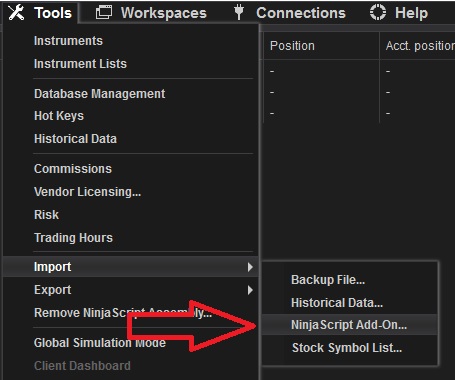
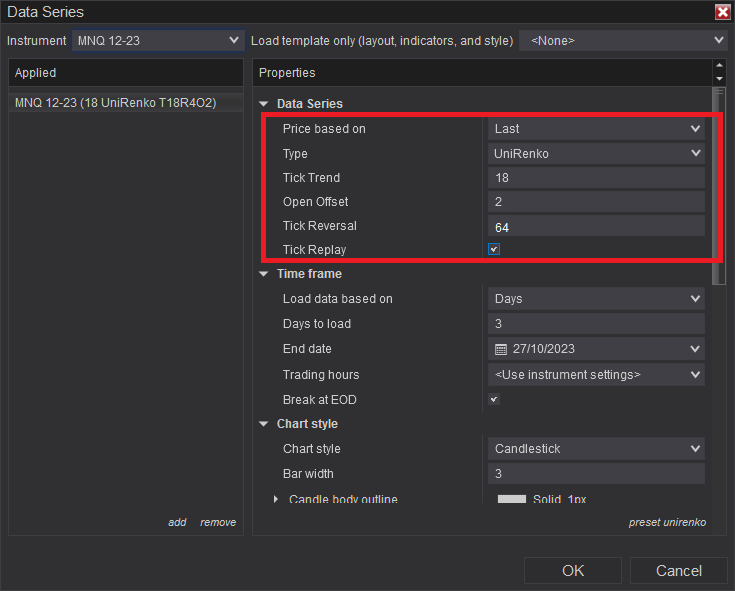
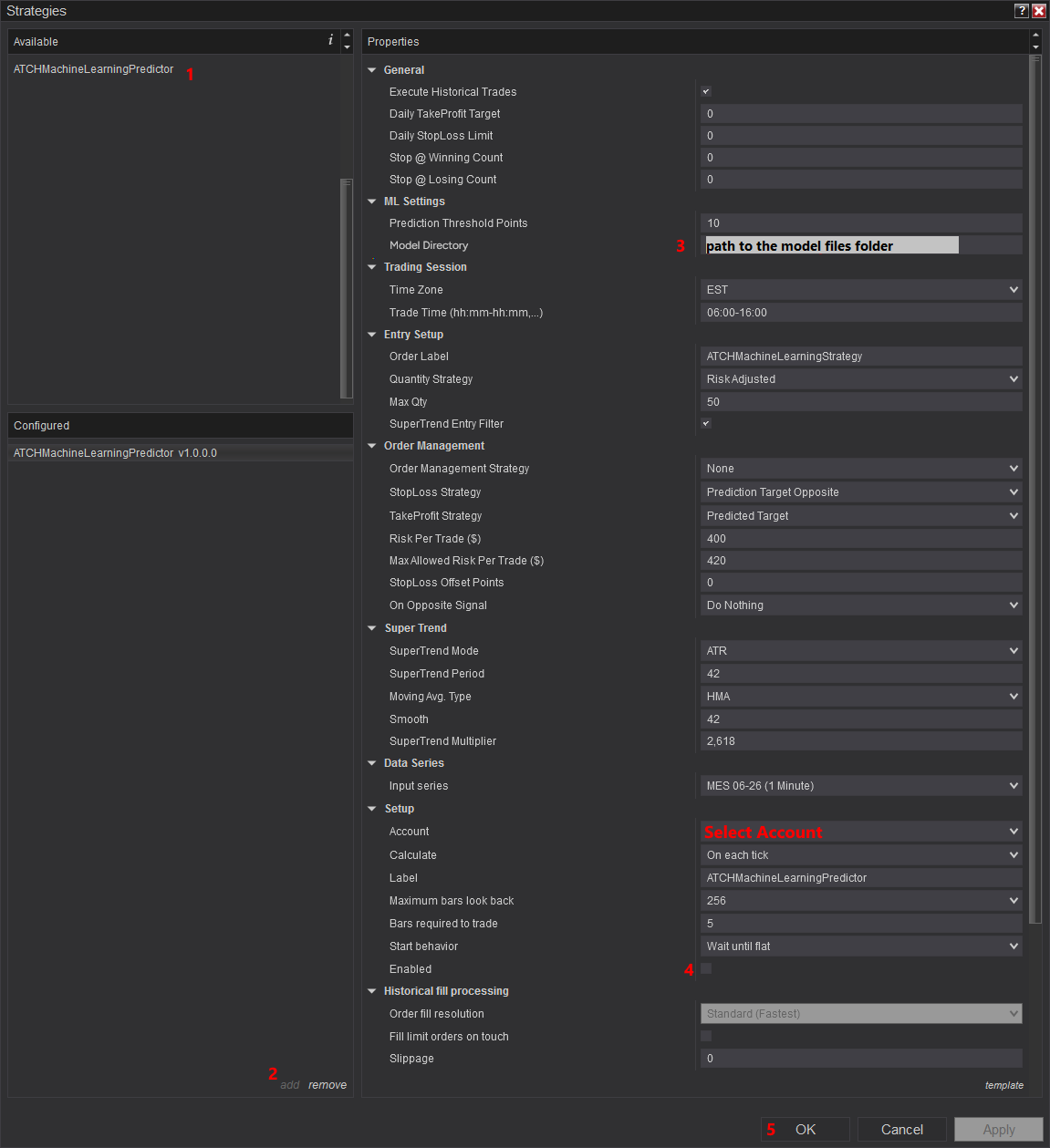
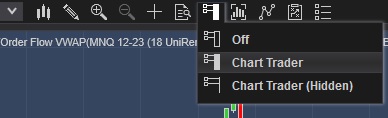
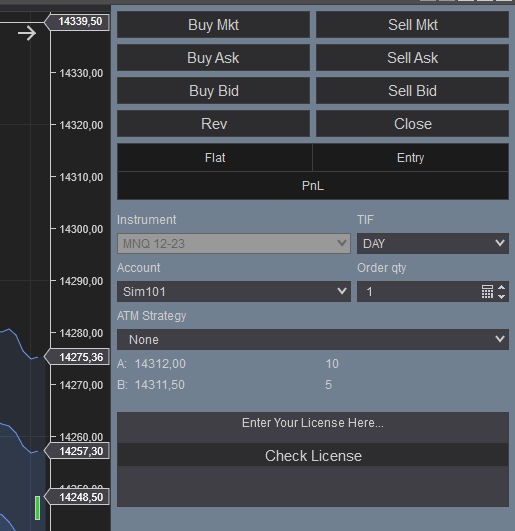
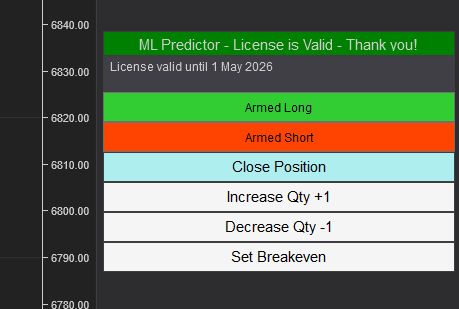
Frequently Asked Questions
General
Machine Learning & Models
Billing
Technical
Release Notes
- Added new parameter: Enable Reversal Trades
- Added Price Breakeven new parameter; Updated reversal trades bar color trigger improving performance
- Changed parameter model file to model directory to dynamically load suitable model at runtime; Added list of previous models to download for out-of-sample backtest
- Added new parameter Reversal Entry Mode
- Update of internal supertrend indicator to avoid conflict with machine learning indicator on install
- First Release of the strategy